
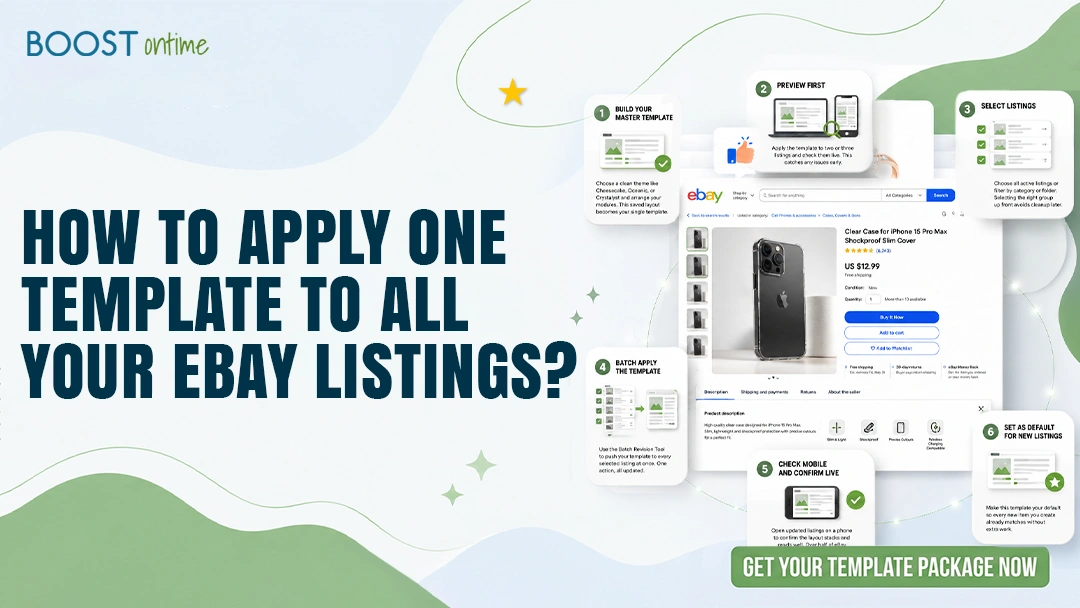
Learning how to apply one template to all your eBay listings is the fastest way to make a whole store look consistent and professional. This guide walks through doing it across new and existing listings at once, with no code and no editing items one by one.
Why Apply One Template Across All Your Listings
Applying one template to all your eBay listings is one of the highest impact changes a seller can make in an afternoon. When every item shares the same layout, header, and policy blocks, your store reads as a single professional brand instead of a pile of unrelated listings. Buyers trust consistency, and that trust shows up in conversion. A single, well built template also means you fix or improve something once and roll it out everywhere, rather than editing hundreds of items by hand.
The catch is that eBay does not retroactively apply a template you save to listings that are already live. A template you create in Seller Hub mostly helps with new listings going forward. To bring your existing catalog in line, you either edit each listing manually or use a batch tool that revises them in bulk. The second path is the one that scales, and it is what most of this guide focuses on.
💡 Key Takeaway: eBay applies a saved template to new listings, not to ones already live. To update your whole catalog at once, you need a batch revision step that pushes one template across both new and existing items.
Consistent Branding
One template means the same header, fonts, and policy blocks on every item, so your store looks like one coherent brand.
Massive Time Savings
Apply a layout across hundreds of listings in minutes instead of opening and editing each one separately.
Update Once, Apply Everywhere
Change a return policy or banner a single time, then push it to every listing rather than repeating the edit.
Reliable on Mobile
A single tested template behaves the same on every device, so you are not debugging layout on listing after listing.
Two Ways to Apply a Template to Your Listings
There are two realistic ways to get one template onto all your eBay listings, and the right choice depends on how many items you sell. For a tiny catalog, editing each listing by hand is tedious but workable. Once you pass a few dozen items, a batch tool becomes the only sane option. The comparison below shows why most growing sellers move to bulk application quickly.
Manual editing versus a batch revision tool
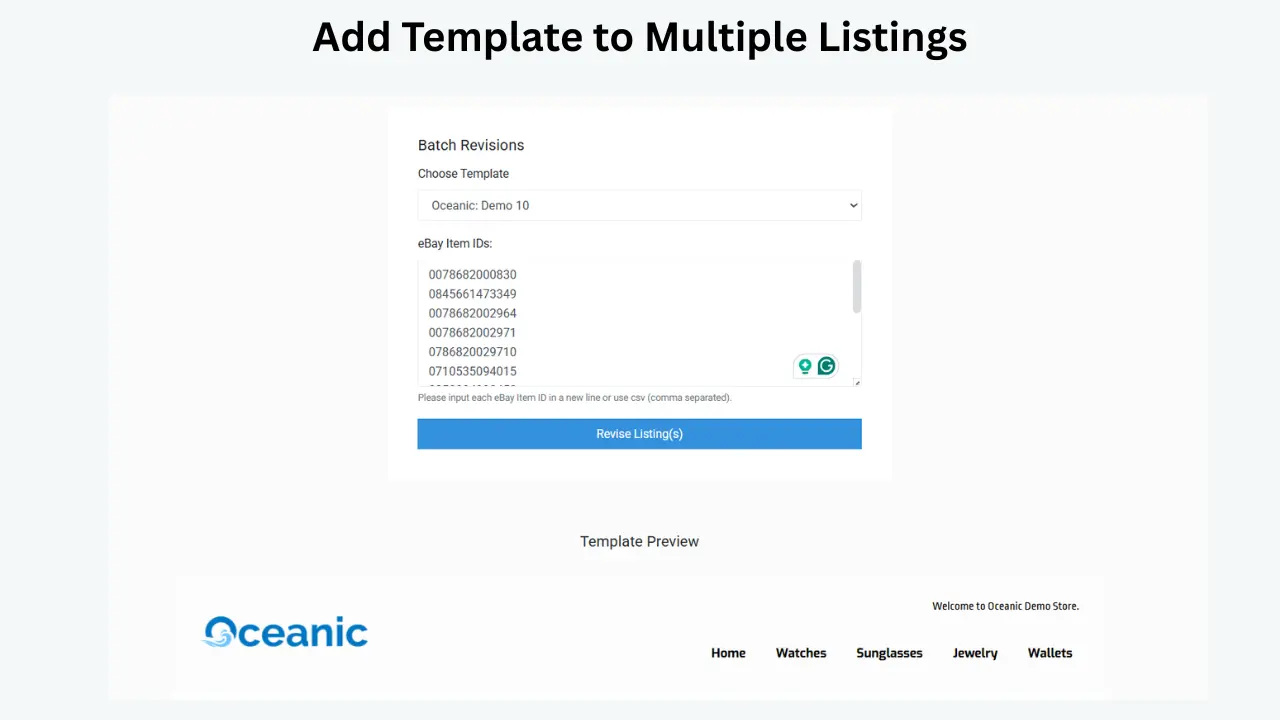
Manual editing means opening each listing, pasting your template into the description, and saving, one item at a time. It works, but it is slow and easy to get wrong, since a single missed listing breaks the consistency you were chasing. A batch revision tool flips that. You select the listings you want, apply your saved template once, and the tool updates them together. With a builder like BoostOntime, the Batch Revision Tool handles new and existing listings, so your whole store moves to the new look in one pass. If you have not built your layout yet, start by learning how to create an eBay listing template without coding.
How to Apply One Template to All Your eBay Listings Step by Step
Here is the path most sellers follow to roll one template across an entire catalog without touching code, using an officially eBay compatible application like BoostOntime.
Build or choose your master template
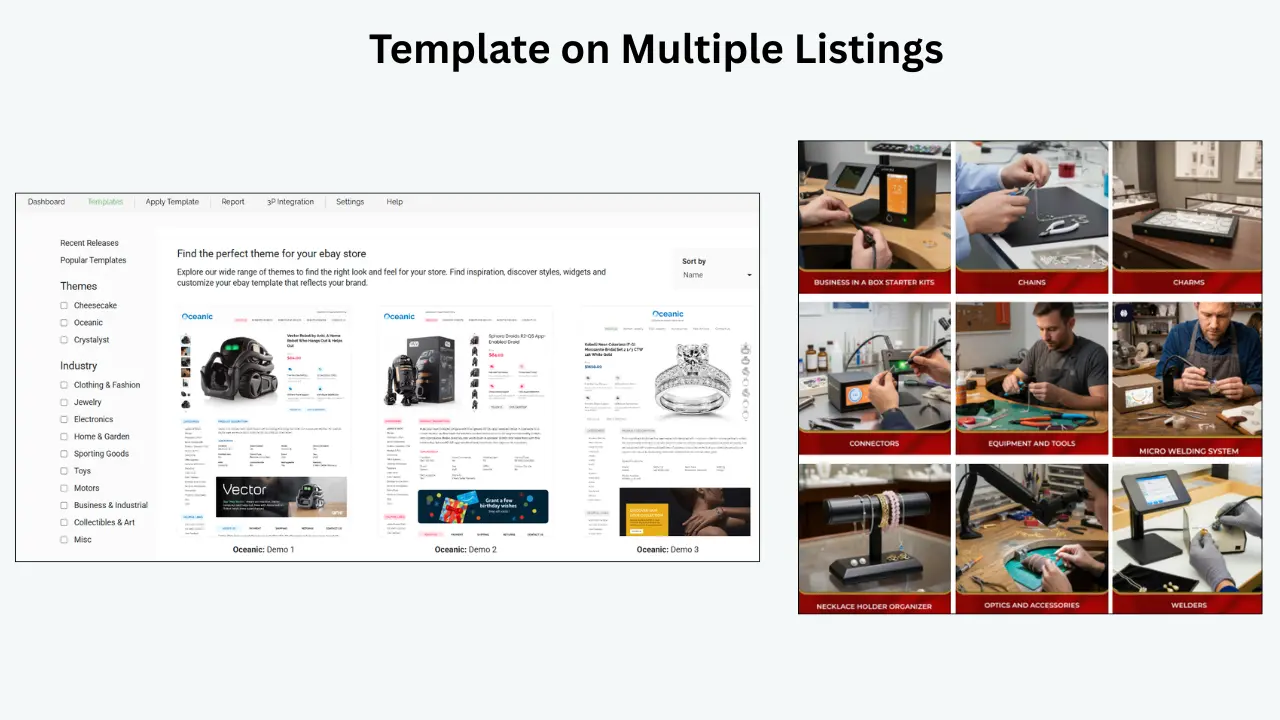
Start from a clean theme such as Cheesecake, Oceanic, or Crystalyst and arrange your modules. This saved layout becomes the single template you will apply everywhere.
Preview on a few listings first
Before touching your whole catalog, apply the template to two or three listings and check them live. This catches any spacing or image issues while the change is still small.
Select the listings to update
Choose all of your active listings, or filter by category or folder if you want different looks for different product lines. Selecting the right group up front avoids cleanup later.
Apply the template in batch
Use the Batch Revision Tool to push your saved template to every selected listing at once. The tool updates the description layout across the group in a single action instead of item by item.
Check mobile and confirm live
Open a handful of updated listings on a phone to confirm the layout stacks and reads well. More than half of eBay buyers shop on mobile, so this check matters.
Set it as your default for new listings
Make the same template your default going forward, so every new item you create already matches without extra work.
Best Practices and Mistakes to Avoid
Bulk changes are powerful, which also means a small mistake reaches every listing at once. These habits keep a mass update smooth and easy to reverse, and they pair well with the steps to update an existing template for better performance.
- Always preview on a few listings before applying a template to your whole catalog.
- Keep product specific details, like measurements and part numbers, in fields that survive the template change.
- Avoid active content such as JavaScript, since eBay strips it and it can break your layout.
- Update your policy and shipping blocks before the batch run so the new info lands everywhere at once.
- Apply changes during a quiet sales window so any quick fix does not interrupt active buyers.
- Save your previous layout so you can reapply it if you want to roll a change back.
💡 Key Takeaway: Preview small, then apply big. One careful test on a few listings prevents a layout error from repeating across your entire store.
Results Sellers Get From One Consistent Template
These are the patterns sellers tend to see after rolling a single template across their whole catalog. Treat them as direction rather than guarantees, since results vary by store size and category.
Time and Operations
Conversion and Trust
Frequently Asked Questions
Here are the questions sellers ask most often about applying one template across all their eBay listings.
Yes. While eBay only applies a saved template to new listings by default, a batch revision tool can push one template across all your existing listings together. With a builder like BoostOntime, you select the listings, apply your saved template once, and the Batch Revision Tool updates them in a single pass.
No. A template you save in Seller Hub mainly applies to new listings you create from it. Listings that are already live keep their old layout until you update them, either by editing each one manually or by using a batch tool that revises them in bulk.
Use a drag and drop builder instead of raw HTML. You design your template visually, save it, then apply it to selected listings with a batch tool. There is no code to write. BoostOntime, an officially eBay compatible application, lets you build and bulk apply templates this way.
No, if you do it correctly. The template controls the layout and shared blocks like headers and policies, while product specific fields such as titles, prices, and item specifics stay intact. Always preview on a few listings first to confirm your details carry over before applying to the whole catalog.
Who Benefits Most From One Shared Template?
Sellers Scaling Their Catalog
Sellers who started small and now have too many listings to format one by one need a single template applied in bulk.
Brand Focused Stores
Stores that want every listing to share the same look so the storefront feels like one consistent brand.
Sellers Refreshing Old Listings
Sellers with aging listings who want to modernize their whole catalog in a single update rather than piece by piece.
Multi Site Sellers
Sellers listing across several marketplaces who need one template applied consistently across all 19 global eBay sites.
Apply One Template
Across Your Whole Store
Build a template once, then push it to every new and existing listing with the Batch Revision Tool. No code, no editing items one by one, and an officially eBay compatible build.
🚀 Start Your Free 7-Day Trial
No credit card required · Cancel anytime · Full platform access from day one