
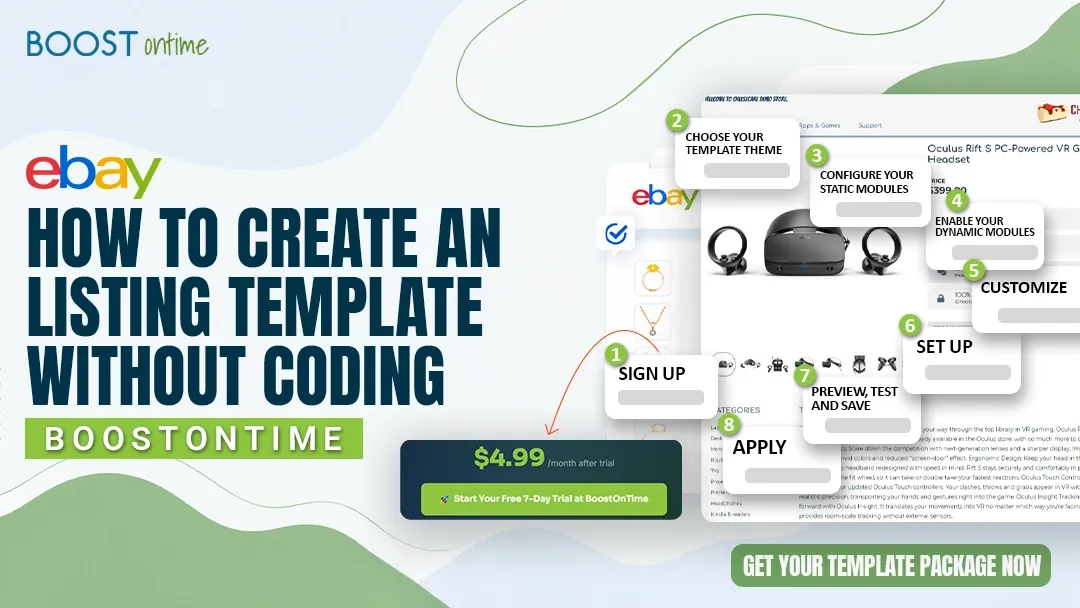
A professional eBay listing template is the single biggest upgrade you can make to your store. This guide walks you through every step, from choosing a theme to pushing your new design across your entire catalog in one click, with zero HTML required.
📋 Table of Contents
- 1What Is an eBay Listing Template and Why Does It Matter?
- 2DIY HTML vs. a Template Builder: Which Should You Use?
- 3Step-by-Step: How to Create an eBay Listing Template without Coding
- 4Static vs. Dynamic Modules: What to Include
- 5Template Design Tips That Drive Conversions
- 6How to Apply Your Template to All Listings at Once
- 7What Results Can You Expect?
- 8Frequently Asked Questions
What Is an eBay Listing Template and Why Does It Matter?
An eBay listing template is a pre-built, branded HTML layout that wraps around your individual product listings. Instead of each item looking like a plain text page, your listing displays a professional storefront complete with your logo, brand colors, store policies, related product suggestions, and a consistent visual identity across every item you sell.
Think of it like the difference between a market stall with hand-written signs versus a polished retail shop. Both sell products, but buyers instinctively trust one more than the other.
Why eBay Templates Directly Affect Your Sales
Buyer Trust
Professional-looking listings signal legitimacy. Buyers are more confident purchasing from a store that looks established, reducing bounce rates and abandoned carts.
Higher Conversion Rate
Structured listings with clear policies, quality images, and visual hierarchy consistently convert 12–18% better than plain listings.
Cross-Selling & Upselling
Templates with a Related Products module automatically show buyers other items from your store, increasing average order value by $25 to $40 per transaction.
Massive Time Savings
Set up your template once and apply it to thousands of listings. You never have to manually format individual items again. Your store stays consistent automatically.
The Cost of Not Having a Template
Sellers without professional templates are losing trust with every plain listing they publish. In a marketplace where buyers have hundreds of options, your listing’s appearance is often the deciding factor, not just the price.
DIY HTML vs. a Template Builder: Which Should You Use?
There are two ways to create an eBay listing template. Understanding the trade-offs helps you pick the right approach for your situation.
For the vast majority of eBay sellers, especially those managing 20 or more listings, a dedicated template builder like BoostOnTime delivers far better results in far less time at a fraction of the cost. The only exception would be a brand with extremely unique design requirements and a dedicated in-house developer.
Step-by-Step: How to Create an eBay Listing Template without Coding
Here is exactly how to create a professional eBay listing template using BoostOnTime — the eBay Compatible Application trusted by 1,500+ active sellers and 1M+ managed listings worldwide.
Sign Up and Start Your Free 7-Day Trial
Visit boostontime.com and create your account. No credit card is required. You get full access to every feature — all templates, all modules, the Batch Revision Tool — from day one. The entire signup takes under two minutes: just your eBay username and email address.
Choose Your Template Theme
BoostOnTime offers three professionally designed themes, each optimized for different store aesthetics:
- 🎂 Cheesecake — Clean and light. Great for fashion, home goods, and lifestyle products.
- 🌊 Oceanic — Cool blue tones. Ideal for electronics, tech accessories, and automotive parts.
- 💎 Crystalyst — Modern, crystal-clear layout. Perfect for luxury items, collectibles, and premium goods.
Need something completely bespoke? Custom designs are available on request from the BoostOnTime team.
Configure Your Static Modules (Set Once, Applied Everywhere)
Static modules are the elements that stay consistent across all your listings. They represent your brand identity, store information, and trust signals. Set them once and they automatically appear on every listing you apply the template to.
Key static modules to configure: Logo, Header Menu (link to your store categories), Greeting / About section, Why Buy From Us, Store Policy Tabs (shipping, returns, payments), and Banner Images for promotions or seasonal offers.
Enable Your Dynamic Modules (Auto-Pulled From Each Listing)
Dynamic modules automatically pull real-time data directly from your eBay listing, so they are always accurate with zero manual updating needed. Enable the modules relevant to your product type and selling style.
Core dynamic modules: Product Title & Price, Currency (adapts to the buyer’s local eBay site), Product Image Gallery, eBay Category breadcrumb, and Related Products (your upselling engine).
Customize the Layout, Colors, and Fonts with the Drag-and-Drop Editor
Arrange your modules in the order that best guides buyers through your listing. BoostOnTime’s drag-and-drop editor requires no HTML knowledge. Drag modules up or down to reorder, toggle them on or off, and adjust your brand colors and font preferences. Preview your template on both desktop and mobile before saving to make sure it looks polished on every device.
Set Up Your Upselling / Related Products Section
This is the step most sellers skip, and it is one of the highest-ROI features available. Inside your template editor, configure the Related Products module. You can choose to show randomly selected items from your store (zero maintenance) or manually curate specific products to appear as upsell recommendations. Sellers using this module see average order value increase by $25 to $40 per transaction.
Preview, Test and Save Your Template
Before going live, preview your template against real listing data. Check it on a phone screen, since more than 60% of eBay buyers shop on mobile. Verify your logo loads correctly, your policy tabs expand properly, and your related products module is showing the right items. When everything looks right, save and name your template. You can create and save multiple templates for different product categories, seasonal campaigns, and more.
Apply to Your Listings Using the Batch Revision Tool
This is where BoostOnTime separates itself from every alternative. Select the listings you want to update, whether that is all of them, a specific category, or a custom selection, and apply your new template with a single click. BoostOnTime’s Batch Revision Tool pushes the update instantly across all selected listings without taking them offline. What would take hours of manual work per listing takes seconds.
🏆 eBay Compatible Application
BoostOnTime is an officially eBay Compatible Application, meaning it is reviewed, approved, and trusted by eBay itself. Your templates are always compliant with eBay’s current policies, and updates are handled automatically when eBay’s rules change. You never risk policy violations that could hurt your seller rating.
Static vs. Dynamic Modules: What to Include
BoostOnTime gives you 20+ modules to build your template from. Understanding the difference between static and dynamic modules helps you design a template that’s both on-brand and effortlessly maintained.
🔒 Static Modules: Set Once
- Logo & Store Branding
- Header Navigation Menu
- Greeting / Welcome Section
- Why Buy From Us
- Store Policy Tabs (Shipping, Returns, Payments)
- Wide Banner Images
- Side Mini Banners
- Helpful Links Section
- Newsletter Sign-up
- Feedback / Reviews Display
⚡ Dynamic Modules: Auto-Updated
- Product Title (pulled from eBay listing)
- Product Price (auto-updated)
- Currency (adapts to local eBay site)
- Product Image Gallery
- Product Description
- Product Specifications
- eBay Category Breadcrumb
- Related / Recommended Products
- eBay Seller Feedback Score
Which Modules Have the Biggest Impact on Sales?
Template Design Tips That Drive Conversions
A template that looks professional but is poorly structured can still underperform. These design principles separate high-converting eBay templates from mediocre ones.
Visual Hierarchy
Guide buyers through your listing in a logical order: (1) Product images, (2) Title & Price, (3) Key selling points, (4) Description and specs, (5) Policy tabs, (6) Related products. When buyers can scan your listing in a natural flow, they convert faster.
Mobile-First Thinking
Over 60% of eBay traffic comes from mobile devices. Every BoostOnTime template is fully mobile responsive right out of the box. When customizing, always preview on a simulated mobile screen. Avoid overly small text, make sure buttons and tabs are tap-friendly, and do not stack too many modules that force excessive scrolling on small screens.
Brand Consistency
Use your actual brand colors rather than the template’s default palette. Upload a high-resolution logo (at least 300px wide). Consistent branding across all your listings builds recognition. Repeat buyers will instantly recognize your store, which builds the loyalty that drives five-star reviews and repeat purchases.
Don’t Over-Clutter
More modules does not mean better performance. A focused template with 6 to 8 well-chosen modules consistently outperforms a template crammed with every available element. Pick the modules that matter for your product category and buyer type, then cut everything else.
Seasonal Updates Are Easy
With BoostOnTime, swapping your banner image for a Christmas sale promotion or updating your “Why Buy From Us” section for peak season takes minutes. The Batch Revision Tool pushes the change to every listing instantly. This is a powerful advantage that traditional templates simply cannot match.
How to Apply Your Template to All Listings at Once
This is the feature that saves eBay sellers hundreds of hours per year. Once your template is ready, you don’t need to open each listing individually and paste code. BoostOnTime’s Batch Revision Tool handles everything.
Open the Batch Revision Tool
Inside your BoostOnTime dashboard, navigate to the Batch Revision Tool. This is where all bulk operations are managed.
Select Your Target Listings
Choose all active listings, a specific eBay category, or a custom selection of individual items. You have full control over scope.
Select the Template to Apply
Choose which template to push from your saved templates. If you have multiple templates (e.g., one for electronics, one for collectibles), select the right one for each batch.
Click Apply and You Are Done
BoostOnTime replaces the old HTML in your listings with the new template across unlimited listings, including all 19 global eBay sites you sell on, without taking your listings offline or disrupting live sales. The process runs in the background while you get on with your day.
What Results Can You Expect?
Here is what BoostOnTime’s 1,500+ active sellers, managing over 1 million listings, typically see after switching to professional templates.
Conversion & Revenue
What Sellers Say
“We applied BoostOnTime templates to 2,000+ listings in one afternoon. The professional look immediately improved buyer confidence and we saw a measurable conversion lift within the first week.”
“The batch revision tool alone is worth the subscription many times over. What used to take my team three days now takes a single click. The template quality is excellent.”
“We were spending hundreds on custom HTML templates that broke every time eBay updated their policies. BoostOnTime handles all of that automatically. No more developer bills.”
99% Customer Satisfaction
Across 1,500+ active users and 1M+ managed listings, BoostOnTime maintains a 99% customer satisfaction rating. The combination of professional templates, zero-code customization, and genuine time savings keeps sellers coming back and referring others.
Frequently Asked Questions
These are the questions eBay sellers most commonly ask before creating their first template with BoostOnTime.
Is BoostOnTime the Right Tool for You?
Sellers with 20+ Active Listings
At this scale, manual template management is unsustainable. BoostOnTime’s batch tools save 5 to 10 hours per week and keep your store looking consistent at any volume.
International eBay Sellers
Selling across US, UK, Canada, Australia and beyond? One BoostOnTime template works across all 19 global eBay sites with automatic currency adaptation.
Multi-Channel Sellers
Managing inventory through ChannelAdvisor, Linnworks, or Sellbrite? BoostOnTime integrates natively with 10+ platforms so your template workflow fits inside the tools you already use.
Sellers Replacing Custom HTML Templates
Spent $300 to $1,000 on a custom template that now needs updating every time eBay changes its rules? BoostOnTime covers all future updates for $4.99 per month, saving you developer costs indefinitely.
Your Professional eBay Template
Is Ready in 30 Minutes.
Stop losing sales to plain, unprofessional listings. Build a high-converting eBay template today with no HTML, no freelancers, and no hidden costs. Apply it to your entire catalog in one click.
🚀 Start Your Free 7-Day Trial at BoostOnTime
No credit card required · Cancel anytime · All templates & modules included · Officially eBay Compatible