
How to Ensure an eBay Listing Template Loads Quickly for Faster Product Uploads
Learn how lightweight HTML, optimized images, responsive layouts, and BoostOnTime ETB help eBay sellers create and update listings faster.
📋 In This Guide
- 1Quick Answer: What Makes a Template Load Faster?
- 2What Does “Loads Quickly” Actually Mean?
- 3What Usually Slows Down an eBay Template?
- 4How to Diagnose a Slow Template
- 5Practical Performance Targets
- 6How Does BoostOnTime Help?
- 7What Is BoostOnTime ETB?
- 8Why Mobile Responsiveness Matters
- 9How BoostOnTime Keeps Templates Focused
- 10Detailed Explanation of BoostOnTime Modules
- 11Static and Dynamic BoostOnTime Modules
- 12How BoostOnTime Supports Faster Updates
- 13Replacing Old HTML With a Fresh Template
- 14BoostOnTime Themes
- 15Support for 19 eBay Sites
- 16Multichannel Software Support
- 17Secure eBay Connection
- 18Step-by-Step BoostOnTime Process
- 19BoostOnTime Pricing
- 20Manual Templates vs BoostOnTime ETB
- 21Which Sellers Benefit Most?
- 22Frequently Asked Questions
- 23Final BoostOnTime Checklist
In the fast-moving world of eBay selling, every second can shape a buyer’s decision. A shopper may click your product with interest, but if the listing loads slowly or looks messy, that interest can fade before your product gets a fair chance.
When a template loads slowly, looks cluttered, or makes important information difficult to find, buyers may leave without discovering how good the product actually is. The problem is often not the offer, price, or seller reputation. It is the invisible structure behind the listing.
A fast-loading eBay listing template removes that friction. Lightweight code, optimized images, responsive design, and clearly organized content help buyers access product information quickly. For sellers, reusable layouts, dynamic product fields, and batch-revision tools can also reduce the time required to apply and manage templates.
This guide explains what makes an eBay listing template slow, how to identify the exact problem, which eBay requirements must be followed, and how BoostOnTime ETB helps sellers create responsive templates and update multiple listings with less manual work.
Quick Answer: What Makes an eBay Template Load Faster?
A fast-loading eBay listing template should have:
- Clean and lightweight HTML
- A limited amount of CSS
- Properly compressed images
- Responsive widths and dimensions
- No JavaScript or unsupported active content
- Few external files or third-party resources
- A clear mobile reading order
- Only the modules required for the product
Faster product uploading requires something different. Sellers need reusable template sections, automatically populated product information, and a way to apply the template across multiple listings.
💡 Key Takeaway: This is why loading speed and product-upload speed should be optimized separately.
What Does “Loads Quickly” Actually Mean?
Template speed can refer to three different parts of the listing process.
What Usually Slows Down an eBay Template?
Oversized banners and graphics
Large banners are a common source of unnecessary weight. A seller may upload a 3,000-pixel-wide design even though the template displays it at less than 700 pixels.
The browser must still download the original file before resizing it visually.
Too many description images
eBay’s native gallery already presents product photographs. Repeating every gallery image inside the description may create additional loading work and make the listing unnecessarily long.
Use description images only when they provide extra value, such as:
- A size chart
- A compatibility diagram
- Installation instructions
- A feature comparison
- A product-detail close-up
- An infographic that answers common questions
Outdated HTML
Templates that have been edited repeatedly may contain:
- Empty HTML elements
- Duplicate styles
- Unclosed tags
- Old table-based layouts
- Unused classes
- Formatting copied from Word or other editors
- Code from previous template providers
- References to deleted assets
This code can make templates difficult to maintain and may cause inconsistent displays.
Full CSS frameworks
Adding a complete CSS framework for a few buttons, columns, or headings introduces far more code than the listing needs.
A focused template should contain only the styles required for its actual modules.
External fonts and icons
Every external font or icon library creates another request. If the third-party server is slow, unavailable, or blocked, the template may display incorrectly.
A system-font stack is usually sufficient for an eBay description.
Broken external resources
Old templates may still request banners, images, or CSS files that no longer exist. These failed requests waste time and can leave blank spaces in the template.
Fixed desktop layouts
A template with a fixed desktop width may force mobile visitors to scroll sideways. Oversized tables, banners, and specification sections are common causes.
Excessive promotional content
Store banners, feedback boxes, related products, newsletter sections, category menus, and promotional messages can all be useful. However, including every module on every listing can make the description longer and distract from the product.
How to Diagnose a Slow eBay Listing Template
Sellers should test the template before making changes. Otherwise, they may remove useful content without addressing the real problem.
Method 1: Perform a basic mobile test
Open the live listing on:
- The eBay mobile app
- Chrome on an Android device
- Safari on an iPhone
- A desktop browser with a narrow window
Check the following:
- Does the product information appear before promotional content?
- Do images fit within the screen?
- Is horizontal scrolling required?
- Are specification tables readable?
- Do any sections appear blank?
- Are fonts large enough to read without zooming?
- Do related products display properly?
- Are shipping and return details easy to find?
Method 2: Test with a slower connection
A template may appear fast on an office connection but perform differently for a mobile buyer.
Chrome DevTools can simulate slower connections:
- Open the live listing in Chrome.
- Open Developer Tools.
- Select the Network panel.
- Choose a slower connection from the throttling menu.
- Clear the cache and reload the page.
- Watch which files take the longest to load.
Chrome’s Network panel shows the resource type, file size, loading time, initiator, and response status. See the Chrome DevTools Network guide.
Because the seller does not control the entire eBay page, the test should focus on assets added by the description template. Compare the same listing before and after changing the template rather than treating the total eBay page score as a measurement of the template alone.
Method 3: Check for unnecessary requests
Look for:
- Large template banners
- External CSS files
- Custom font files
- Repeated image requests
- Missing files returning errors
- Assets loaded from slow third-party domains
- Resources no longer used by the visible template
Template Problem Diagnostic Table
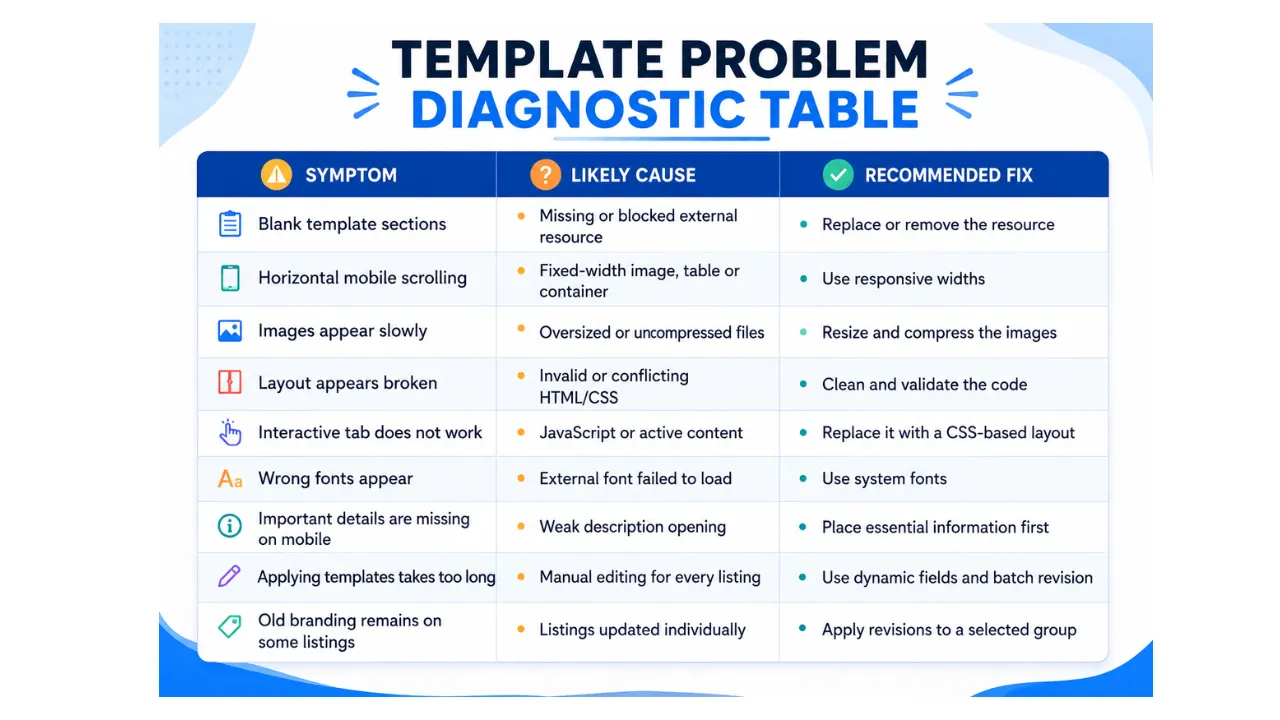
Practical Performance Targets
eBay does not publish a required loading-time score specifically for seller-created description templates. However, sellers can use the following as practical internal targets.
These are working recommendations, not official eBay limits:
- Use no JavaScript, Flash, plugins, or forms.
- Keep external font requests at zero where possible.
- Avoid full CSS frameworks.
- Keep each decorative banner as small as reasonably possible.
- Aim to keep individual branding graphics below approximately 150–200 KB.
- Keep the total decorative-image payload below approximately 1 MB where practical.
- Avoid failed or redirected asset requests.
- Ensure content works at a screen width of approximately 320 pixels.
- Make key product information understandable within the opening 800 characters.
- Test at least one listing from every major template type.
The correct image weight depends on image complexity and required quality. Sellers should compress files without making product details unclear or unreadable.
How Does BoostOnTime Help?
BoostOnTime helps sellers improve the eBay template process in four important ways:
Responsive by Design
It provides responsive templates designed for desktop, tablet, and mobile screens.
Only the Modules You Need
It allows sellers to enable only the modules their listings need.
Automatic Data Collection
It automatically collects supported product information from existing eBay listings.
Individual or Group Updates
It lets sellers apply templates individually or to selected groups of active listings.
BoostOnTime does not make a seller’s internet connection faster, and it is not a complete product-inventory upload platform. Its main purpose is to make the eBay description-template process easier, more consistent, and less dependent on manual HTML editing.
What Is BoostOnTime ETB?
ETB stands for eBay Template Builder.
BoostOnTime ETB is an online tool that helps sellers create, customize, and apply professional description templates to their eBay listings.
An eBay description template controls how information is organized inside the description area. It can include:
- Store branding
- Product title and price
- Product images
- Product description
- Specifications
- Store categories
- Shipping and return policies
- Helpful links
- Promotional banners
- Seller feedback
- Related products
Without a template builder, sellers may need to write HTML manually, copy an old listing, or hire a developer whenever they want to change their design.
With BoostOnTime, sellers can choose a template, customize its modules, preview the design, and apply it to existing listings without writing the complete HTML themselves.
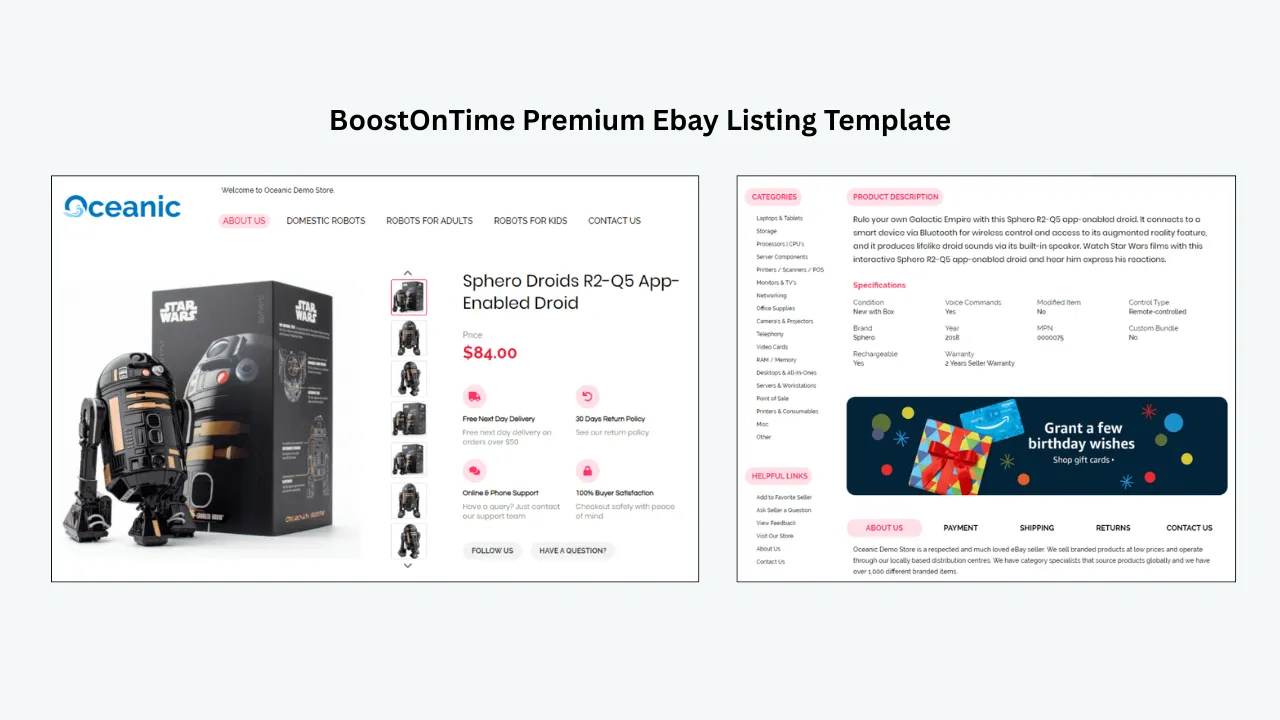
The BoostOnTime website currently reports:
These figures are reported on the BoostOnTime eBay Template Builder page.
Why Mobile Responsiveness Matters
A mobile-responsive template automatically adjusts to the device being used.
A buyer may open your listing on:
- A desktop computer
- A laptop
- A tablet
- A large smartphone
- A smaller smartphone
- The eBay mobile app
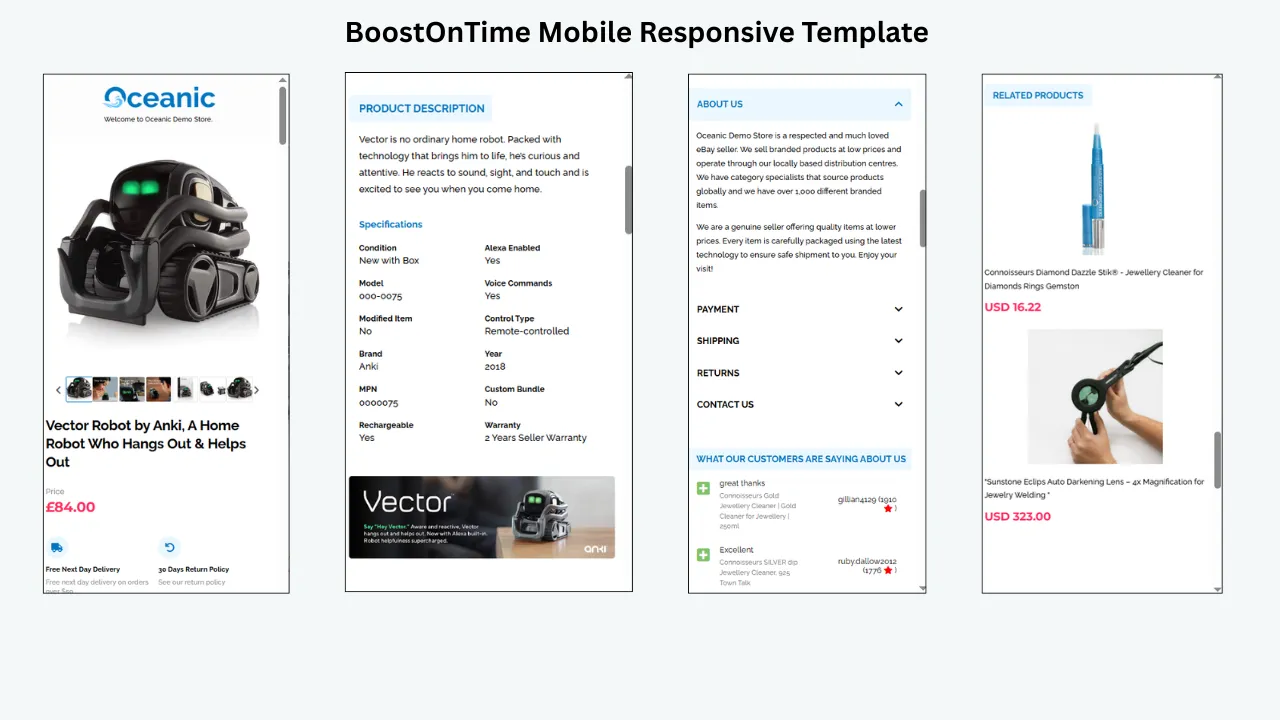
A desktop-only design may look attractive on a large monitor but become difficult to use on a phone.
For example, a non-responsive template may cause:
- Product images to extend beyond the screen
- Two-column sections to become too narrow
- Specification tables to be cut off
- Text to appear too small
- Buyers to scroll sideways
- Menus and links to become difficult to select
- Policy sections to become difficult to read
BoostOnTime describes its eBay templates as fully responsive and optimized for tablets and mobile devices. Sellers can also preview the template before applying it to their listings.
What should a responsive BoostOnTime template do?
A properly configured responsive template should:
- Fit within the buyer’s screen
- Resize images according to the available space
- Stack content sections on smaller screens
- Keep headings and body text readable
- Present specifications without unnecessary horizontal scrolling
- Keep product details above less important promotional content
- Make shipping and return information easy to find
- Display related products in a mobile-friendly arrangement
Does responsive design automatically compress images?
No. Responsive design controls how an image is displayed, but it does not necessarily reduce the original file size.
For example, a 3,000-pixel banner may appear correctly on a phone because the template scales it down. However, the buyer’s browser may still need to download the original large file.
Sellers should therefore optimize logos, banners, and promotional graphics before adding them to the BoostOnTime template. A useful image process is:
Crop
Crop unnecessary empty space.
Resize
Resize the image to the dimensions actually required.
Compress
Compress the file.
Check readability
Check that text and product details remain readable.
Upload
Upload the optimized version.
Preview
Preview it on desktop and mobile devices.
BoostOnTime provides the responsive structure, while the seller should still use appropriately prepared images.
How BoostOnTime Helps Keep Templates Focused
One of BoostOnTime’s most useful features is its module-based system.
A module is simply a section of the listing template. Instead of forcing every seller to use the same complete design, BoostOnTime allows users to select and customize the modules they need. This is important for loading speed and usability because not every listing requires every module. For example:
Clothing sellers
May need a gallery, size information, description, policies, and related products.
Electronics sellers
May need detailed specifications, compatibility information, and helpful links.
Auto-parts sellers
May need part details, specifications, fitment information, and store categories.
Jewelry sellers
May prefer a more visual design with product images, materials, dimensions, and trust information.
Sellers can disable modules they do not need. This can keep the listing shorter, easier to navigate, and more focused on the product.
Detailed Explanation of BoostOnTime Modules
BoostOnTime lists more than 20 customizable modules. Let’s examine what the main modules do and when sellers should use them.
1. Logo Module
The Logo module displays your store or brand logo inside the template. It helps buyers recognize your business and creates a consistent appearance across different listings.
For the best result:
- Use a clear, high-quality logo.
- Remove unnecessary empty space around it.
- Keep the file size reasonable.
- Make sure it remains readable on a phone.
- Avoid making the logo larger than the product information.
The logo should support your listing, not become the first and largest thing buyers see.
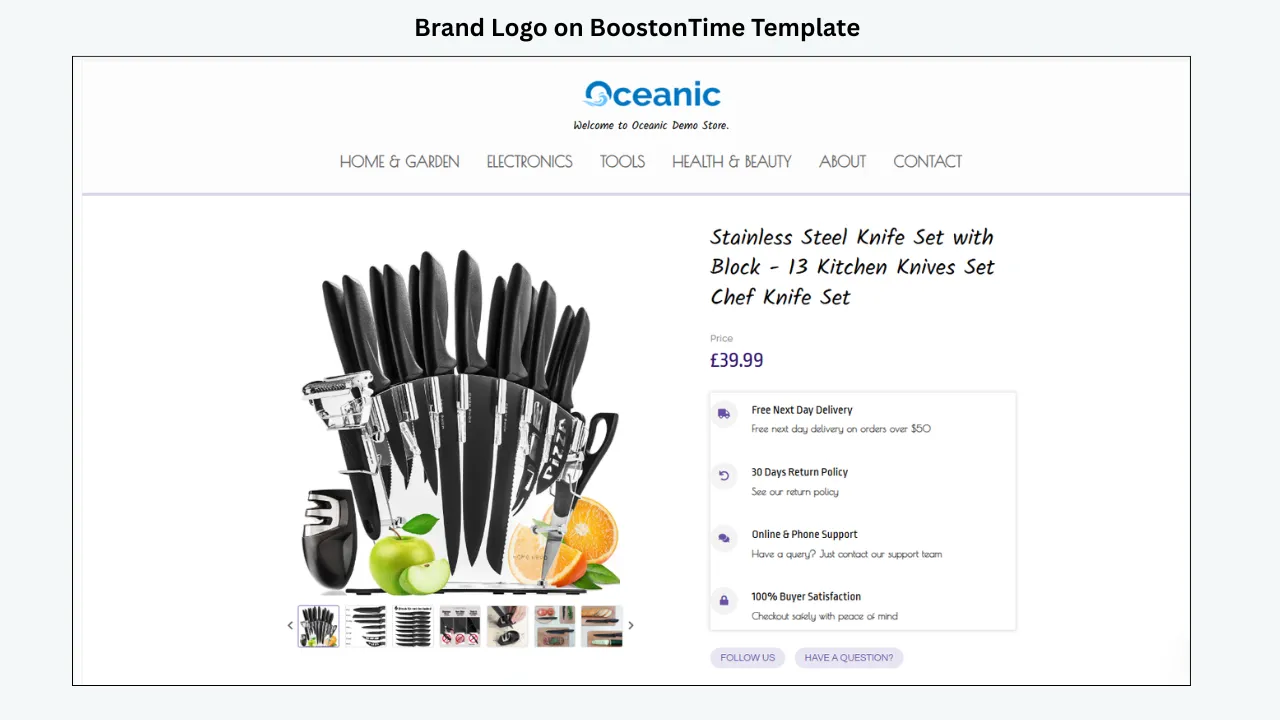
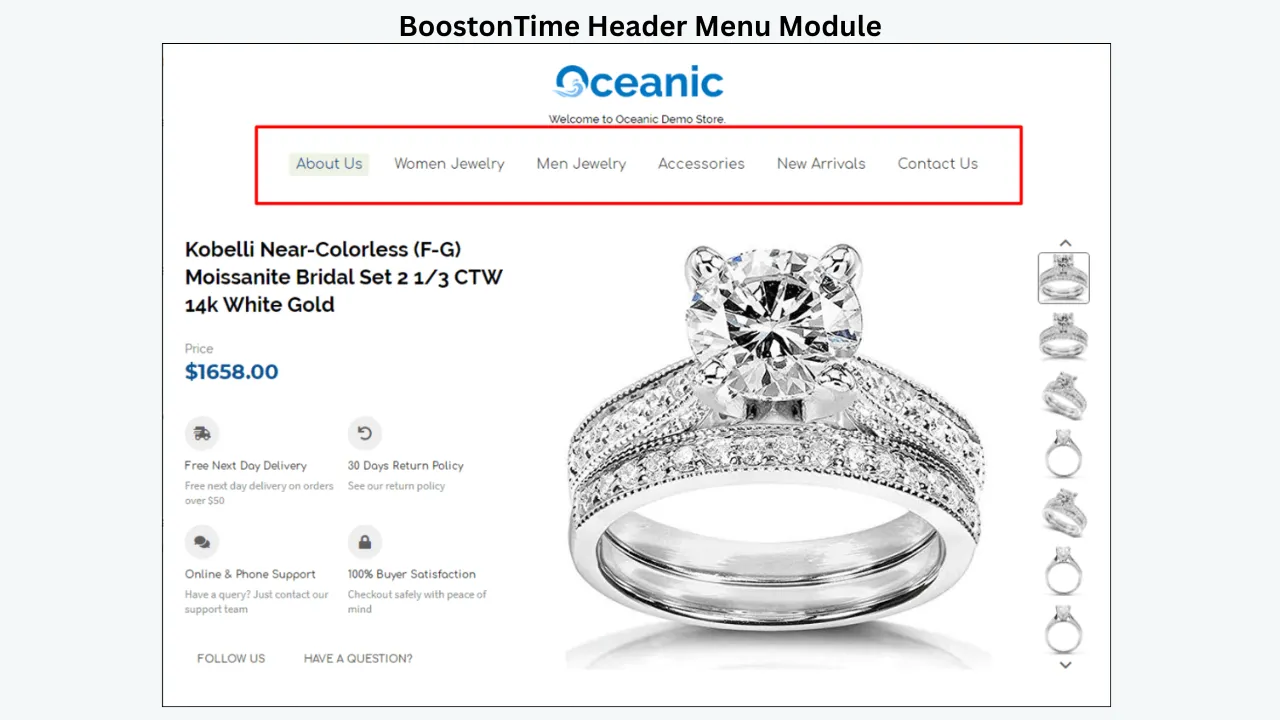
2. Header Menu Module
The Header Menu module provides navigation links near the top of the template. Depending on your store setup, it may direct buyers toward:
- Store categories
- New arrivals
- Popular products
- About the seller
- Shipping information
- Return information
- Other helpful store pages
A menu can make the template easier to navigate, but it should remain simple. Too many links can make a mobile header crowded.
3. Title and Price Module
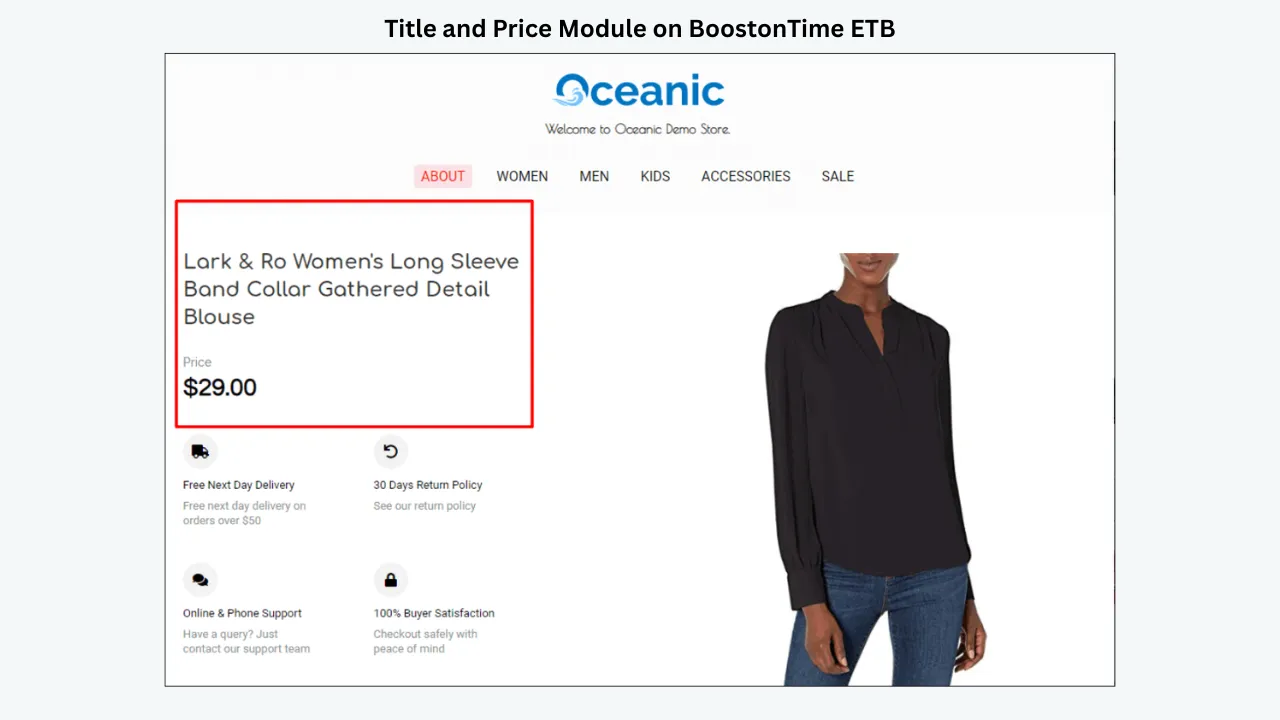
The Title and Price module displays important product information inside the designed template.
BoostOnTime identifies the product title, price, and currency as dynamic information. This means the system can collect the information from the current eBay listing when the template is applied.
If you apply the same template to several products, each listing should display its own title, price, and currency rather than requiring you to enter the information manually. This is particularly useful for stores selling products across different eBay marketplaces and currencies.
The information in the template should match the official eBay listing fields. Sellers should still enter and maintain the correct title and price through eBay.
4. Gallery Module
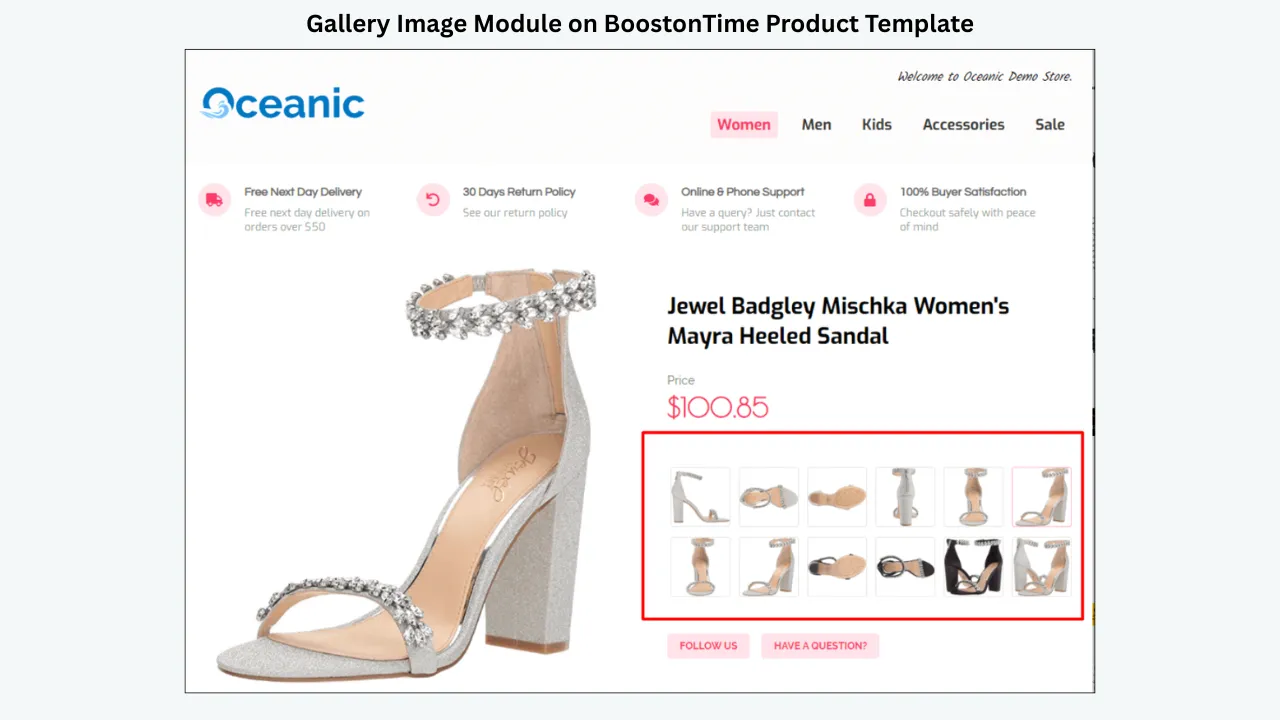
The Gallery module displays product images within the template.
According to BoostOnTime, supported product images can be collected from the existing eBay listing and populated when the template is applied. This saves sellers from manually inserting image links into each template.
However, sellers should still review the source images before applying the template. Check that:
- The images belong to the correct product.
- The main image appears first.
- There are no duplicate images.
- The images are clear and professional.
- Old packaging or discontinued variations are not shown.
- The images display properly on mobile devices.
5. Why Us Module
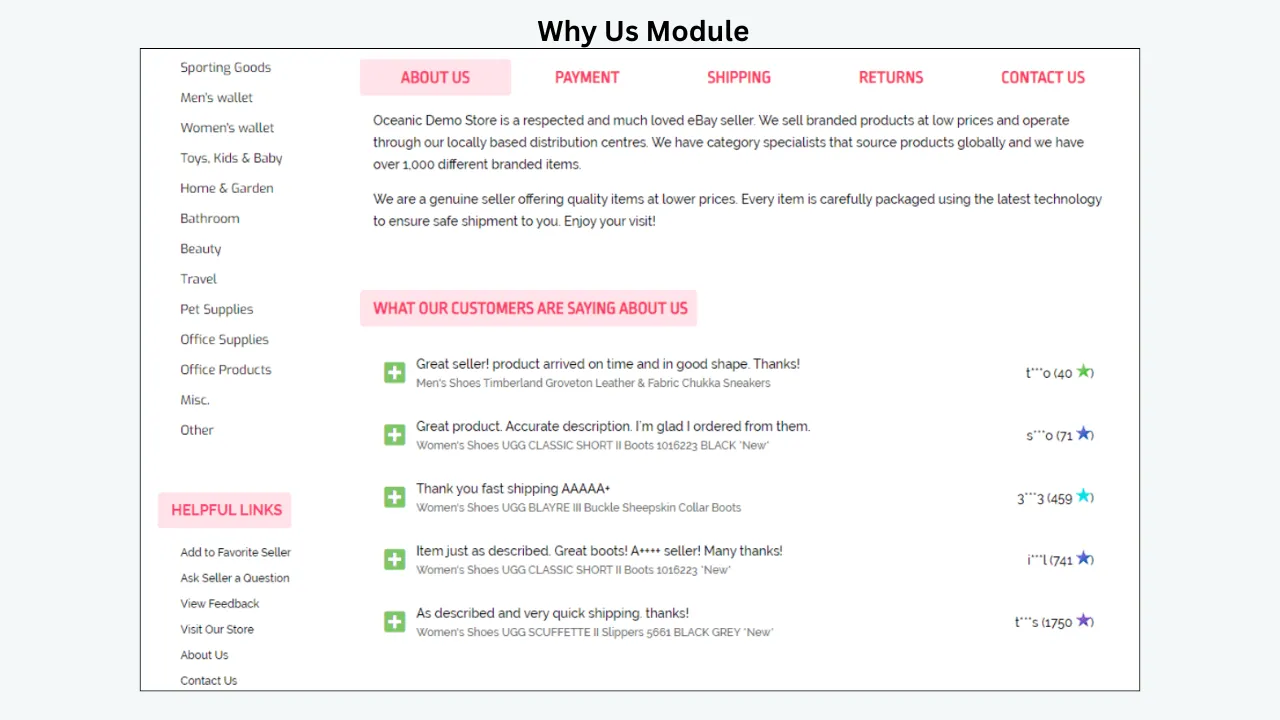
The Why Us module explains why buyers should feel comfortable purchasing from your store. It may include information such as:
- Experience in the product category
- Customer-service standards
- Product-quality commitments
- Dispatch practices
- Secure packaging
- Warranty support
- Easy returns
Keep this section specific and believable. Generic statements such as “We are the best seller” provide less value than clear information about what the customer can expect. The product should still appear before a long company introduction.
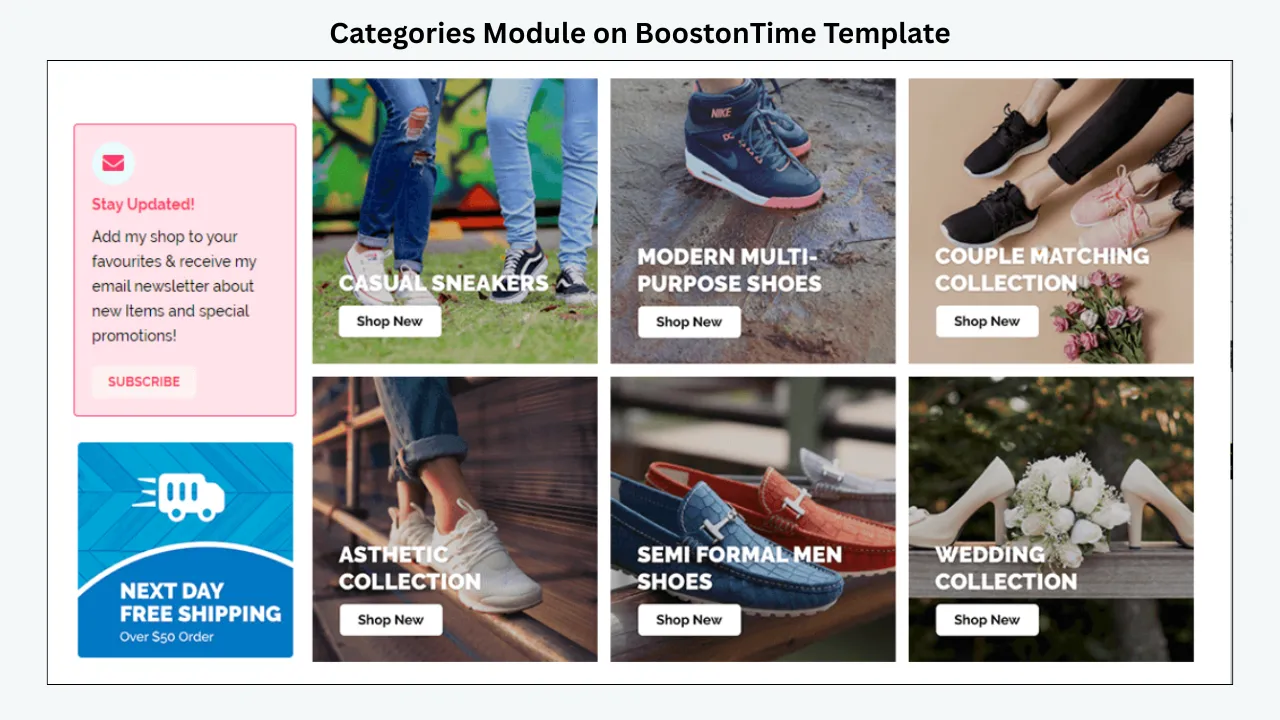
6. Categories Module
The Categories module helps buyers explore other areas of your eBay store. BoostOnTime states that store categories can be collected from the connected eBay store.
This module may be useful for sellers with a large catalog because it can help buyers move from one product group to another. For example, an electronics store could display categories such as:
- Phone accessories
- Computer accessories
- Chargers
- Cables
- Audio products
- Replacement parts
Only display useful and active categories. An outdated category link creates a poor experience.
7. Description Module
The Description module presents the main product information. This should be one of the most useful sections of the template. A strong description should explain:
- What the product is
- What it does
- Who it is for
- Its main benefits
- Important materials or features
- Compatibility
- What is included
- Any limitations the buyer should understand
BoostOnTime can collect the existing product description when the template is applied. Therefore, sellers should review the original eBay description before applying the new design. A template can improve presentation, but it cannot correct inaccurate product information automatically.
8. Specifications Module
The Specifications module organizes technical information into a readable structure. It may include:
- Brand
- Model
- Material
- Colour
- Size
- Dimensions
- Weight
- Capacity
- Voltage
- Compatibility
- Manufacturer part number
- Country of manufacture
BoostOnTime states that item specifics can be collected from existing eBay listings. Before applying a template, make sure the eBay item specifics are accurate and complete. The system can collect the information, but the quality still depends on the source listing.
9. Helpful Links Module
The Helpful Links module gives buyers quick access to useful store information. These links may include:
- Store homepage
- Contact information
- Shipping details
- Return information
- Frequently asked questions
- Other product categories
Every link should be checked before the template is applied. Remove links that are outdated, broken, or no longer useful. All links must also follow eBay’s current policies.
10. Banners Module
Banners can highlight:
- Seasonal promotions
- Store benefits
- Product categories
- New collections
- Shipping messages
- Important announcements
BoostOnTime allows sellers to customize banners according to their branding. Banners can be valuable, but they are also one of the easiest ways to make a template unnecessarily heavy. Use them carefully:
- Compress each banner.
- Avoid several large banners in the same listing.
- Keep the text readable on mobile devices.
- Do not place every banner before the product description.
- Remove expired promotional messages.
11. Wide Banner Module
A wide banner normally spans the main content area and provides a strong visual message. It may be suitable for:
- A primary store message
- A major promotion
- A category campaign
- A brand-value statement
Because this type of banner is visually prominent, one strong wide banner is often more effective than several competing banners.
12. Side Mini Banner Module
Side mini banners are smaller promotional graphics that can appear beside the main content in supported layouts. They can highlight:
- Free shipping
- Customer support
- Warranty information
- Related categories
- Special offers
Check how side banners behave on mobile devices. In a responsive template, side content may move below the main product information.
13. Mini Banner Module
Mini banners provide smaller visual callouts without taking over the entire template. They may be used for:
- Delivery information
- Secure checkout messages
- Easy returns
- Product guarantees
- Category links
Use clear text and avoid adding too many competing messages.
14. Newsletter Module
BoostOnTime includes a Newsletter module in its module collection. Before enabling this section, sellers should review its configuration and confirm that the content and links comply with eBay’s current communication and external-link policies. If the module does not provide meaningful value for your store, it can be disabled.
15. Policy Tabs Module
The Policy Tabs module organizes important store policies. It may include sections such as:
- Shipping
- Returns
- Payment
- Warranty
- Terms and conditions
Policy information is usually static because it remains the same across many products. With BoostOnTime, sellers can store these policies within the template instead of recreating the same sections for every listing. If a policy changes, update the template and use the Batch Revision Tool to apply the revised information to the selected listings. The wording inside the description should remain consistent with the official business policies configured in eBay.
16. Feedback Module
The Feedback module presents seller-feedback information as a trust element. It can help buyers understand that they are purchasing from an established seller. However, it should not appear before the main product information. Buyers generally need to understand the product first. Trust information should support that decision rather than interrupt it.
17. Related Products Module
The Related Products module helps sellers introduce buyers to other relevant listings. BoostOnTime provides two main approaches:
- Select specific related products manually.
- Let the system choose random products from the catalog.
Supported related-product titles and pricing can be collected dynamically. This module can be useful when the recommendations are genuinely relevant. Examples include:
- A phone case with a compatible screen protector
- A camera with a suitable memory card
- A printer with compatible ink
- A power tool with matching accessories
- A furniture item with a related collection piece
Random products provide an easier automated option, while manually selected products provide more control.
18. Footer Module
The Footer module closes the template and can contain selected store information, helpful links, or branding. Keep the footer simple. Buyers should not need to scroll through a large block of repeated information after finishing the product description.
Static and Dynamic BoostOnTime Modules
Understanding static and dynamic content is one of the most important parts of BoostOnTime ETB.
Static content
Static content is saved inside the template and normally remains consistent across selected listings. BoostOnTime identifies the following as static content:
- Logo
- Greeting message
- Menu
- Helpful links
- Why Us section
- Mini banners
- Wide banners
- Store policy tabs
For example, if your shipping-policy wording applies to 100 listings, you can prepare it once as part of the template rather than rewriting it 100 times. Sellers can also create multiple templates when different product lines require different branding, banners, or policies.
Dynamic content
Dynamic content changes according to the individual eBay listing. BoostOnTime identifies supported dynamic information such as:
- Product title
- Price
- Currency
- Product images
- Related products
- Related-product pricing
- Store category information
The BoostOnTime website also states that product descriptions and item specifics can be collected from existing listings. When you apply one template to different products, BoostOnTime collects the supported information from each listing and places it into the correct sections.
Simple example
Suppose your store sells 100 different watches. The following information may remain the same:
- Store logo
- Header menu
- Shipping policy
- Return policy
- Why Us section
- Promotional banner
The following information changes for every watch:
- Product title
- Price
- Currency
- Images
- Description
- Specifications
- Related products
BoostOnTime stores the reusable information within the template and collects the product-specific information from each existing listing.
💡 Key Takeaway: That is how one template can work across many different products.
How BoostOnTime Supports Faster Template Updates
Applying a template manually can become difficult when a seller has many active listings. A seller may need to:
- Open the listing.
- Find the description.
- Paste the HTML.
- Replace the product information.
- Check the images.
- Update the policy sections.
- Save the listing.
- Repeat the process for the next product.
BoostOnTime reduces these repetitive steps through automation and batch revision.
Individual revision
Sellers can apply a template to one listing. This is useful for testing the design or updating a special product.
Selected-group revision
Sellers can choose a group of related listings and apply the template to that selection. For example, a clothing seller could update all shirts without changing the template used for shoes.
Bulk revision
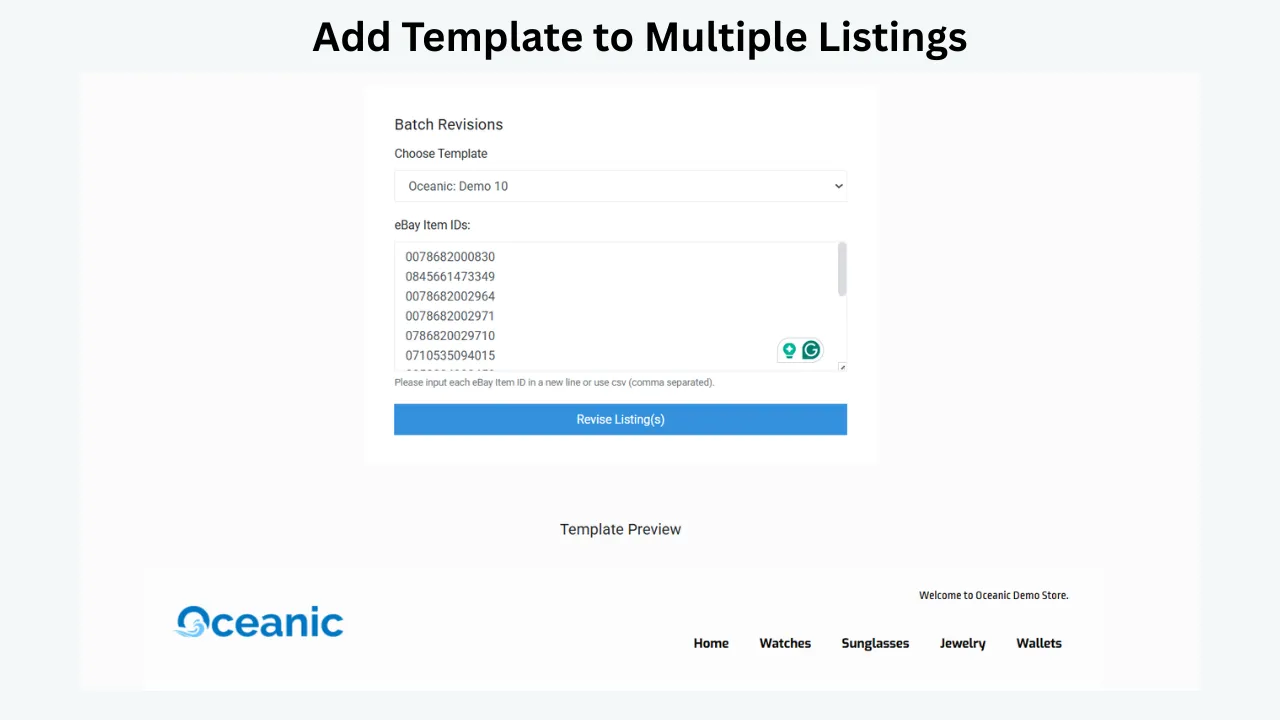
The Batch Revision Tool allows a newly created template to be applied across multiple selected listings. This becomes useful when:
- Introducing new branding
- Replacing an outdated template
- Updating policy information
- Adding a promotional banner
- Changing the overall template layout
- Fixing mobile-display problems
- Applying a category-specific template
The BoostOnTime website states that subscribers can update unlimited active listings.
Replacing Old HTML With a Fresh Template
Older eBay listings may contain HTML from previous templates, design tools, or manual edits. Simply adding a new template around the old code can create:
- Duplicate content
- Conflicting styles
- Broken layouts
- Unused external resources
- Old banners
- Outdated policy sections
- Mobile-display problems
BoostOnTime states that its software cleans old HTML and updates the description section with fresh content from the newly selected template.
This is valuable when sellers are moving away from an outdated design. However, sellers should still test a small group first to confirm that the product description and other information remain correct after the update.
BoostOnTime Themes
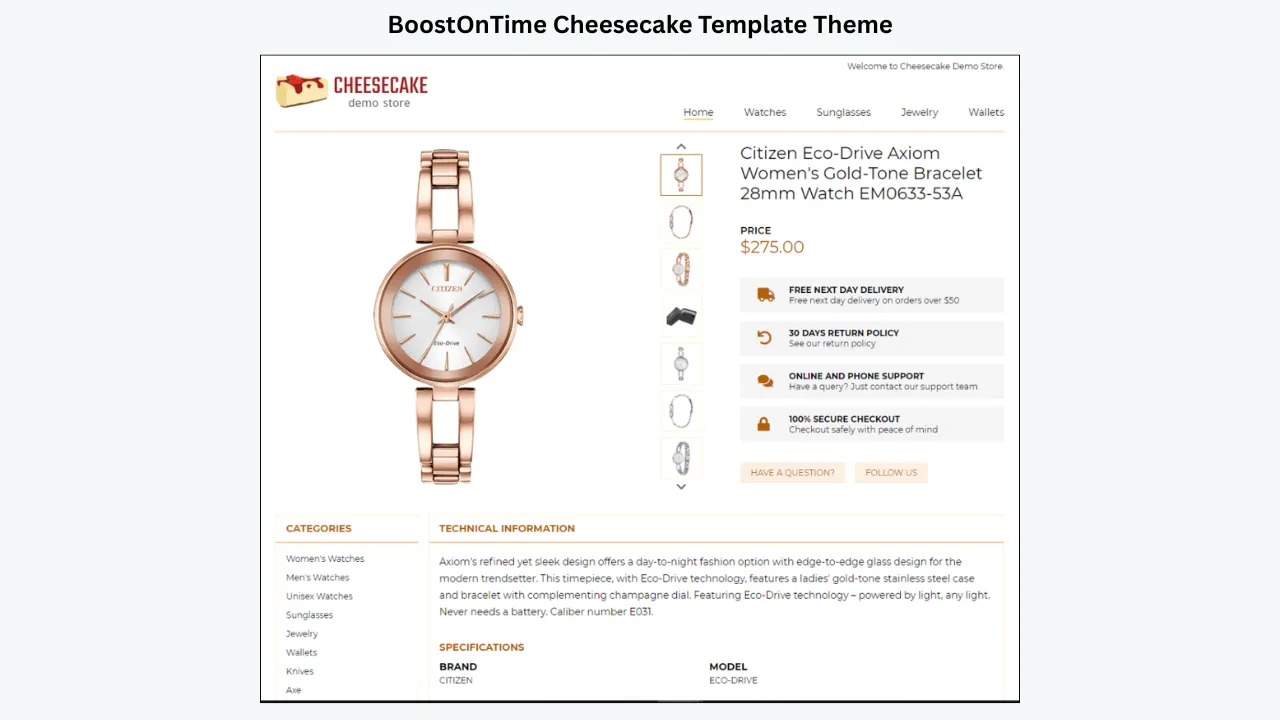
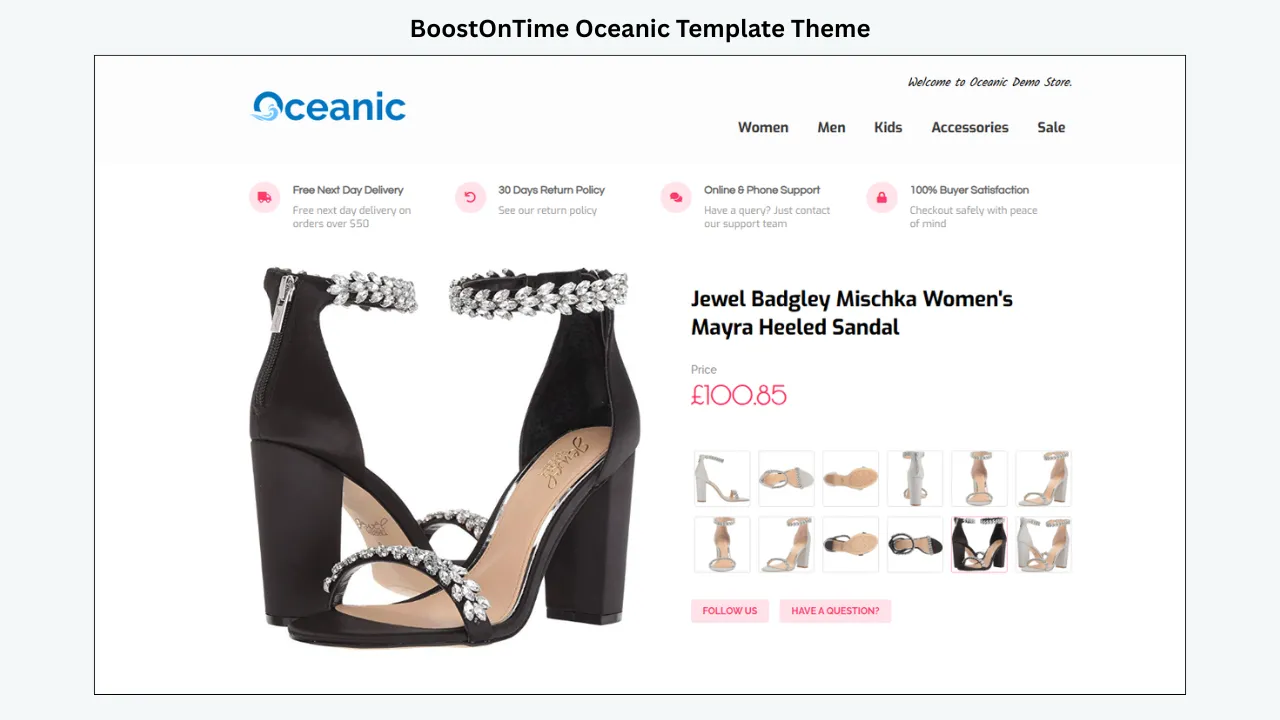
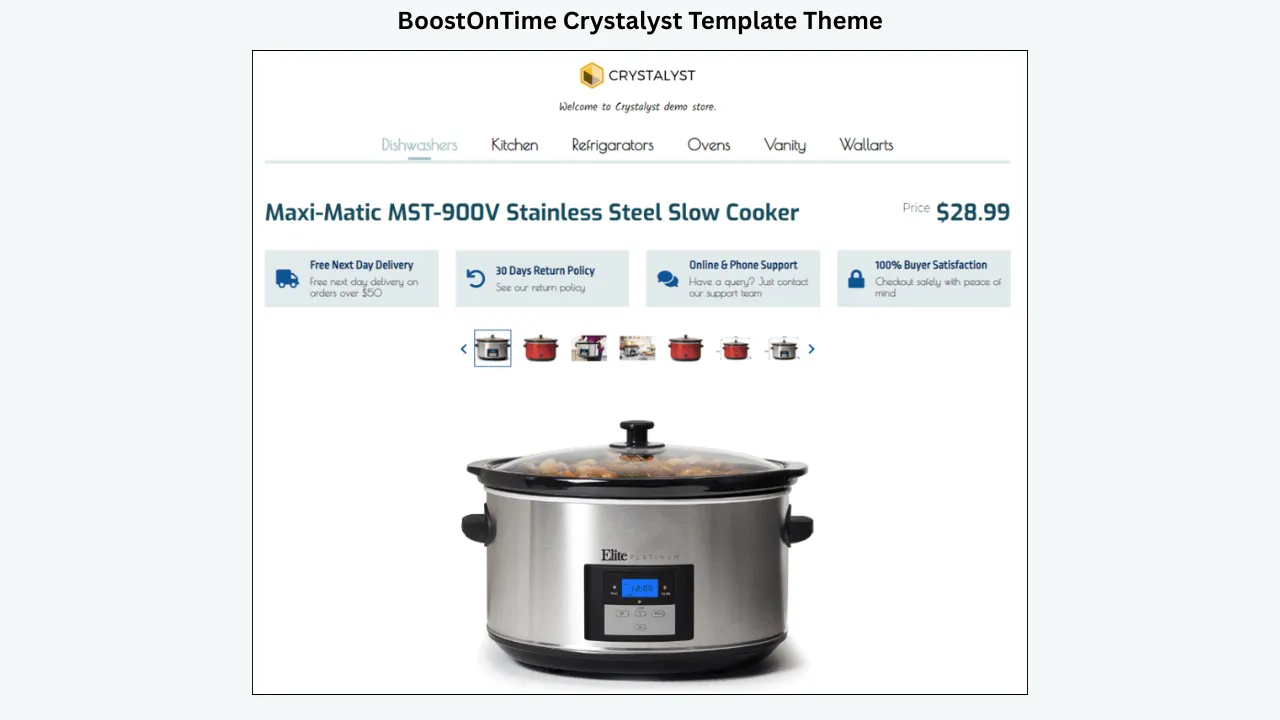
BoostOnTime currently presents three main template themes:
- Cheesecake
- Oceanic
- Crystalyst
Each theme can be previewed before use. Instead of choosing a theme only because it looks attractive, consider:
- Does the theme fit the product category?
- Does it provide enough room for specifications?
- Does it display images clearly?
- Is it easy to scan on a phone?
- Can unnecessary modules be disabled?
- Do the colours match the brand?
- Are policies and related products easy to find?
BoostOnTime also says subscribers receive access to newly released templates without an additional template fee. Users are notified when new templates become available.
For businesses that need a completely original design, BoostOnTime also provides an option to request a custom responsive template.
Support for 19 eBay Sites
BoostOnTime states that ETB works with 19 eBay sites.
This is useful for sellers operating in multiple countries because the dynamic modules can collect supported listing information such as the price and currency from the relevant listing.
For example, a seller may operate listings using different currencies. A dynamic price-and-currency module reduces the risk of manually displaying the wrong currency inside the description template.
Sellers should still test marketplace-specific listings before applying a bulk update.
Multichannel Software Support
BoostOnTime states that its templates support more than 10 multichannel software platforms. Examples listed on the website include:
- ChannelAdvisor
- Linnworks and Linnlive
- Solid Commerce
- Ecomdash
- Sellbrite
- Sellercloud
This is helpful for sellers who manage eBay through a separate inventory or multichannel-management system. BoostOnTime provides integration instructions and states that additional integration assistance is available without an extra support charge.
Compatibility should be checked against the seller’s specific account setup and workflow before a large template revision.
Secure eBay Connection
BoostOnTime allows users to join securely through eBay. According to its website:
- The joining process takes four clicks.
- Connection is completed through eBay.
- BoostOnTime does not see the seller’s eBay password.
- The platform displays the eBay Compatible Application logo.
This is important because sellers should not send their eBay passwords directly to a template provider.
Step-by-Step BoostOnTime Process
Start the free trial
Visit the BoostOnTime eBay Template Builder and begin the seven-day trial. The website states that there is no contract and users can cancel at any time.
Connect the eBay account
Join securely through eBay and authorize the required connection. BoostOnTime states that it does not receive or see the seller’s eBay password.
Choose a theme
Preview Cheesecake, Oceanic, and Crystalyst. Select the design that best matches the product category and brand.
Select the modules
Enable the modules that provide useful information for buyers. Avoid enabling every module simply because it is available. A focused listing is normally easier to navigate.
Customize the static content
Configure:
- Logo
- Brand colours
- Greeting message
- Header menu
- Helpful links
- Why Us section
- Banners
- Policy tabs
- Footer
Review dynamic information
Confirm that the existing eBay listings contain accurate:
- Titles
- Prices
- Currencies
- Images
- Descriptions
- Item specifics
- Store categories
- Related products
BoostOnTime will collect supported information from the source listings, so the original data must be correct.
Preview the responsive design
Use the preview function to examine how the template appears on different screen sizes. Pay particular attention to:
- Image dimensions
- Text size
- Content order
- Specification tables
- Menus
- Policy tabs
- Banners
- Related products
Test a few listings
Start with five to ten listings instead of revising the full catalog immediately. Check every dynamic module and confirm that the correct information appears.
Use the Batch Revision Tool
After confirming that the test listings are correct, apply the template to a selected group or a larger number of active listings.
Review the live listings
Open the updated listings as a buyer would. Test them on:
- Desktop
- Tablet
- Mobile browser
- eBay app
BoostOnTime Pricing
BoostOnTime currently displays two subscription options:
The website states that the yearly plan saves 30%.
Both subscription options include the ability to create multiple templates and update unlimited eBay listings. BoostOnTime also provides a seven-day free trial.
Because prices and features may change, sellers should confirm the latest information on the BoostOnTime website before subscribing.
Manual Templates vs BoostOnTime ETB
Which Sellers Can Benefit From BoostOnTime?
BoostOnTime may be especially useful for:
- Sellers who do not know HTML
- Stores with many active listings
- Sellers using outdated description templates
- Businesses that need consistent branding
- Sellers updating shipping or return policies
- Stores operating across several eBay sites
- Sellers using multichannel-management software
- Businesses that want to promote related products
- Sellers who need different templates for different product groups
- Stores experiencing mobile-display problems
A seller with only a few simple listings may not need every feature. However, the value of reusable modules and batch revisions generally becomes more noticeable as the catalog grows.
Frequently Asked Questions
Yes. BoostOnTime describes its templates as fully responsive and optimized for tablets and mobile devices. Sellers can preview the design before applying it.
The BoostOnTime website confirms responsive template design but does not state that ETB automatically compresses every source image. Sellers should optimize large logos, banners, and promotional graphics before adding them.
Yes. BoostOnTime states that sellers can disable modules they do not need.
BoostOnTime provides more than 20 customizable modules.
Supported information includes listing titles, prices, currencies, product images, descriptions, item specifics, store categories, related products, and related-product pricing.
Yes. Sellers can select specific related products or allow the system to choose random products from the catalog.
Yes. Sellers can create multiple templates for different product lines, branding, settings, or policy requirements.
Yes. Templates can be applied to existing active listings individually, in selected groups, or through bulk revision.
BoostOnTime ETB is primarily a description-template builder and revision tool. It collects supported information from existing eBay listings and applies it to the selected template.
BoostOnTime states that its software cleans old HTML and updates the eBay description with fresh content from the newly selected template.
BoostOnTime states that it works with 19 eBay sites.
The website identifies more than 10 supported systems, including ChannelAdvisor, Linnworks, Solid Commerce, Ecomdash, Sellbrite, and Sellercloud.
No. BoostOnTime is designed for sellers who do not have HTML or design experience.
Yes. BoostOnTime offers a seven-day free trial.
BoostOnTime states that there is no contract and subscribers can cancel at any time.
BoostOnTime states that subscribers receive access to newly released templates without an additional template fee.
Final BoostOnTime Checklist
Before applying your template to the full catalog, confirm that:
- You selected the most suitable theme.
- Only useful modules are enabled.
- Your logo and banners are optimized.
- Static policies and links are current.
- Dynamic source information is accurate.
- Product images belong to the correct listings.
- The layout has been previewed on mobile.
- Policy tabs match the official eBay policies.
- Related products are relevant.
- A small group has been tested.
- Old HTML has been replaced correctly.
- Live listings have been checked after revision.
Create Responsive eBay Templates
Without Rebuilding Every Listing
A professional eBay template should make life easier for both the buyer and the seller. Buyers need a clean description that works on their phones, displays product information clearly, and does not make them search through unnecessary content.
Sellers need a system that reduces repetitive work. Rebuilding the same logo, menu, policies, banners, product gallery, and related-product sections for every listing is difficult to maintain as a catalog grows.
BoostOnTime ETB connects these needs through mobile-responsive templates, more than 20 customizable modules, dynamic product-information collection, personalized related products, multiple themes, multichannel compatibility, and bulk listing revisions. You can start with a small group of listings, test the complete design, and then apply it to more products through the Batch Revision Tool.
🚀 Start Your Seven-Day BoostOnTime ETB Trial
No contract · Cancel anytime · Seven-day free trial included