
eBay Listing Not Showing on Your Profile or Store
An active eBay listing can be visible by item number yet appear missing from search, a Store category or a public profile. Use this step-by-step diagnosis to find the exact break.
📋 In This Guide
- 1First Identify Where the Listing Is Missing
- 2Understand Profile, Store and Search
- 3The 60 Second Visibility Check
- 4Cause 1: The Listing Is Not Active
- 5Cause 2: The Quantity Is Zero
- 6Cause 3: Not in Search Yet
- 7Cause 4: Store Filters Are Hiding the Item
- 8Cause 5: Wrong Store Category
- 9Cause 6: Hidden or Removed
- 10Cause 7: A Duplicate Listing Is Suppressed
- 11Cause 8: Buyer Location and Shipping Settings
- 12Cause 9: Wrong Account or Marketplace
- 13Cause 10: Profile or Store Expectation Is Wrong
- 14Cause 11: Title, Category or Specifics
- 15Cause 12: A Technical or Cached View
- 16A Complete Step-by-Step Diagnosis
- 17Three Diagnostic Examples
- 18Build a Visibility Incident Log
- 19Checks After a Bulk Listing or Migration
- 20Prevent Visibility Problems at the Source
- 21Store Organization That Prevents Confusion
- 22How BoostOnTime ETB Helps After the Listing Is Visible
- 23What to Measure After the Fix
- 24A Post-Incident Review for Repeated Failures
- 25Frequently Asked Questions
💡 The Key Insight
An eBay listing can be active without appearing everywhere you expect. You may open it from Seller Hub but fail to see it on your public profile. It may appear by item number but not inside a Store category. It may be visible to you while a buyer in another country sees nothing.
Those are different problems.
Before changing the title or rebuilding the description, identify the missing surface. eBay search, a public seller profile, an eBay Store, a Store category and the direct item page are connected, but they are not identical views. Each can use different status, stock, navigation, filter, location and eligibility conditions.
eBay says a newly created listing should normally appear in search within 24 hours. It must be active to enter search results. A Good Til Cancelled multi-quantity listing can remain active but be hidden from search when the out-of-stock option is enabled and quantity reaches zero. A listing may also be hidden or removed for policy, legal, rights-owner or long-term no-sale reasons.
This guide provides a precise diagnostic sequence. You will confirm whether the item exists, test its public visibility, check Store organization, separate buyer-location effects from technical issues and decide whether the fix belongs in eBay or in the description presentation. The final section explains how BoostOnTime ETB can improve the buyer experience after the listing is visible, without pretending that a template controls native Store indexing or account status.
First identify where the listing is missing
Write down the item number and test each surface separately. Do not use a general statement such as the listing is gone.
| Surface | What a Successful Test Looks Like | What Failure Suggests |
|---|---|---|
| Seller Hub | Record appears as Active with available quantity | Draft, scheduled, ended, error, restriction or stock issue |
| Direct item URL | Public page opens while signed out | Removal, ending, permissions or wrong item number |
| Item number search | Exact item appears in eBay search | Indexing, eligibility, site or destination issue |
| Keyword search | Item appears for a relevant query and filters | Relevance, ranking, category, specifics or competition issue |
| Store inventory | Item appears within the seller’s Store | Store category, filter, storefront or subscription issue |
| Public profile | Seller profile opens and links to selling activity | Account identity, profile access or expectation mismatch |
The exact symptom narrows the investigation.
If the direct page does not open for a signed-out buyer, start with status and enforcement. If the direct page works but item number search fails after enough time, investigate search eligibility and marketplace conditions. If search works but the Store category is empty, focus on Store organization. If the profile opens but the item is not prominent, confirm how that profile currently displays or links to inventory rather than assuming every active listing must appear in one fixed profile grid.
Understand Profile Store and search
The public profile
An eBay profile identifies the member. eBay says it includes basic information such as username and recent feedback, and sellers can add a profile picture and description. On desktop, a signed-in member can access a profile from the username; in the mobile app, it is available through My eBay and the username. Store subscribers can also reach their profile through the About area of the storefront.
The profile is not the same as a Seller Hub inventory page. Its layout can emphasize identity, feedback and links to items for sale. If you expect a complete sortable catalogue inside the profile itself, verify the current buyer interface first.
The eBay Store
An eBay Store is the branded shopping destination associated with a Store subscription. Sellers can create Store categories, feature selected categories and organize inventory. Store categories are separate from the eBay marketplace category used for search relevance.
A listing can be assigned to an eBay category correctly but placed in an unexpected Store category, or no useful custom category at all. It can therefore be searchable in the marketplace while difficult to find through Store navigation.
Marketplace search
Search decides which eligible active listings appear for a query, filters, buyer location and sort order. eBay says a listing normally enters search within 24 hours. Best Match considers several factors, including relevance, price, listing quality, completeness, service terms and seller track record.
A listing that ranks below the first page is not necessarily missing. Search by exact item number, then exact title, then a realistic buyer phrase. Each test answers a different question.
The direct item page
The direct page is the narrowest test. If it opens while signed out, the listing exists publicly in some form. It does not prove that it appears for every buyer, destination, filter or Store view. If it does not open, capture the message and check Seller Hub, Messages and email.
The 60 second visibility check
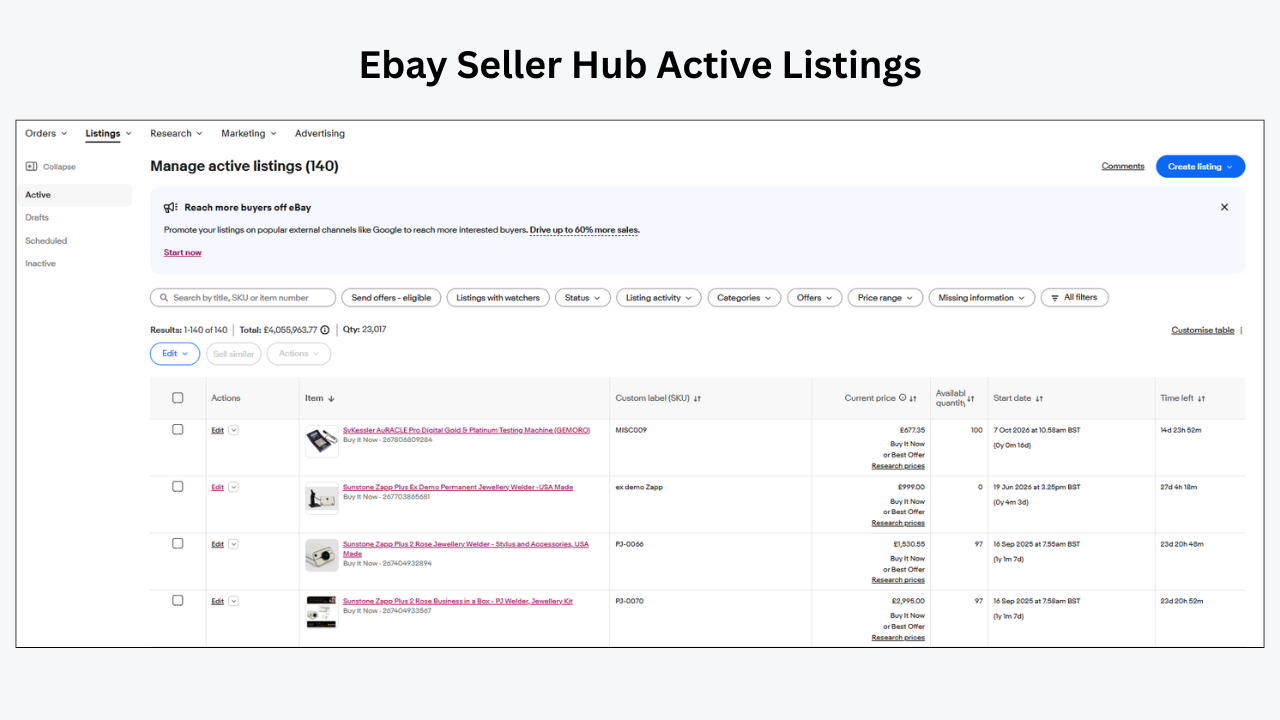
Run this before making any edits.
- Copy the item number from Seller Hub.
- Confirm the status says Active.
- Confirm total and variation quantity are above zero.
- Open the public item URL in a private browser window.
- Search the item number on the same eBay marketplace.
- Open your Store and clear all category, price, condition and delivery filters.
- Check the Store category assigned to the listing.
- Review eBay Messages and registered email for warnings.
- Confirm Time Away and shipping exclusions.
- If the listing is new or relisted, allow the published indexing period.
This check catches wrong accounts, wrong sites, sold-out stock, stale filters and recent listing delays. If it does not solve the issue, use the detailed diagnosis below.
Cause 1 The listing is not active
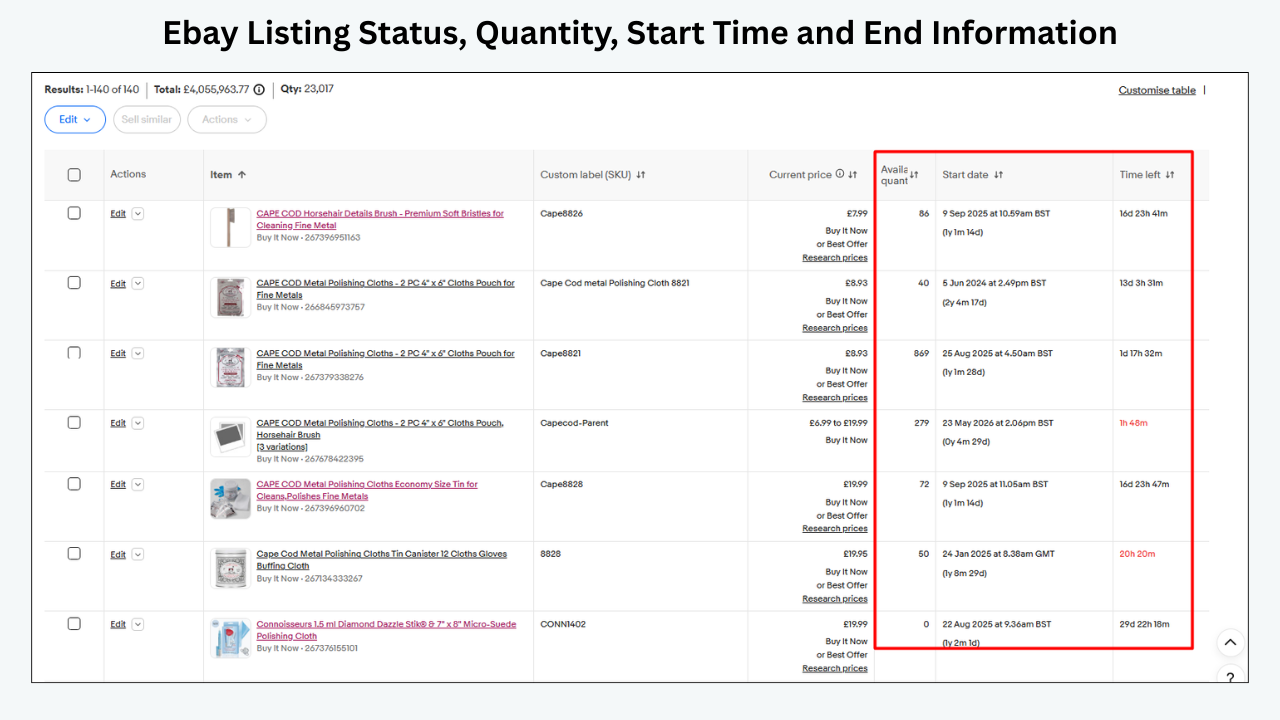
What is happening
The seller may be looking at a draft, scheduled, ended or unsold record and reading its presence in Seller Hub as proof that it is live. Seller Hub stores many listing states. Only an active eligible listing can appear in current buyer search.
An item can end because the quantity sold, the seller ended it, a renewal failed or eBay acted on the listing. Good Til Cancelled listings normally renew each month, but eBay notes that selling limits can affect renewal.
How to confirm it
Open Seller Hub and inspect the status, quantity, start time and end information. Use the exact item number. If the record is in Drafts, Scheduled, Ended or Unsold, it is not an active buyer listing.
Check whether a new item number was created through relisting. The link or bookmark you are using may point to the old record.
The fix
Complete and publish a draft, wait for a scheduled start, or review the ended reason. If an item legitimately needs relisting, correct any underlying issue first. Do not relist an item removed for policy or rights-owner reasons until eBay’s instructions allow it.
Cause 2 The quantity is zero
What is happening
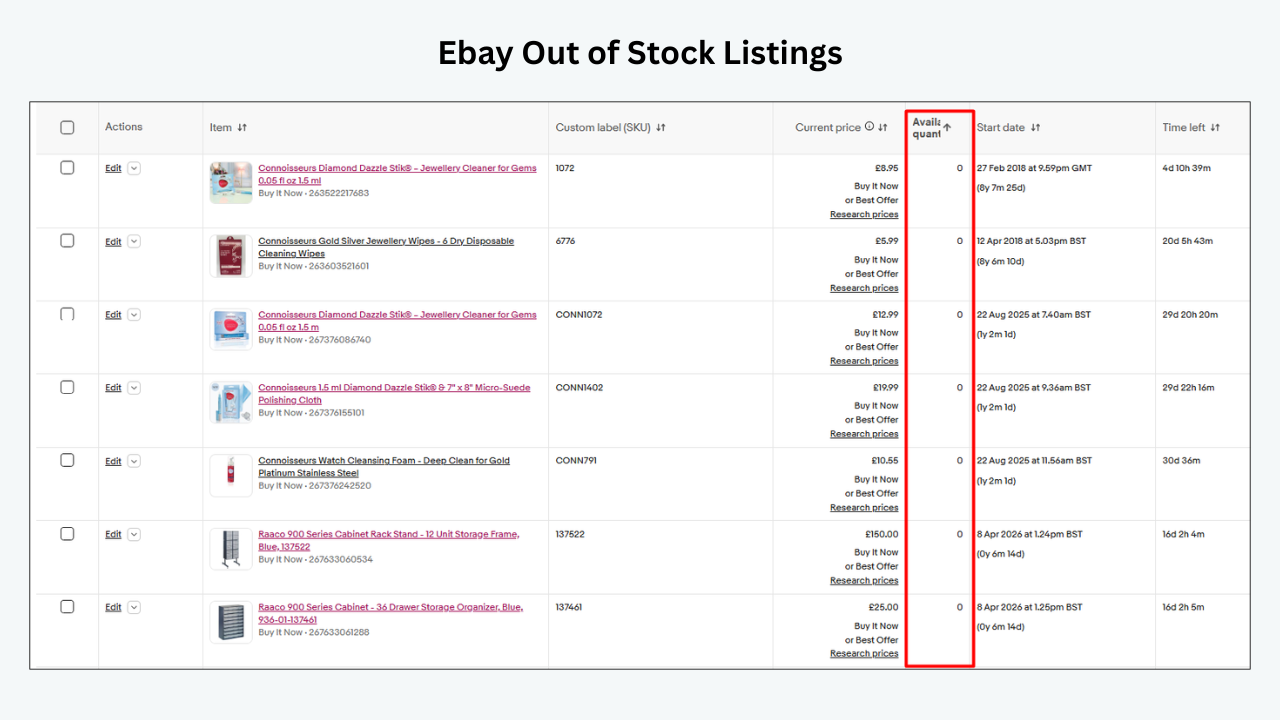
The out-of-stock option allows a multi-quantity Good Til Cancelled listing to stay active at zero quantity while being hidden from search. This preserves the listing for restocking, but it creates an apparent contradiction: Seller Hub says active while buyers cannot find it.
Variation listings can have the same practical problem when the relevant size, colour or configuration has no stock.
How to confirm it
Check the total quantity and each variation. Review the out-of-stock setting in selling preferences. Open the public page while signed out and note whether it shows unavailable or does not surface through search.
The fix
Increase the accurate available quantity when stock is physically ready to sell. Do not add placeholder quantity to make an unavailable item visible. If the product will not return, end the listing so your catalogue remains clean.
Cause 3 The listing has not entered search yet
What is happening
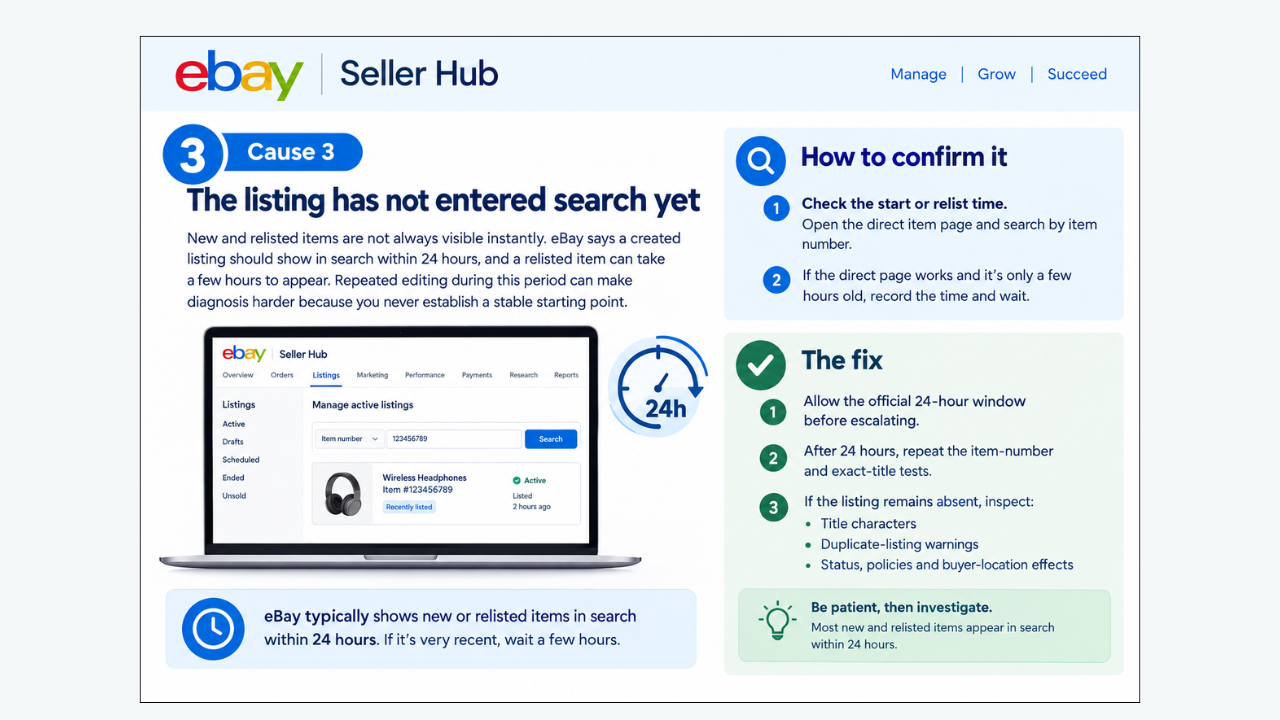
New and relisted items are not always visible instantly. eBay says a created listing should show in search within 24 hours, and its relisting guidance notes that a relisted item can take a few hours to appear.
Repeated editing during this period can make diagnosis harder because the seller never establishes a stable starting point.
How to confirm it
Check the start or relist time. Open the direct item page and search by item number. If the direct page works and the listing is only a few hours old, record the time and wait.
The fix
Allow the official window before escalating. After 24 hours, repeat the item-number and exact-title tests. If the listing remains absent, inspect title characters, duplicate-listing warnings, status, policies and buyer-location effects.
Cause 4 Store filters are hiding the item
What is happening
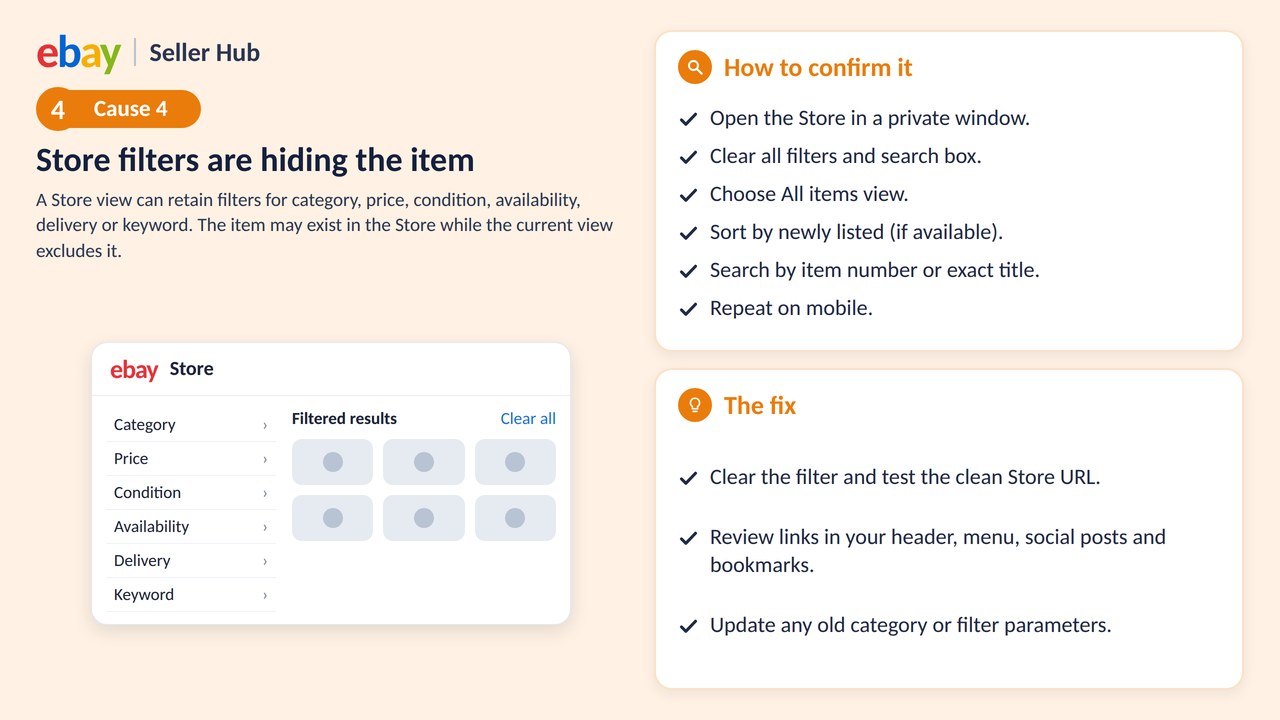
A Store view can retain filters for category, price, condition, availability, delivery or keyword. The item may exist in the Store while the current view excludes it. Buyers and sellers can also land on a featured category rather than the complete inventory.
How to confirm it
Open the Store in a private window. Clear the Store search box and every filter. Choose an all-items or equivalent inventory view. Sort by newly listed if available, then search the exact item number or a distinctive title phrase within the Store.
Repeat on mobile because navigation and filter visibility differ.
The fix
Clear the filter and test the clean Store URL. Review links in your header, menu, social posts and saved bookmarks. A link that includes an old category or filter parameter can make inventory appear incomplete.
Cause 5 The Store category assignment is wrong
What is happening
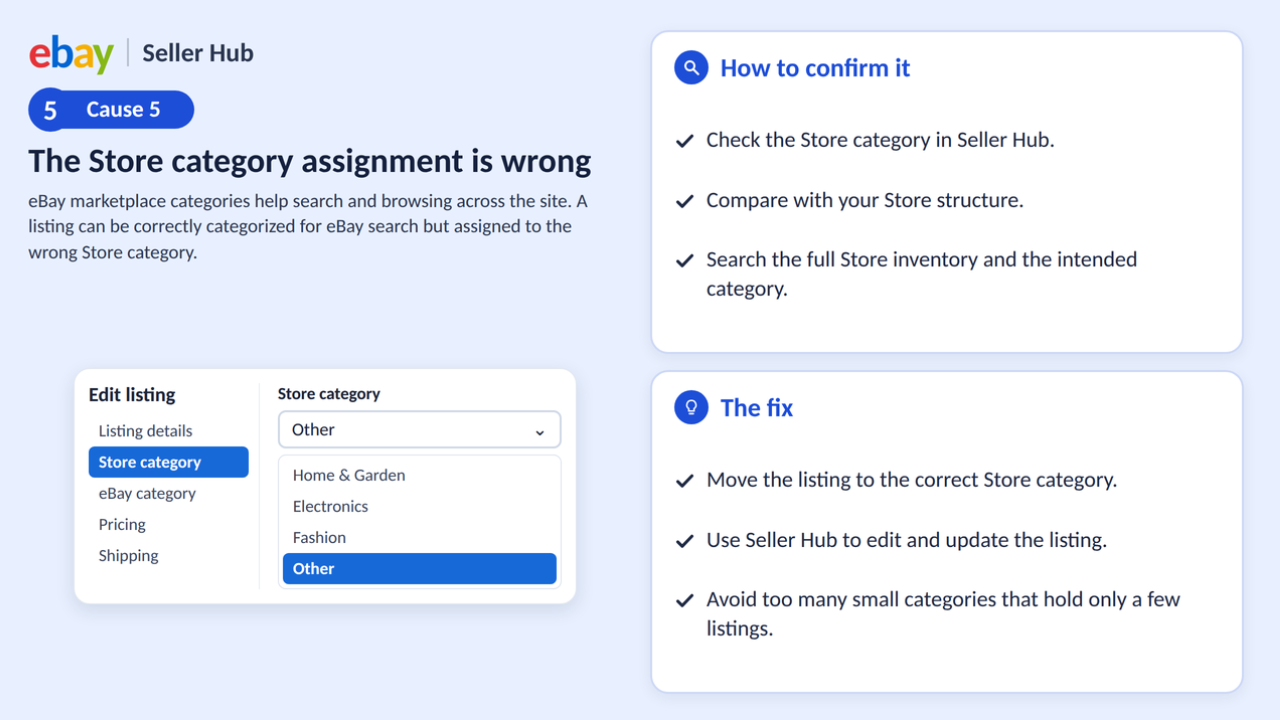
eBay marketplace categories help search and browsing across the site. Custom Store categories organize your own storefront. A listing can be correctly categorized for eBay search but assigned to the wrong Store category.
It may appear under Other, in an old seasonal category or in a category that is not featured on the Store home page.
How to confirm it
In Seller Hub, open the listing details and inspect the Store category assignment. Compare it with your current Store category structure. Search the full Store inventory and then the intended category.
The fix
Move the listing to the correct Store category. eBay’s Store guidance says sellers can select active listings, choose Edit, set the new Store category under listing details and update the listing. Multiple listings can be edited together.
Keep the category structure useful. eBay advises against creating too many categories with only a few listings because excessive fragmentation can overwhelm buyers.
Cause 6 The listing is hidden or removed
What is happening
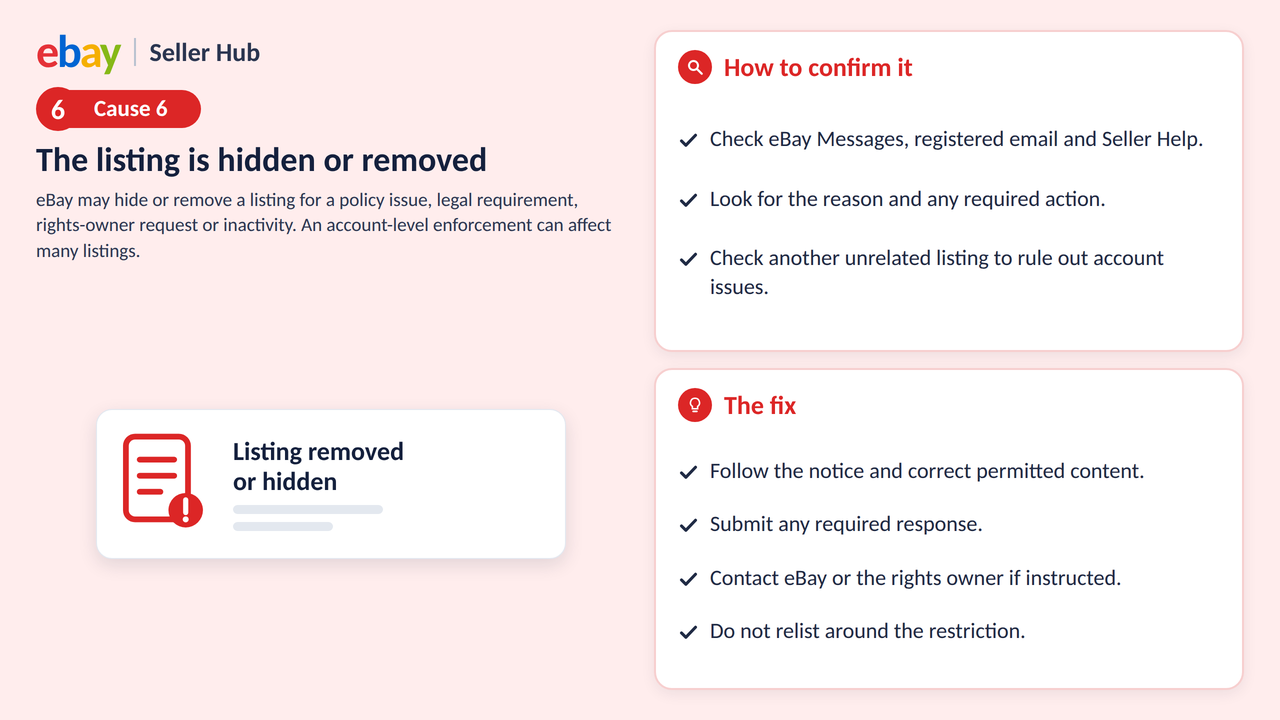
eBay may hide or remove a listing for a policy issue, legal requirement, rights-owner request or because it has been active for a year or more without a sale. In some scenarios, eBay hides content until a problem is corrected.
An account-level enforcement can affect many listings. A listing-level removal affects the specific item. Do not assume that a missing Store item is only a display bug.
How to confirm it
Review eBay Messages, registered email, Seller Help and the listing status. eBay says it sends the reason for removal or hiding. Capture any policy name, rights-owner contact or required action.
Check another unrelated listing. If many or all listings disappeared at the same time, investigate account settings, Time Away and enforcement rather than editing each description.
The fix
Follow the notice. Correct permitted content and submit any required response. Contact eBay or the rights owner when instructed. Do not relist around the restriction. eBay warns that relisting certain removed items without resolving the cause can create further consequences.
If eBay removed a listing after a year without sales, improve the listing and commercial offer before placing it back on sale.
Cause 7 A duplicate listing is suppressed
What is happening
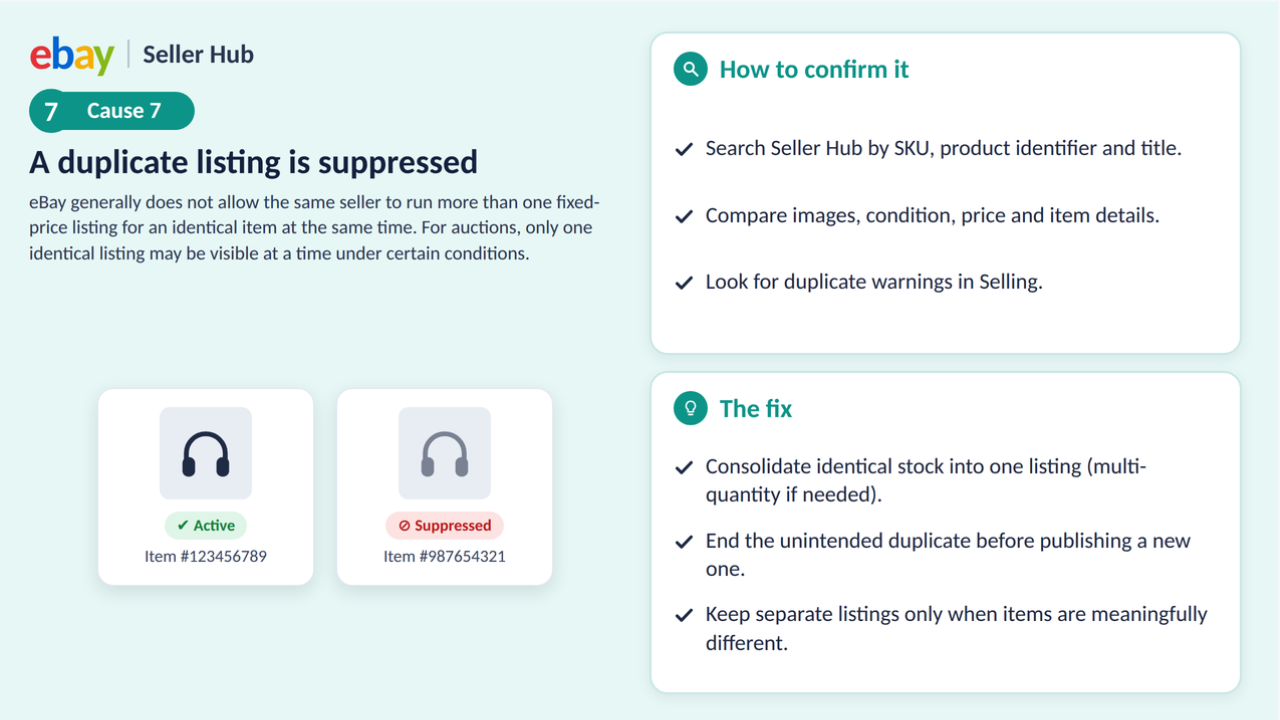
eBay’s duplicate-listing policy generally does not allow the same seller to run more than one fixed-price listing for an identical item at the same time. The rule supports variety in search results.
For auction-style duplicates, eBay explains that only one identical listing without bids may be visible at a time under the stated conditions. A seller creating a fresh copy without ending the original can therefore misread suppression as a Store problem.
How to confirm it
Search Seller Hub by SKU, product identifier and title. Compare images, condition, price and item details. Look for duplicate warnings in Selling.
The fix
Consolidate identical stock into one compliant fixed-price multi-quantity listing where appropriate. End the unintended duplicate before publishing a replacement. Keep separate listings only when the products are meaningfully different and the distinction is accurately described.
Cause 8 Buyer location and shipping settings exclude the item
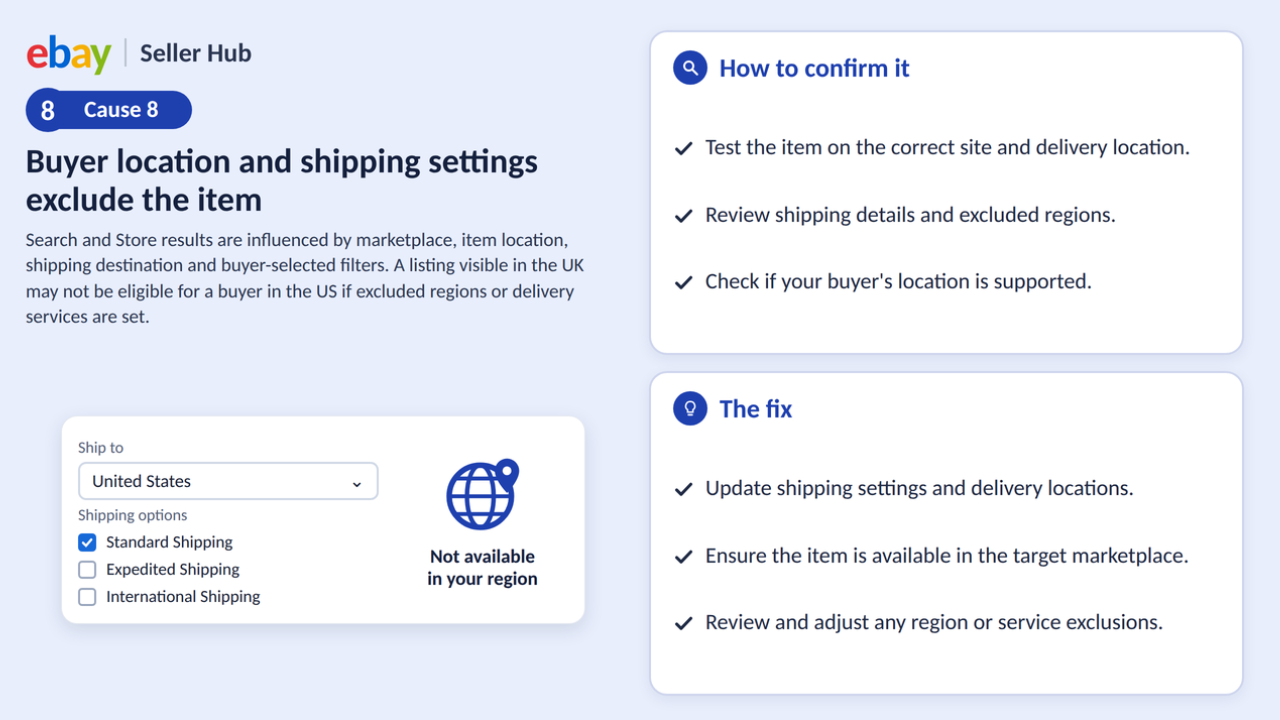
What is happening
Search and Store results are influenced by marketplace, item location, shipping destination and buyer-selected filters. A listing visible to a seller in the United Kingdom may not be eligible for a buyer whose destination is in the United States. Excluded regions, unsupported delivery services or international settings can narrow visibility.
How to confirm it
Test the item on the correct eBay site and with the target delivery location. Review the shipping policy, excluded locations and item location. Clear filters such as local pickup, free shipping and delivery date.
Ask the affected buyer for the marketplace, destination country and exact message rather than only a screenshot of an empty result.
The fix
Correct the item location and shipping service if they are inaccurate. Add destinations only when you can fulfil them and comply with applicable rules. For international selling, confirm that the category and product are eligible and that the delivery programme supports the destination.
Cause 9 The seller is checking the wrong account or marketplace
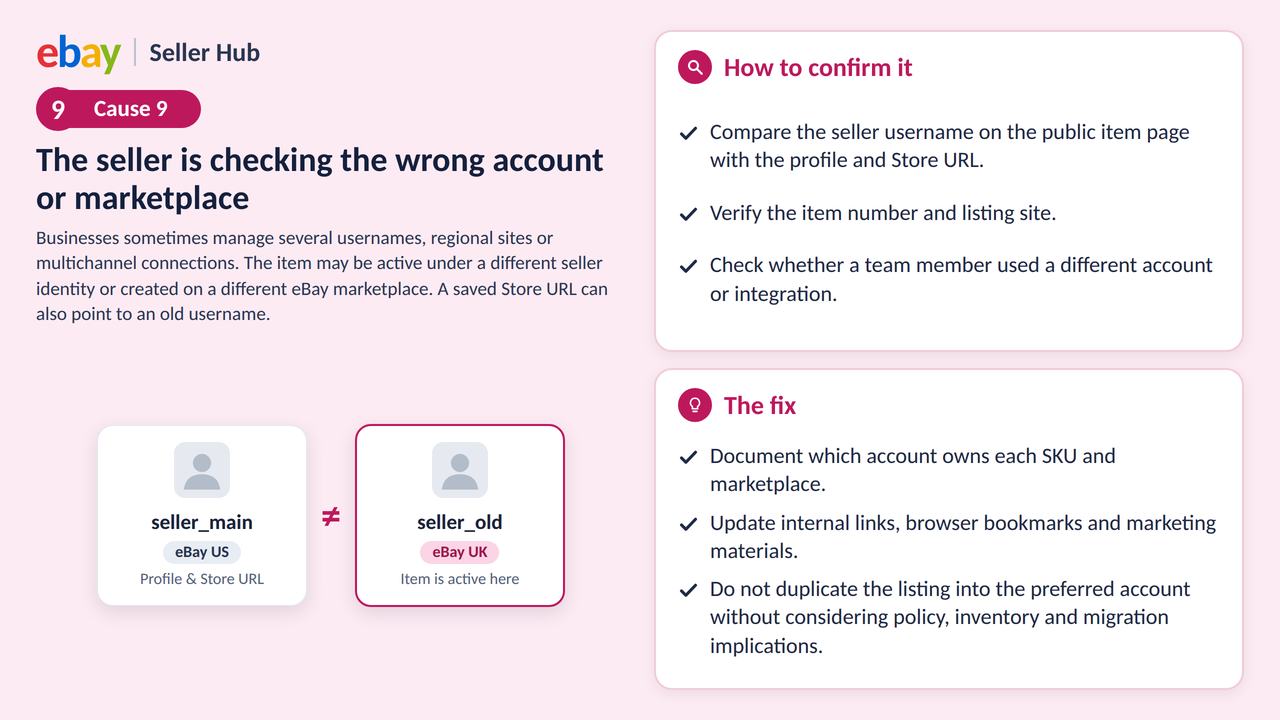
What is happening
Businesses sometimes manage several usernames, regional sites or multichannel connections. The item may be active under a different seller identity or created on a different eBay marketplace. A saved Store URL can also point to an old username.
How to confirm it
Compare the seller username on the public item page with the profile and Store URL. Verify the item number and listing site. Check whether a team member used a different account or integration.
The fix
Document which account owns each SKU and marketplace. Update internal links, browser bookmarks and marketing materials. Do not duplicate the listing into the preferred account without considering policy, inventory and migration implications.
Cause 10 The profile or Store expectation is wrong
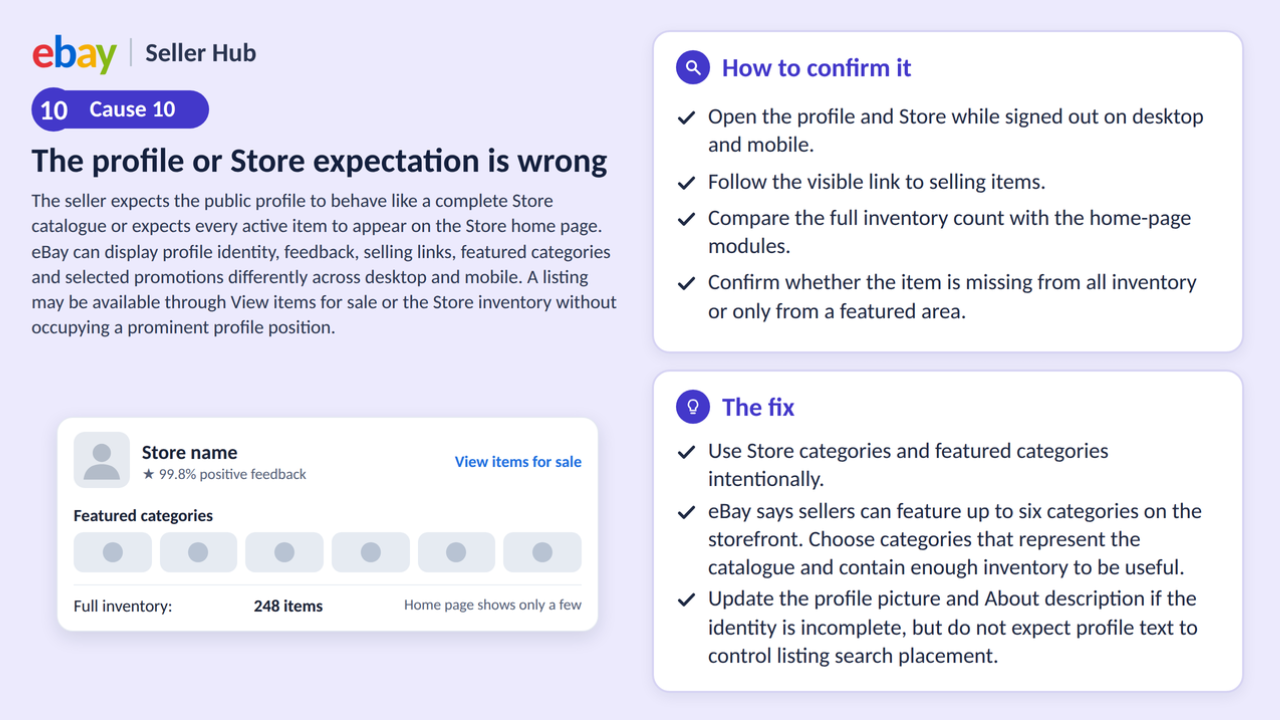
What is happening
The seller expects the public profile to behave like a complete Store catalogue or expects every active item to appear on the Store home page. eBay can display profile identity, feedback, selling links, featured categories and selected promotions differently across desktop and mobile.
A listing may be available through View items for sale or the Store inventory without occupying a prominent profile position.
How to confirm it
Open the profile and Store while signed out on desktop and mobile. Follow the visible link to selling items. Compare the full inventory count with the home-page modules. Confirm whether the item is missing from all inventory or only from a featured area.
The fix
Use Store categories and featured categories intentionally. eBay says sellers can feature up to six categories on the storefront. Choose categories that represent the catalogue and contain enough inventory to be useful.
Update the profile picture and About description if the identity is incomplete, but do not expect profile text to control listing search placement.
Cause 11 The title category or specifics make the item hard to find
What is happening
The item may exist in the Store yet seem absent because the seller is using a query or filter that the listing data does not match. A missing model, size, colour or brand can remove the item from filtered results. The wrong marketplace category can place it outside the buyer’s browse path.
How to confirm it
Search by item number. If that works, search the exact title. Then use a realistic buyer phrase and apply the expected filters one at a time. The point at which the item disappears identifies the likely mismatch.
Compare the listing’s item specifics with the filter values. Review spelling, spacing and special characters in the title. eBay recommends checking for accidental profanity and unnecessary special characters when an active listing cannot be found.
The fix
Choose the correct category and add accurate required and recommended item specifics. Rewrite the title around product identity rather than promotion. Do not insert unrelated popular terms to force exposure.
Cause 12 A technical or cached view is misleading you
What is happening
Browser cache, app state, saved filters or a temporary eBay issue can make the same Store look different across devices. One seller session is not enough to prove a public visibility problem.
How to confirm it
Test in a private browser window, another browser and a different network or device. Ask a colleague to open the direct URL without signing in. Note the time, marketplace, device and exact result. Check eBay’s current technical-issue notices if several unrelated features fail together.
The fix
Clear local filters and update the eBay app. If the direct page works elsewhere, the problem is likely local to the session. If the failure is reproducible, contact eBay with the item number, timestamps, screenshots and steps rather than repeatedly revising the listing.
A complete step by step diagnosis
Step 1 Protect the evidence
Record the item number, SKU, seller username, marketplace, public URL, status, quantity and the time the problem was observed. Save screenshots of the Store view and any error message. This prevents the issue from becoming impossible to reconstruct after edits.
Step 2 Test signed out
Open the direct item URL in a private browser window. A seller’s signed-in tools can show management information that a buyer does not see. Repeat on mobile.
Step 3 Search by item number
An item-number search tests indexing and eligibility with minimal keyword ambiguity. Make sure you are on the listing’s marketplace and have not applied an excluding location or condition filter.
Step 4 Search by exact title
Copy a distinctive phrase from the title. If the item appears by number but not by exact title, review indexing time, special characters, title errors, duplicate warnings and search filters.
Step 5 Search like a buyer
Use the strongest product phrase, then apply category, brand, size, colour or compatibility filters. Record when the listing disappears. This reveals structured-data gaps that an item-number search cannot show.
Step 6 Inspect the full Store
Open the Store’s all-items view, clear filters and search within the Store. If the item appears there but not in a category, fix the category. If it appears in the category but not the home page, review featured modules rather than listing status.
Step 7 Inspect the profile path
Open the profile from the public username and follow the link to items for sale. Confirm that the expected seller identity matches the listing. Update the profile only if identity content is missing; use Store management for catalogue organization.
Step 8 Check stock and policies
Confirm quantity, variations, Time Away, shipping destinations, selling limits, account status and Messages. Resolve eligibility before optimizing presentation.
Step 9 Wait when the listing is genuinely new
Allow up to the published 24-hour search window for a new listing. Avoid a stream of speculative changes. If the item remains absent, provide eBay with the recorded evidence.
Step 10 Correct the narrowest cause
Fix the first confirmed break. Do not rebuild the title, price and description when the only issue is a Store category. Do not redesign the Store when the item is out of stock.
Three diagnostic examples
The active listing missing from Store search
A seller can open a handbag listing from Seller Hub. The direct URL works, and an item-number search finds it. The seller’s Store home page does not show it, and the custom Accessories category looks empty.
This is not a search-indexing failure. The direct page and item-number search have already proved that the listing exists publicly. The next checks are Store filters, Store category assignment and home-page modules.
The seller opens the full Store inventory in a private browser and clears the saved condition filter. The item appears under all listings but belongs to a retired Summer Sale category. The correct fix is to move the item into Accessories and review the featured categories. Ending and relisting would create work without correcting the Store organization.
After the native Store fix, the seller can review Header Menu and Categories links inside the description template. Every destination should point to a live, useful Store view.
The item visible to the seller but not an overseas buyer
A United States seller opens an automotive part normally. A buyer in Germany says the item cannot be found. The seller confirms that the direct link works in the US and assumes the buyer is mistaken.
The two people are not testing the same conditions. The diagnostic record should include marketplace, delivery destination, item location, shipping policy and exclusions. The part may be unavailable to Germany, restricted from the destination or filtered by the buyer’s location settings.
The seller should not change the title or template until shipping eligibility is clear. If international delivery is intended and permitted, correct the native shipping policy. If it is not, explain the limitation accurately. A template banner claiming worldwide shipping would make the problem worse if the attached policy excludes the buyer.
The profile looks empty after a bulk migration
A business changes its listing workflow and expects all migrated items to appear prominently on the public profile. The direct pages work, the Store all-items view contains the inventory and search impressions are arriving. The profile shows the business identity and feedback but not the catalogue grid the team expected.
The evidence shows no listing outage. The problem is an expectation about the profile layout. The team should follow the profile’s current items-for-sale path, confirm the seller identity and review the Store home-page configuration. If the goal is branded catalogue navigation, Store categories and the listing description menu are the more relevant surfaces.
These examples show why the order of tests matters. Each early success rules out several causes and keeps the fix narrow.
Build a visibility incident log
When several people manage the account, record every visibility incident in the same format.
| Field | Example of Useful Detail |
|---|---|
| Time observed | Date, time and time zone |
| Listing identity | Item number, SKU, title and seller username |
| Marketplace | ebay.com, ebay.co.uk or another site |
| Buyer context | Signed out, device, location and delivery destination |
| Missing surface | Direct page, search, Store category, Store home or profile path |
| Status and stock | Active, scheduled, ended, quantity and variations |
| Messages | Warning, removal reason or no notice found |
| Test results | Item number search, exact title and Store all-items view |
| Root cause | Confirmed setting, policy or technical issue |
| Action | Exact correction and owner |
| Verification | Public retest and timestamp |
An incident log helps distinguish recurring process errors from isolated platform behaviour. If ten items disappear because a feed repeatedly sends zero quantity, fix the feed or inventory process. If team members keep using an old filtered Store link, update the link everywhere. If one listing is removed for a rights-owner complaint, handle it as a listing-specific compliance issue.
Do not write private customer data into the log. Record only what the team needs to reproduce and resolve the issue.
Checks after a bulk listing or provider migration
A migration can preserve the appearance of listings while breaking navigation, or preserve inventory while carrying old HTML and links. Use a staged verification.
First, reconcile counts. Compare the intended active SKU list with Seller Hub, then compare Seller Hub with the public Store all-items view. Explain every difference, including scheduled items, zero stock and excluded marketplaces.
Second, sample product data. Check item number, SKU, title, category, specifics, variations, quantity, price, shipping, returns, images and description. Include simple items and complex variations.
Third, test navigation. Open Store categories, featured categories, header links, helpful links and related products. Confirm that they stay within permitted destinations and do not preserve obsolete seller names or category identifiers.
Fourth, test buyer contexts. Use desktop, mobile browser and the eBay app. Test the main domestic destination and an international destination you support. Clear filters between tests.
Fifth, monitor for delayed issues. Review search appearance, traffic, buyer questions and order accuracy after the migration. Keep the previous item mapping and source export until the new catalogue has passed a full review cycle.
Prevent visibility problems at the source
Many missing-listing incidents begin before publication.
Use one source of truth for SKU ownership and stock. Define who can change Store categories and shipping policies. Require a second check for account, marketplace and delivery destination. Keep category and template names descriptive so staff do not apply Summer Sale to permanent stock.
Before a new listing goes live, confirm:
- Correct seller account and marketplace
- Accurate item number mapping after publication
- Quantity above zero for every available variation
- Correct eBay category and Store category
- Complete required item specifics
- Valid shipping destinations and exclusions
- Consistent return and handling policies
- Public direct page opens while signed out
- Search retest scheduled after the indexing window
- Description links point to live Store destinations
For older inventory, add monthly checks for zero quantity, obsolete Store categories, stale seasonal links and listings approaching a year without sales. Prevention costs less than investigating a catalogue-wide disappearance during a promotion.
Store organization that prevents future confusion
A simple Store structure helps buyers and makes visibility checks easier.
Use categories based on how buyers shop, not on internal warehouse locations. Keep names short and distinct. Avoid dozens of nearly empty categories. Feature the categories that represent current stock and commercial priorities. Review seasonal categories after each campaign so old links do not become permanent dead ends.
Create a monthly category audit:
- Export or review active listings.
- Compare active inventory with Store category counts.
- Find items assigned to obsolete or catch-all categories.
- Check categories with zero or very few listings.
- Verify featured categories and their images.
- Test Store search on mobile and desktop.
- Confirm that promotional links open an unfiltered useful view.
This routine is especially important after bulk listing, category changes or a provider migration.
How BoostOnTime ETB helps after the listing is visible
BoostOnTime ETB operates in the buyer-facing listing-description layer. It does not activate a draft, replenish quantity, remove an eBay restriction, assign the native Store category or control whether a listing appears on the public profile. Those issues must be fixed in eBay.
Once the listing is visible, ETB can help make the item and the rest of the catalogue easier to understand and explore.
Create a consistent brand path
The Logo, Header Menu, Categories and Footer modules help sellers present a recognizable Store identity across listing descriptions. A buyer who reaches one item can see consistent navigation and category cues rather than a different hand-built layout on every page.
Keep links relevant and permitted. Test them after application. A header link that points to an obsolete Store category recreates the navigation problem inside the description.
Present product information in a logical order
ETB includes modules such as Gallery, Title and Price, Descriptions and Specifications. Use them to put the product evidence first. A mobile buyer should not scroll through several banners before learning the model, condition, measurements or compatibility.
The dynamic content comes from the source listing when the template is applied. Verify the native data first. The template will not know that an incorrect title or image belongs to another item.
Explain the seller without overwhelming the item
Why Us, Feedbacks and Policy Tabs can support trust. Keep the content concise and factual. Policy text in the template should agree with the native eBay business policies. Feedback content should reflect genuine information supplied through the supported module.
Help buyers continue shopping
Categories and Related Products can connect a buyer to relevant alternatives or complementary items. ETB lets sellers choose related products or use catalogue-based selection. Manual selection is preferable when compatibility or style matters.
Cross-promotion is useful only when the destination items are active and available. Include link testing in every stock and visibility audit.
Apply a corrected design to selected listings
Batch Revision allows a seller to apply a newly created template to an individual listing or a selected group. This is useful after repairing Store categories or migrating away from old HTML. Start with one product line, verify live links and module order, then expand.
ETB supports multiple templates. Different categories can use different information priorities while sharing a logo, colour system and service message.
Maintain responsive presentation
ETB themes are designed to be responsive. Inspect the live output in the eBay app, mobile browser and desktop browser. Confirm that navigation, gallery content, specifications and policy tabs remain usable. Responsive code does not remove the need to test real listing content.
Who ETB is for
ETB suits sellers with active eBay listings who want a consistent, maintainable description design and relevant Store navigation without editing raw HTML item by item. It is particularly useful for catalogues with legacy templates, inconsistent branding or several categories that need separate layouts.
Who ETB is not for
ETB is not a Store subscription, inventory-sync platform, search-indexing service or account-support replacement. It does not control the public profile, eBay Store home-page modules, native categories, stock quantity or policy enforcement. Sellers who need those functions should correct them in Seller Hub or use an appropriate inventory system.
A safe visibility and ETB workflow
- Confirm the item is active, in stock and publicly accessible.
- Correct eBay category, Store category, specifics and shipping eligibility.
- Test search and Store visibility while signed out.
- Build an ETB template for the product category.
- Check every menu, category and related-product link in preview.
- Apply the template to a small selected group with Batch Revision.
- Inspect the live result on desktop and mobile.
- Monitor link health, buyer questions and conversion.
- Expand the template only after the pilot is correct.
BoostOnTime offers more than 20 customizable modules, multiple templates and unlimited listing updates under its ETB plans. The current product page also describes a seven-day trial. Confirm current pricing and trial terms before publication or purchase.
Fix the native visibility problem first, then use the BoostOnTime ETB trial to create one category-specific description that gives buyers a clear route from the product to relevant Store inventory.
What to measure after the fix
Visibility is the first success condition, not the final business result.
Record whether the item appears by item number, relevant keyword, Store category and public seller path. Then monitor impressions, page views, click-through rate and sales conversion rate where available. Track watchers, offers, buyer questions and returns as supporting information.
If the listing becomes visible but impressions remain low, review demand and discovery data. If impressions rise without views, improve the search-result offer. If views rise without sales, investigate price, delivery, condition, trust and product fit.
Keep a change log with the date, cause, fix and result. For a team, include the owner and review date. This prevents repeated troubleshooting of the same Store category or shipping exclusion.
A post incident review for repeated failures
When more than one listing disappears for the same reason, hold a short process review after visibility is restored. Identify the shared change that occurred before the incident. It may be a bulk quantity update, a new business policy, a Store category rename, a provider migration or a Time Away setting.
Record why the normal publishing check did not catch it. Then add one preventive control. Examples include a zero-quantity exception report, a signed-out Store test after bulk edits, approval for shipping-policy changes or a mapping check after category updates. Assign an owner and test the control on the next change.
Do not respond to a process failure by adding an unlimited checklist. Choose the control closest to the source. If an inventory feed sent zero for available stock, fix and monitor the feed. If a saved promotional URL retained an old category filter, replace the URL and check every channel that used it. If staff published under the wrong seller account, strengthen account identification before listing creation.
A post-incident review turns one missing-listing problem into a permanent improvement. It also gives support staff a known sequence to follow, so the next seller or buyer receives a precise answer instead of speculative edits.
Frequently asked questions
Check quantity, Store filters and the custom Store category first. An active zero-quantity listing using the out-of-stock option can be hidden, while a listing assigned to another Store category may still be searchable elsewhere.
eBay says a new listing should normally appear in search within 24 hours. Relisted items can take a few hours. If the direct page works but search does not after that period, run the eligibility and search tests in this guide.
No. The profile presents member identity, description and feedback information, while a Store provides a branded shopping destination and inventory organization for subscribers. The buyer path can connect them, but they are not the same page.
The buyer may be using another eBay marketplace, delivery destination or filter. Compare location, shipping eligibility, item condition, category and account state. Test the public page while signed out using the buyer’s destination where possible.
Time Away settings can affect listing availability and search behaviour depending on the option selected. eBay notes that after Time Away ends, listings can take a couple of hours to reappear in search. Check the current setting and marketplace guidance.
Not until you know the cause. Relisting does not fix a wrong Store category, zero quantity, shipping exclusion or account restriction. It can also create a duplicate if the original remains active.
No. ETB improves and standardizes the description of eligible active listings. Status, stock, search eligibility, Store placement and policy issues remain eBay functions.
Find the missing surface
before applying the fix
When an eBay listing is not showing on your profile or Store, begin with location rather than design. Confirm the active record, direct item page, item-number search, keyword search, Store inventory, Store category and public profile path one by one.
The evidence usually reveals a narrow problem: zero quantity, indexing time, a retained filter, wrong Store category, buyer-location exclusion, duplicate suppression, enforcement or an expectation that the profile should display the full catalogue. Correct that cause in eBay and document the result.
After visibility is restored, improve the buyer journey. BoostOnTime ETB can provide a responsive, modular description with consistent branding, product information, Store navigation and related products. Batch Revision helps apply an approved template to selected listings, while multiple templates let different categories keep the structure their buyers need.
Visibility makes the listing available. Accurate information and a clear buyer experience give that visibility a chance to produce a sale.
Retest the same buyer path after every correction. Save the working URL, Store category and public screenshot with the item record. That small habit gives the next team member a known-good reference and makes future diagnosis faster, calmer and more precise.
If several listings fail the same check, pause individual edits and inspect the shared setting, feed or bulk process. One root-cause correction is safer than hundreds of manual workarounds.
🚀 Start Your Seven-Day BoostOnTime ETB Trial
boostontime.com/ebay-template-builder