
eBay Listing Not Showing Up in Search: A Step-by-Step Diagnosis
Is your eBay listing not showing up in search? Follow this eight-step audit to find indexing, ranking, category, title and account problems.
📋 In This Guide
- ▶How eBay Search Decides What to Show
- 1Confirm Why the Listing Is Not Showing
- 2Search by Item Number and Exact Title
- 3Filters, Location and Shipping Destination
- 4Category and Item Specifics
- 5Audit the Title
- 6Account, Performance and Policy Status
- 7Price, Shipping and Handling Time
- 8Reverse-Engineer the Listings That Rank
- ▶Diagnosis Summary Table
- ▶A Repeatable Visibility Framework
- ▶Metrics to Track
- ▶How BoostOnTime ETB Supports the Process
- ?Frequently Asked Questions
- ✓Conclusion
You publish a listing, search for the product, and cannot find it.
The immediate reaction is usually: “eBay is not showing my listing.”
That may be true, but it is not the only explanation. An eBay listing not showing up in search can mean two different things:
- The listing is not live, indexed or eligible to appear.
- The listing is searchable but ranks too low for you to notice it.
Those are different problems. They require different fixes.
If the listing is not eligible, rewriting the title or lowering the price will not solve the underlying issue. If it is indexed but buried below hundreds of competing products, repeatedly ending and relisting it will not automatically make it competitive.
You also need to separate impressions from views.
An impression generally means your listing appeared in a place where a shopper could see it. A view means someone opened the listing. A listing with impressions but no views has a click-through problem. A listing with no impressions may have an eligibility, relevance, category, item-specific or demand problem.
This guide gives you a practical diagnostic sequence. By the end, you will know how to:
- Confirm whether the listing is genuinely active
- Test whether eBay can find it by item number and title
- Remove filters that may be hiding it
- Audit its category, item specifics and title
- Check account and policy problems
- Compare price, shipping and handling time
- Analyse the listings that rank above yours
- Turn the findings into a repeatable weekly process
- Use BoostOnTime ETB where presentation, consistency and buyer confidence need improvement
Do not change everything at once. Start by identifying which layer is failing.
How eBay Search Decides What to Show
eBay’s default search order is called Best Match. It considers multiple factors rather than relying on one keyword or one seller metric.
eBay publicly identifies factors including:
- How closely the listing matches the buyer’s search
- The item’s popularity
- Price
- Listing quality
- Listing completeness
- Return policy and handling time
- The seller’s track record
eBay also recommends clear titles of no more than 80 characters, complete item specifics, accurate descriptions, suitable categories and high-quality photographs. eBay
This does not mean every factor has equal importance. eBay does not publish a permanent formula that sellers can reverse-engineer. Search can also change according to:
- The buyer’s search phrase
- Selected filters
- Sort order
- Browsing history
- Item location
- Delivery location
- The number and quality of competing listings
- Marketplace differences between eBay sites
A seller in the UK and a buyer in the US may therefore see different results for the same search.
Think of search visibility as four connected tests.
1. Eligibility
Is the listing active, in stock, permitted and available to the buyer?
2. Relevance
Does the title, category and structured product data accurately match the search?
3. Competitiveness
Is the total offer attractive compared with similar products?
4. Buyer response
When the listing appears, do shoppers click it and feel confident enough to buy?
You cannot compensate for a failure at the top of that chain by improving something lower down. A beautiful description template cannot make an ended listing searchable. Advertising cannot repair a prohibited product. A low price cannot help a listing placed in an irrelevant category filter.
Run the following eight steps in order.
Step 1: Confirm Why Your eBay Listing Is Not Showing Up in Search
What to check
Start with the listing’s actual status—not what you remember publishing.
Open your selling area and locate the item. Confirm whether it appears under:
- Active
- Scheduled
- Draft
- Ended
- Sold
- Out of stock
- Pending revision
- Removed or hidden
An active-looking Good ’Til Cancelled listing can still be unavailable in search if its quantity is zero and the out-of-stock option is enabled. Under that setting, the listing can remain active while being hidden from search until stock is added again. Good ’Til Cancelled listings may also fail to renew if the account has reached its selling limit. eBay
Open the listing as a buyer would and check:
- Is at least one unit available?
- Is a valid price displayed?
- Can a buyer select every required variation?
- Is the listing scheduled for a future time?
- Is there an unresolved listing error?
- Has it ended without you noticing?
- Did a bulk edit leave a variation at zero quantity?
- Did eBay send a removal or policy message?
- Has a monthly or category selling limit been reached?
If the listing is new, allow time for it to enter search. eBay’s current help guidance says a new listing should appear in search within 24 hours. If it has not appeared after that period, eBay recommends checking whether it is active, in draft or in another status. eBay
What it tells you
If the listing is scheduled, drafted, ended, removed or at zero available quantity, you do not yet have an eBay SEO problem. You have a listing-status problem.
This distinction matters because sellers frequently waste time editing titles for products that are not eligible to appear.
An active listing page also does not prove that the listing is being included in normal search. A direct URL may still load while a stock, duplication or policy condition limits search visibility.
If several unrelated listings disappear at the same time, the cause is more likely to be account-wide than product-specific. If only one SKU is missing, inspect its status, product type and data first.
The fix
Correct the status problem before changing the content:
- Publish a draft
- Wait for a scheduled listing to begin
- Add available quantity
- Restore valid variation quantities
- Correct errors shown in the listing editor
- Request a higher selling limit if eligible
- Resolve the reason given for a hidden or removed listing
- Do not republish an item eBay has told you not to relist
After the correction, record the time. Test again after eBay has processed the revision.
Do not end and relist repeatedly during this stage. Repeated relisting can hide the original cause, complicate measurement and create duplicate-listing risks.
Your first audit entry should be simple:
Only then should you move to the search tests.
Step 2: Search by Item Number and by the Exact Listing Title
What to check
Run three searches rather than relying on one broad keyword.
Test A: Search by item number
Copy the listing’s item number. On desktop, eBay’s Advanced Search includes an option to find a listing by item number. eBay
This is the cleanest identity test because it does not depend on whether your keyword interpretation matches eBay’s.
Test B: Search using the full title
Copy the complete title into the standard search box. Remove any category or delivery filters first.
Do not assume the first page contains every match. Check more than the first group of results and test another sort order for diagnostic purposes.
Test C: Search using the main buyer phrase
Reduce the title to the phrase a buyer would realistically enter. For example:
- Sony WH-1000XM5 headphones
- women’s leather shoulder bag
- Ford Focus rear light 2018
- LEGO Star Wars 75301
- vintage sterling silver brooch
Run this test on the eBay site where the listing was created. Then, if you sell internationally, repeat it on the destination marketplace relevant to your customers.
Where practical, also test in a signed-out browser window. Personalisation means your own logged-in results are not a universal record of what buyers see.
What it tells you
The pattern of results narrows the cause.
This is the point where many sellers discover that the listing is visible—it is simply not visible for the competitive keyword they were watching.
That is a ranking diagnosis, not an indexing diagnosis.
The fix
Take action according to the pattern.
If the item-number test works, stop saying “eBay cannot see my item.” Replace that assumption with a narrower question:
If the full title works but the short phrase does not, proceed to the category, item-specific and title audits.
If nothing works after 24 hours, inspect:
- Title spelling
- Words accidentally joined together
- Profanity accidentally created by a typo
- Unnecessary special characters
- Duplicate listings
- Prohibited or restricted products
These are among the checks eBay gives sellers when an active listing cannot be found. eBay
Create a small search-test log with the query, marketplace, delivery destination, filters, device and result. Without that record, you may compare two searches that were never equivalent.
Step 3: Check Search Filters, Location and Shipping-Destination Effects
What to check
Search results are not one fixed catalogue. Filters determine which products remain eligible for the result set.
Reset the search and inspect these controls:
- Category
- Condition
- Buying format
- Price range
- Item location
- Delivery options
- Free shipping
- Returns accepted
- Brand
- Size
- Colour
- Compatibility
- Marketplace
- Sort order
eBay allows buyers to narrow results using item specifics, condition, buying format, returns, delivery choices and item location. Best Match can also consider browsing history and item location. eBay
A listing may therefore exist but disappear when a buyer selects “New,” “UK only,” “Free postage,” a particular size or a compatible vehicle.
Next, check the delivery destination used for your test.
For international listings, ask:
- Does the listing offer delivery to that country?
- Have you excluded the country or region?
- Is the buyer blocked by a buyer requirement?
- Is the item eligible for the international shipping programme you expect to use?
- Are weight and package dimensions complete where calculated shipping requires them?
- Is the item location accurate?
- Is the listing active on the marketplace being searched?
Shipping exclusions and buyer requirements can prevent transactions from certain delivery addresses. Exact display behaviour can vary by marketplace, programme, account and search context.
What it tells you
If the listing appears with filters cleared but disappears after one is applied, you have found a data mismatch.
Examples:
- It disappears under “New” because its condition is entered as “Used.”
- It disappears under a red-colour filter because Colour is blank.
- It disappears under a vehicle filter because compatibility data is missing.
- It disappears under “Items in the UK” because the item location is elsewhere.
- It disappears for a buyer abroad because the delivery destination is unsupported.
- It disappears under “Returns accepted” because the listing does not offer returns.
That does not necessarily mean eBay has penalised the seller. It means the listing does not satisfy that buyer’s active filter.
This is why searching for your own item without recording the filters is unreliable. You may be testing your settings rather than your ranking.
The fix
Correct inaccurate structured data and delivery settings.
Do not enter a false condition, location, compatibility value or shipping service merely to pass a popular filter. The listing must describe the real offer.
Instead:
- Clear unintended filters during your diagnostic test.
- Correct inaccurate item specifics.
- Confirm the condition field matches the item.
- Add valid shipping services and delivery regions.
- Remove exclusions you do not need.
- Check the item location.
- Review buyer requirements.
- Repeat the search using a realistic buyer destination.
For international selling, test at least one important destination in each market you actively serve.
Keep the native eBay shipping configuration and the written shipping policy aligned. A buyer should not see one promise in the description and another at checkout.
Step 4: Audit the Category and eBay Item Specifics
What to check
Open the listing editor and identify the category path. Do not stop at a broad label such as “Electronics” or “Clothing.”
Ask:
- Is this the category used by the closest relevant products?
- Is it a category for the product itself, or for its accessories?
- Is the category intended for parts, complete products or manuals?
- Does the category support the correct variations?
- Did a copied listing preserve the previous product’s category?
- Did eBay suggest the category based on an incomplete title?
- Are you paying for a second category that is genuinely relevant?
Buyers frequently narrow results by category. eBay says choosing the correct category makes an item easier to find, and it may change a category when the selection does not match the item. eBay
Then inspect every item specific.
Prioritise:
- Required
- Required soon
- Recommended
- Additional relevant fields
Typical fields include:
- Brand
- Type
- Model
- MPN
- UPC, EAN or ISBN
- Colour
- Size
- Material
- Style
- Department
- Compatible brand
- Compatible model
- Vehicle fitment
- Condition-related details
Do not enter “Does not apply” automatically. Use it only where accurate and permitted.
What it tells you
Category and item specifics affect discoverability in different ways.
The category places the product in the correct part of eBay’s catalogue. Item specifics describe what it is inside that category.
A buyer searching broadly may still see a listing with missing specifics. The same listing can disappear when the buyer filters by brand, size, colour, type or compatibility.
eBay’s Seller Center explains that an item appears in a filtered result only when it has the matching item specific. It also identifies item specifics and product identifiers as major ways to help buyers find the correct product. Seller Center
This creates a common pattern:
- The listing appears for a long title search.
- It does not appear after a buyer selects a category-specific filter.
- Impressions remain weak even though the title looks reasonable.
- The seller blames the title, but the missing structured data is the real gap.
The fix
Use a category-first correction process:
- Search the core product phrase.
- Open several genuinely comparable listings.
- Record their category paths.
- Confirm the correct path against eBay’s category options.
- Move your listing only if the current category is wrong.
- Complete all accurate required and recommended item specifics.
- Verify identifiers against the product or manufacturer data.
- Remove conflicting values.
- Confirm that title, condition, description and item specifics agree.
For automotive parts, compatibility data can be more important than adding another promotional phrase. For fashion, size, department, colour and material often determine whether the item survives buyer filters. For electronics, model, storage, connectivity and compatible product fields can be decisive.
Never place an item in an unrelated category just because that category appears to receive more traffic. eBay’s search-manipulation policy prohibits unrelated keywords and tactics that mislead buyers. eBay
Step 5: Audit the eBay Listing Title
What to check
Your title should identify the product in the language a qualified buyer uses.
Break it into product facts:
- Brand
- Model
- Product type
- Important specification
- Size, capacity or dimensions
- Colour or material
- Compatibility
- Condition, where useful
- Part number, edition or other identifier
Now compare that list with the actual title.
Look for:
- Missing product type
- Missing brand or model
- Weak word order
- Unnecessary promotional language
- Repeated words
- Unrelated keywords
- Internal stock codes
- Excess punctuation
- Misspellings
- Words accidentally joined together
- Important facts placed after low-value text
- A title copied from a different variation
eBay recommends a clear, concise title with correct spelling and no more than 80 characters. It also warns sellers checking a missing listing to remove unnecessary special characters and inspect titles for spelling problems. eBay
A weak title might say:
A more useful title might say:
The second version identifies the product. It does not merely praise it.
What it tells you
If a full-title search finds the listing but an important product query does not, the title may not express the buyer’s search intent clearly enough.
Word order is not a magic formula, but early clarity helps people scan crowded results. Put the most identifying information before secondary detail.
Title problems also reveal catalogue problems. If you struggle to write a precise title, you may not have confirmed the exact model, part number, material or compatibility.
Do not confuse keyword quantity with relevance.
A title filled with related-but-inaccurate brands may attract irrelevant exposure, lower buyer confidence and breach policy. “Fits,” “compatible with” and brand references must accurately describe the product.
The fix
Build the title from evidence.
1. Define the primary buyer phrase
Write the shortest accurate phrase that identifies the item.
2. Add differentiating facts
Include attributes that distinguish this version from competing products.
3. Remove empty sales language
Terms such as “wow,” “look,” “best,” “must see” and “amazing” rarely help a buyer identify the item.
4. Preserve readability
Do not turn the title into a compressed block of repeated words. Use normal spacing and recognisable product language.
5. Check consistency
The brand, model, condition, colour and size in the title must agree with the photographs, item specifics and description.
6. Test multiple realistic queries
Search the product type alone, then brand plus model, then the most important attribute.
Do not edit titles every few hours. Make one evidence-based revision, record it and allow enough time for eBay’s systems and reporting to reflect it.
Step 6: Check the Account, Seller Performance and Policy Status
What to check
When multiple listings lose visibility, inspect the account before editing every product.
Review:
- eBay Messages
- Seller Help
- Account notifications
- Seller level
- Service metrics
- Selling limits
- Category limits
- Payment issues
- Identity-verification requests
- Listing removals
- Intellectual-property notices
- Restricted-item warnings
- Unresolved buyer problems
If eBay restricts or suspends an account, it sends information to the registered email address and eBay Messages. Depending on the reason, restrictions may prevent sellers from creating or revising listings, and eBay may end listings early. eBay
Seller performance can also affect visibility. On eBay.com, eBay currently explains that a Below Standard evaluation may place items lower in Best Match, reduce selling limits and block access to Promoted Listings. Standards and consequences can vary across international sites. eBay
Check the product itself as well:
- Is it prohibited?
- Is it restricted to eligible sellers?
- Does it require approval?
- Is the item authentic?
- Do the images or text belong to someone else?
- Are brand names being used accurately?
- Has a rights owner submitted a VeRO report?
- Does the item comply in both the origin and destination countries?
eBay may remove or hide listings that violate policy, law or intellectual-property rights. eBay
What it tells you
An account-wide visibility change usually produces a different pattern from a weak individual listing.
Possible account-level signals include:
- Unrelated categories decline at the same time
- New listings fail to appear
- Listing revisions are blocked
- Promoted Listings eligibility changes
- Seller Hub shows limits or warnings
- eBay Messages contains a required action
- Several products are removed under the same policy
Do not describe every visibility decline as a “shadow ban.” eBay has documented processes for restrictions, hidden listings, seller-performance consequences and policy removals. Start with those observable explanations.
A policy message also overrides your SEO plan. If eBay tells you not to relist an item, changing the title and publishing it again is not a valid workaround.
The fix
Follow the action specified by eBay.
That may involve:
- Paying an outstanding balance
- Verifying account information
- Uploading requested documentation
- Resolving a buyer issue
- Correcting a listing
- Removing infringing content
- Addressing seller-performance problems
- Waiting for a temporary restriction to end
- Appealing through the available process
- Requesting a selling-limit increase
Use only messages visible inside the account when checking whether a restriction notice is genuine.
If a listing was removed for intellectual-property reasons, review the rights owner’s explanation and eBay’s appeal information. Do not copy another seller’s wording or photographs simply because their listing remains active.
Document the issue and resolution date. Account recovery is operational work, not a one-time keyword edit.
Step 7: Compare Price, Shipping and Handling Time
What to check
Once the listing is active, eligible and relevant, compare the complete offer.
Search the exact product and record:
- Item price
- Shipping cost
- Estimated delivery
- Handling time
- Item location
- Condition
- Returns
- Included accessories
- Warranty information
- Listing format
- Seller reputation
- Quantity or variation availability
Compare like with like. A used item without a charger should not be benchmarked against a refurbished item with accessories and a warranty.
The number buyers notice is often the total cost, not the item price alone.
A £20 item with £15 shipping may compete poorly against a £29 item with free delivery. However, “free shipping” is not free for the seller. The goal is a competitive, sustainable total offer.
Use active listings to understand current competition. Use sold-product research, where available, to understand what buyers have actually accepted. eBay’s Product Research tool includes information such as sold prices, shipping costs, listing formats, conditions and trends. eBay
What it tells you
If the listing appears by title but sits below similar products, the offer may be less competitive.
If it receives impressions but few views, buyers may be rejecting the visible search-card elements:
- Main image
- Title
- Price
- Shipping
- Delivery estimate
- Condition
- Seller reputation
If views are reasonable but orders are weak, inspect the listing page and offer details:
- Is the condition fully explained?
- Are important accessories missing?
- Is the return policy unattractive?
- Does delivery appear slow?
- Is the description difficult to scan?
- Does the buyer discover unexpected costs or limitations?
Price is one Best Match factor, but being cheapest is not the same as being the most credible offer. A slightly higher-priced listing can still be compelling when its condition, photographs, delivery and policies are clearer.
The fix
Change the weakest part of the offer without destroying margin.
Possible actions include:
- Correcting an unrealistic price
- Including shipping in the item price where commercially sensible
- Selecting a suitable shipping service
- Reducing handling time only when operations can meet it
- Adding missing accessories to the package
- Clarifying condition
- Improving returns where the business can support them
- Correcting item location and package details
- Using an appropriate listing format
Do not promise same-day handling because competitors do if your fulfilment process cannot deliver it. Late dispatches can create a larger seller-performance problem.
Make one controlled change where possible. If you change price, title, images, shipping and returns on the same day, you will not know what influenced the result.
Step 8: Reverse-Engineer the Listings That Rank
What to check
Now examine the listings that consistently appear for your target query.
This is not an invitation to copy them. It is a method for identifying what the market treats as normal.
Choose five to ten closely comparable listings. Separate sponsored placements from organic results so you understand what you are comparing.
Build a worksheet with:
Repeat the process for several search phrases.
One query may be brand-led. Another may be model-led. A third may be based on compatibility, material, size or use case.
What it tells you
The comparison reveals whether your problem is isolated or structural.
For example:
- Every strong result uses a more precise category.
- Competitors include a model number you omitted.
- Most ranking items complete the same important item specifics.
- Your total price is significantly higher.
- Your main image is harder to understand.
- Your delivery promise is slower.
- Competitors use multi-quantity listings with established sales history.
- Your product is relevant only to a narrower query.
- Sponsored listings occupy much of the visible space.
This exercise also prevents blind imitation. A competitor may rank because it has a long sales history, a different condition, a stronger offer or paid placement—not because it used a particular adjective.
The fix
Convert the comparison into three lists:
Must correct
Factual errors, missing required specifics, wrong category, unavailable delivery and policy problems.
Should improve
Weak title order, incomplete recommended specifics, poor photography, unclear condition and uncompetitive terms.
Optional tests
A modest price test, a revised main image, a different template structure or an eligible advertising campaign.
Prioritise gaps shared by several strong competitors. Do not react to one unusual listing.
If the listing is eligible for eBay Promoted Listings, advertising can increase its access to placements. It does not replace accurate categories, item specifics or policies. Current campaign names, eligibility and charging models can differ by marketplace and account.
Diagnosis Summary: Symptom, Likely Cause and First Fix
Use this table before making another change.
The key is to choose the first fix that matches the symptom.
Do not start with design if the item is not eligible. Do not start with relisting if the category is wrong. Do not pay for traffic before confirming that the offer deserves the click.
A Repeatable eBay Listing Visibility Framework
A single audit can recover one listing. A repeatable process prevents the same problems across 50, 100 or 500 listings.
Priority 1: Eligibility and compliance
Resolve anything that prevents the listing from entering search:
- Inactive status
- Zero quantity
- Listing errors
- Selling limits
- Account restrictions
- Policy removals
- Intellectual-property problems
- Unsupported delivery destinations
These are blockers. Complete them before optimisation.
Priority 2: Relevance
Make it easy for eBay and the buyer to understand the product:
- Correct category
- Complete item specifics
- Accurate identifiers
- Clear listing title
- Consistent condition
- Relevant variation structure
A listing cannot compete effectively for the correct buyer if its product identity is incomplete.
Priority 3: Competitiveness
Compare:
- Total price
- Shipping cost
- Handling time
- Delivery estimate
- Returns
- Product condition
- Package contents
The goal is not always to be cheapest. It is to remove avoidable reasons for a qualified shopper to reject the listing.
Priority 4: Click appeal
Improve what the buyer sees in search:
- Main image
- Title clarity
- Price
- Shipping
- Condition
- Seller trust signals
When impressions rise without views, this layer deserves attention.
Priority 5: Listing-page confidence
Once a shopper clicks, help them answer:
- Is this the exact product?
- Is it compatible?
- What condition is it in?
- What is included?
- When will it arrive?
- Can it be returned?
- Is this seller credible?
This is where description structure and template design have the greatest role.
Priority 6: Promotion
Advertising is an amplifier, not a repair tool.
An eligible Promoted Listings campaign may increase visibility, but it cannot turn an ended, prohibited or irrelevant listing into a strong offer. Improve the foundation first, then test advertising against a defined margin and objective.
A simple weekly routine
A seller with 50–500 listings does not need to rebuild the catalogue every Monday. Use a controlled routine.
Monday: Find exceptions
Identify:
- Active listings with no impressions
- Listings with impressions but no views
- Listings with views but no sales
- Listings missing required or recommended item specifics
- Out-of-stock listings
- Recently removed or ended products
- Listings affected by account messages
Tuesday: Audit the highest-value group
Choose a manageable group based on:
- Revenue potential
- Inventory value
- Seasonality
- Stock depth
- Recent decline
- Strategic category
Do not optimise random products simply because they appear first in Seller Hub.
Wednesday: Apply native listing fixes
Correct category, item specifics, titles, price, shipping, condition and availability.
Keep a change log with:
- Item number
- Date
- Old value
- New value
- Reason
- Metric baseline
- Review date
Thursday: Improve buyer-facing content
Strengthen the description, product images, specifications, policy presentation and mobile reading order.
This work is most useful when search visibility exists but buyer response is weak.
Friday: Review, do not overreact
Compare the current period with a meaningful baseline. Account for seasonality, promotions, stock changes and demand.
Metrics to track
Impressions
This answers: “Was the listing displayed?”
No impressions suggest a status, eligibility, demand, relevance or filtering problem.
Views
This answers: “Did a shopper open the listing?”
eBay defines a page view as someone viewing the listing on the website or app. Your own logged-in visit and identified bot traffic do not count. eBay
Click-through rate
CTR helps you interpret the movement from exposure to visit. Use eBay’s displayed metric where available because reporting definitions and placements may differ.
As a directional diagnostic:
- Impressions rising, views flat: inspect click appeal
- Impressions and views rising: evaluate conversion
- Both falling: inspect eligibility, relevance, demand and competition
Conversion
Conversion tells you whether listing visits produce purchases.
Low conversion may point to:
- Price
- Delivery
- Returns
- Condition
- Compatibility uncertainty
- Missing product information
- Poor mobile presentation
- A mismatch between the search promise and the actual item
Do not treat one week of data as a universal verdict for low-volume products. Record enough context to distinguish a listing problem from weak market demand.
How BoostOnTime ETB Supports the Improvement Process
BoostOnTime ETB does not control eBay’s search index or Best Match. It cannot remove an account restriction, approve a prohibited item, change seller performance or guarantee a ranking.
That is important to say clearly.
ETB becomes valuable after the native listing foundation is correct. It helps sellers turn buyer-facing listing descriptions into consistent, responsive and maintainable sales content.
In other words:
eBay’s native fields help the listing become eligible and relevant. BoostOnTime ETB helps the shopper understand and trust the offer after discovering it.
Where ETB fits—and where it does not
This distinction protects sellers from using the wrong tool for the wrong problem.
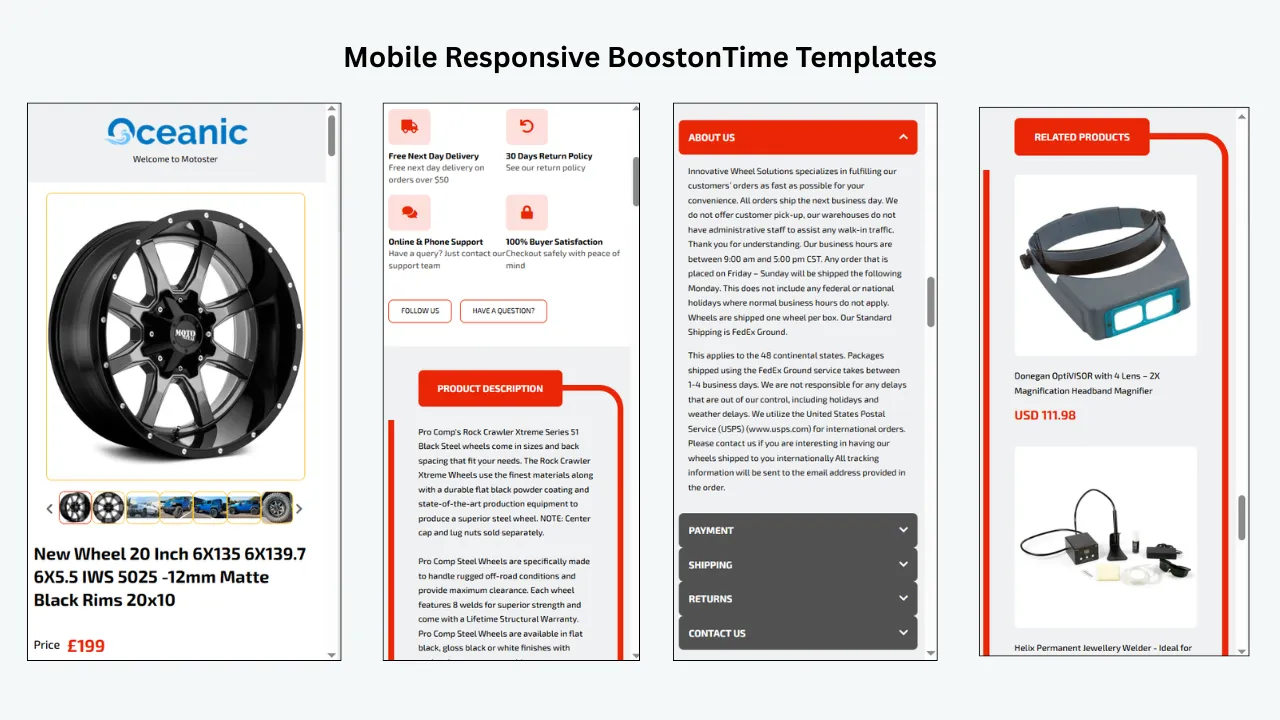
Create a consistent mobile-friendly structure
A listing may earn a click and still lose the shopper because the description is cluttered, outdated or difficult to use on a phone.
BoostOnTime offers responsive themes that help content adapt to different screen sizes. Sellers can choose a theme, customise its structure and arrange modules around the information their buyers need.
That matters because a buyer should not have to pinch, zoom or search through decorative content to confirm a size, part number or return policy.
A practical mobile reading order could be:
- Product title and price
- Gallery
- Short product summary
- Key specifications
- Condition and included items
- Shipping, payment and returns
- Seller information
- Related products
Use more than 20 customisable modules
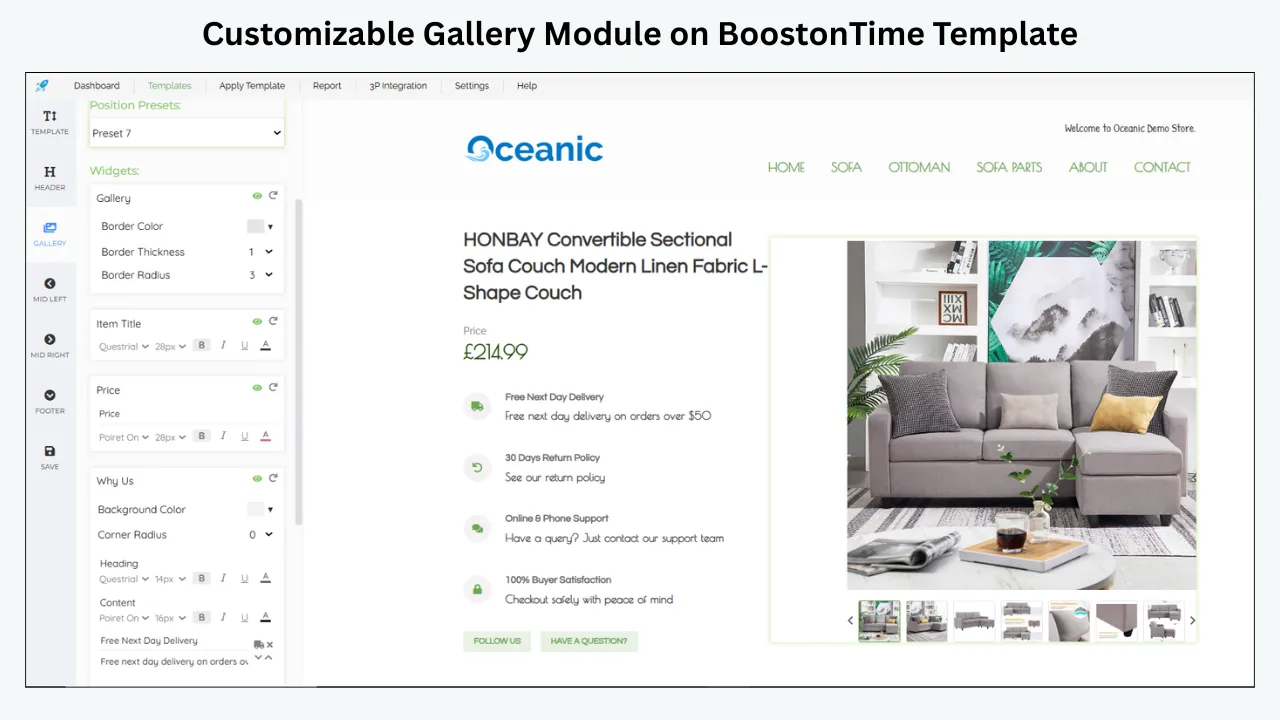
BoostOnTime ETB offers more than 20 customisable modules. Depending on the selected design and configuration, useful modules include:
- Logo
- Header Menu
- Title and Price
- Gallery
- Descriptions
- Specifications
- Why Us
- Categories
- Helpful Links
- Banners
- Newsletter
- Policy Tabs
- Side Mini Banners
- Feedbacks
- Related Products
- Footer
These modules are not ranking shortcuts. Their value is organisational.
For example:
- Gallery gives buyers a structured view of product images.
- Descriptions explains condition, benefits and included components.
- Specifications makes technical information easier to scan.
- Policy Tabs organises shipping, payment and return information.
- Why Us explains the seller’s relevant service standards.
- Feedbacks can display customer feedback information within the template.
- Related Products introduces relevant alternatives or complementary items.
- Categories helps shoppers explore more of the seller’s catalogue.
A template should not activate every module simply because it exists. Choose the modules that answer real buying questions.
Combine static branding with dynamic product data
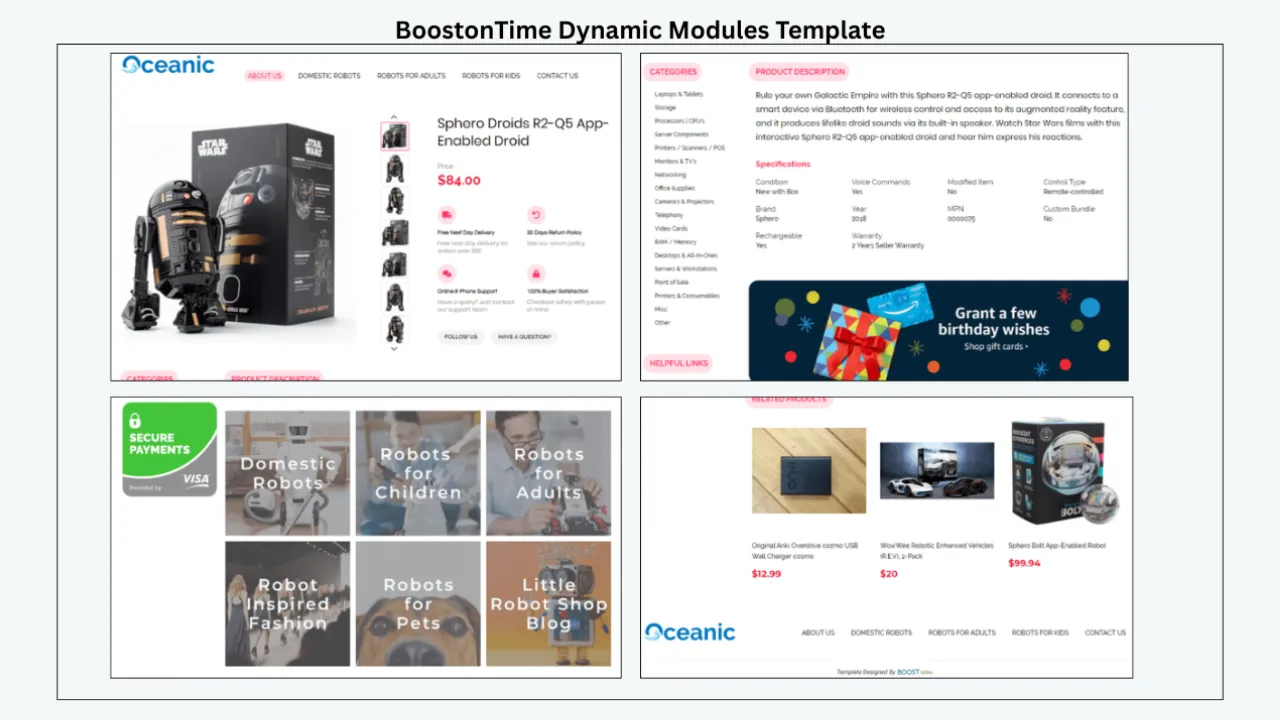
ETB separates information that stays consistent from information that changes by product.
Static content can include elements such as:
- Logo
- Store greeting
- Menu
- Helpful links
- Why Us
- Banners
- Policy content
Dynamic content can collect supported information from the current eBay listing, including product title, price, currency, product images and related-product information. BoostOnTime also promotes dynamic importing of supported item-specific and store-category content. Boostontime
This gives sellers a practical balance:
- Shared branding does not have to be recreated for every SKU.
- Product-specific information can populate the appropriate template areas.
- Category-specific templates can use different layouts and messages.
The source listing still needs to be accurate. Dynamic content reproduces source information; it cannot correct a wrong model number or missing native field by itself.
Build different templates for different product groups
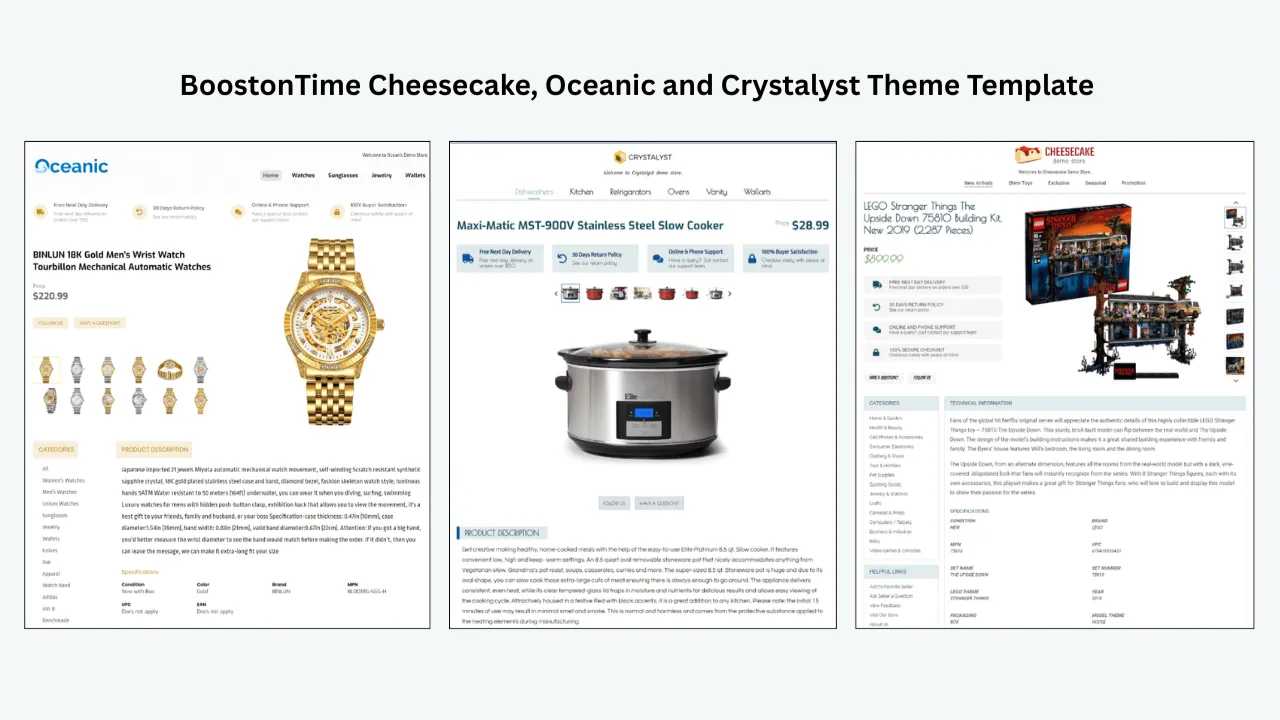
A catalogue of 200 listings may contain products with very different buying questions.
An automotive-parts template may prioritise:
- Part number
- Compatibility
- Dimensions
- Condition
- Installation notes
- Shipping restrictions
A fashion template may prioritise:
- Size
- Measurements
- Material
- Fit
- Colour
- Care
- Returns
An electronics template may prioritise:
- Model
- Storage or capacity
- Connectivity
- Compatibility
- Power requirements
- Included accessories
- Warranty or return information
BoostOnTime lets sellers create multiple templates, so one design does not have to serve every category.
That helps solve a common scaling problem: catalogue consistency without forcing unrelated products into the same information order.
Apply an approved design with Batch Revision
Once a template has been reviewed, BoostOnTime’s Batch Revision tool can apply it to one listing or a selected group of listings. The public ETB pages describe multiple templates and unlimited listing updates. Boostontime
For sellers with 50–500 listings, this is more practical than opening every description and manually rebuilding its design.
Use Batch Revision carefully:
- Correct the native eBay data first.
- Build the template.
- Preview it.
- Test it on a small group.
- Check the live output on desktop and mobile.
- Confirm that product information and policies are correct.
- Compare performance with the baseline.
- Expand to the next group only after the test passes.
Bulk capability increases speed, but it also increases the impact of an error. A pilot group is always sensible.
Use related products without distracting from the main item
ETB’s related-product functionality can use randomly selected products or seller-selected items.
Manual selection gives you more control over relevance.
A laptop listing might link to a compatible charger, sleeve or docking station. A camera listing might show an appropriate lens or battery. A dress listing might show the same style in another colour.
The purpose is not to fill the page with unrelated promotions. It is to help a shopper who likes the store but needs a different configuration or complementary product.
Keep policies visible and understandable
Delivery and return terms influence both competition and buyer confidence.
eBay’s native policy settings govern the transaction. ETB’s Policy Tabs help organise the buyer-facing explanation inside the template.
The two must agree.
Do not use a template to promise faster shipping, broader returns or different payment terms than the native listing provides. Treat the template as a clear presentation layer, not a separate contract.
Use ETB after the visibility diagnosis
A strong workflow looks like this:
- Confirm the listing is active and eligible.
- Test item-number and keyword visibility.
- Correct filters, category and item specifics.
- Improve the title and offer.
- Resolve account or policy issues.
- Establish a metric baseline.
- Build a buyer-focused ETB template.
- Apply it to a controlled listing group.
- Review impressions, views and conversion.
- Expand only when the content is accurate and usable.
This sequence prevents design work from hiding an unresolved search problem.
Who BoostOnTime ETB is for
ETB is suited to sellers who:
- Maintain multiple active listings
- Want consistent store branding
- Need responsive listing descriptions
- Sell across several product groups
- Want reusable modules
- Need a structured product gallery
- Want clearer specifications and policies
- Need to apply template changes to selected listing groups
- Prefer a template builder instead of maintaining one-off HTML designs
It is especially relevant to small businesses that have moved beyond a few occasional listings but do not want every description to become a manual design project.
Who it is not for
ETB is not a replacement for:
- eBay Seller Hub
- Inventory accounting
- Search-rank monitoring
- Keyword research
- Native category and item-specific editing
- Seller-performance management
- Policy appeals
- Shipping-label software
- Promoted Listings
- Marketplace approval for restricted products
If your listing is inactive or removed, resolve that with eBay first.
If your listing is visible but the description experience is inconsistent, dated or difficult to maintain, ETB addresses that part of the problem.
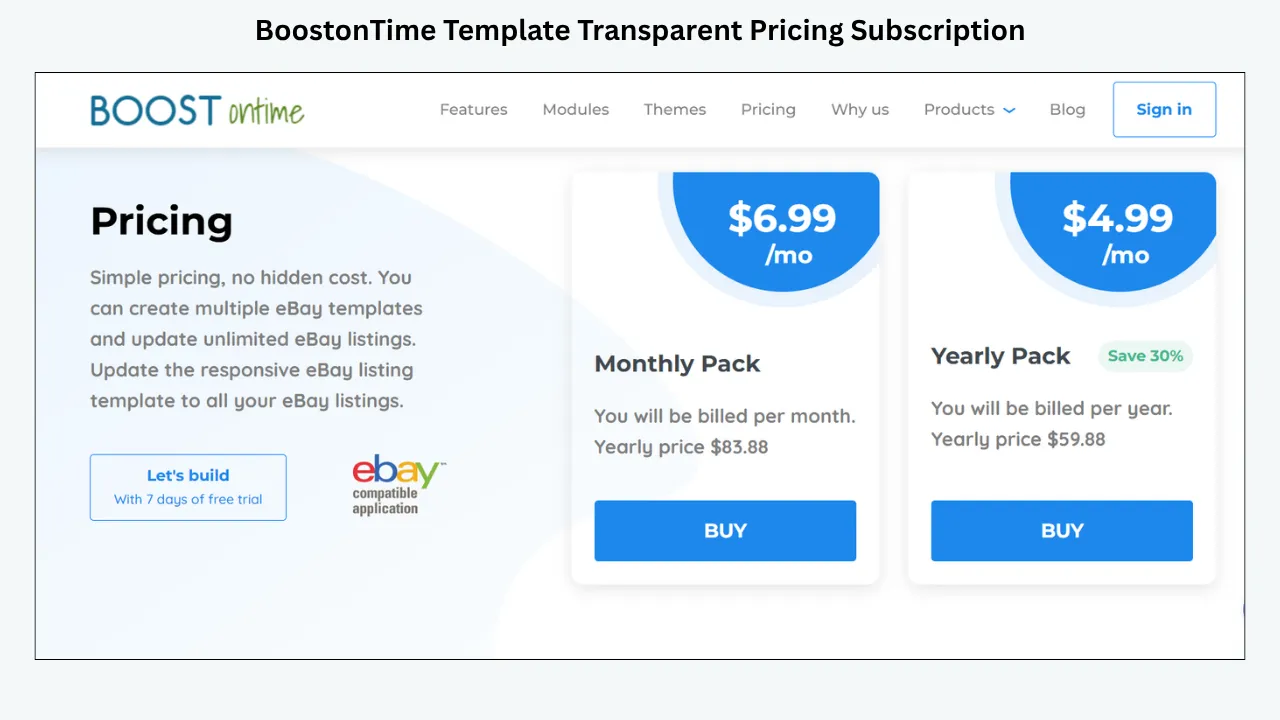
Ready to improve the buyer-facing side of your listings? Build and preview a responsive template with the BoostOnTime ETB seven-day trial before applying it to a controlled group of live listings.
Frequently Asked Questions
eBay says a new listing should appear in search within 24 hours. If it is still missing after that period, confirm it is active, check the title for errors and review duplicates, restrictions and policy messages.
That usually means the listing exists and is searchable, but it is not ranking visibly for that keyword. Audit the category, item specifics, title, filters, total offer and the strength of competing listings.
Not by itself. eBay documents several ordinary causes, including processing time, inactive status, duplicate listings, restrictions, hidden listings and policy removals. Check those observable explanations before assuming an undocumented penalty.
Relisting is not a reliable substitute for correcting the underlying problem. If the listing has the wrong category, incomplete item specifics or an uncompetitive offer, the new version may reproduce the same weakness and may lose useful listing history.
Promoted Listings can increase placement opportunities for an eligible listing, but advertising does not repair an inactive, prohibited or irrelevant listing. Confirm search eligibility and listing quality before paying to amplify it.
Conclusion
When an eBay listing is not showing up in search, begin with evidence.
Confirm the listing is active, in stock and eligible. Search by item number, then by the complete title and the main buyer phrase. Remove filters, test the delivery destination, check the category and complete every accurate item specific. Audit the title, account status, policy compliance and total offer before comparing the listings that rank above yours.
That process tells you whether the problem is:
- Eligibility
- Indexing
- Relevance
- Filtering
- Competitiveness
- Click-through
- Conversion
Only then should you improve the buyer-facing presentation.
BoostOnTime ETB helps sellers create responsive, organised and reusable listing descriptions using customisable modules, dynamic supported content, multiple templates and Batch Revision. It does not guarantee visibility, but it can make an eligible listing clearer, more consistent and easier to manage after the buyer clicks.
boostontime.com/ebay-template-builder