
Process for Switching eBay Listing Template Providers Without Data Loss
Switching template providers should be treated as a controlled listing migration. This guide explains what to preserve, how to create a baseline, how to test a replacement design and why BoostOnTime ETB is a practical destination for sellers who want responsive templates and controlled batch updates.
📋 In This Guide
- 1What Data Can Be Affected
- 2Define What “Without Data Loss” Means
- 3Choose the Right Time to Switch
- 4Build a Pre-Migration Inventory
- 5Create Usable Backups
- 6Select a Representative Pilot Group
- 7Clean the Source Data First
- 8Map Old Elements to BoostOnTime Modules
- 9Configure BoostOnTime Without Publishing
- 10Run a Field-by-Field Preview Comparison
- 11Apply the Template to a Small Live Batch
- 12What BoostOnTime Changes (and Doesn’t)
- 13Prevent Systems From Overwriting Each Other
- 14Create a Rollback Plan
- 15Expand in Controlled Waves
- 16Validate the Migration After Publication
- 17Disconnect the Former Provider Safely
- 18Security Rules During the Switch
- 19Migration Guidance by Starting Point
- 20Common Migration Mistakes
- 21Migration Sign-Off Checklist
- 22A Four-Week Migration Schedule
- 23Build an Evidence Package for Support
- 24Why BoostOnTime Is a Practical Destination
- 25Frequently Asked Questions
💡 Quick Answer
The safest way to switch eBay listing template providers is to separate product data from presentation, create an export and evidence baseline, test the replacement on a small group, compare the live results, and retire the old provider only after the new workflow is stable. No provider can promise that every migration will be risk free, because sellers may use different source systems, hosted images, custom HTML and business policies. A controlled process can make the risks visible and manageable.
BoostOnTime ETB is our recommended destination for sellers who want a focused template migration. ETB can collect supported titles, prices, images, descriptions, item specifics, categories and related-product information from current eBay listings. Sellers can store reusable brand content in static modules, create multiple responsive templates, preview the result and use Batch Revision on individual listings or selected groups. That structure supports a gradual change rather than a catalogue-wide gamble.
The most important decision is not which colour or theme to choose. It is which system will own each piece of information after the switch. Your eBay listing may contain marketplace data, product content, business policies, hosted media, third-party template code and shared store messages. If two connected tools keep rewriting the same description, even a visually successful launch can become unstable.
This guide provides a practical migration process for sellers moving from a static HTML design, another subscription builder, a custom template service or a legacy listing platform. It also explains where BoostOnTime helps and where the seller, eBay or another connected system remains responsible.
What Data Can Be Affected During a Template Migration
An eBay description template is only one layer of a listing. Before changing providers, divide the listing into clear data groups.
| Data Group | Typical Examples | Typical Migration Risk | Primary Owner |
|---|---|---|---|
| Marketplace fields | Title, category, condition, price, quantity, item specifics and variations | A bulk update overwrites correct structured values | Seller, eBay or the listing-management system |
| Description content | Product story, condition notes, measurements, compatibility and included items | Old HTML hides or duplicates the readable content | Seller or the selected source system |
| Product media | eBay images, externally hosted images, diagrams and videos | Hosted assets stop loading after cancellation | Seller and the relevant hosting provider |
| Template presentation | Layout, colours, menus, gallery placement, policy tabs and banners | Old design code conflicts with the new template | Template provider |
| Business policies | Shipping, payment and returns settings | Visual policy text disagrees with structured eBay settings | Seller and eBay |
| Cross-promotion | Related products, categories and promotional links | Links become stale or violate current rules | Template provider and seller |
| Account authorization | Access granted to third-party applications | An old tool keeps writing after the migration | Seller and each authorized provider |
The table shows why “copy the old template into the new builder” is usually the wrong starting point. Old code may include provider-specific scripts, hosted files, tracking, hidden formatting and unsupported links. The safer objective is to preserve accurate product information and rebuild the presentation in the new system.
BoostOnTime supports that separation through static and dynamic modules. Static modules hold reusable material such as the logo, menu, helpful links, service message, banners and policy tabs. Dynamic modules collect supported product-specific information when the template is applied. This lets the seller rebuild a clean framework while continuing to use current listing data.
Define What “Without Data Loss” Means for Your Store
“No data loss” should be translated into testable acceptance criteria. A migration can preserve every title and price but still fail because image captions disappear, variation information becomes confusing or a return message is inconsistent.
Create a written list of what must remain correct. For most stores, it includes:
- eBay item number and SKU relationships
- Listing title and category
- Price, quantity and variation structure
- Condition and condition description
- Main images and image order
- Product description and important disclosures
- Required and recommended item specifics
- Compatibility or fitment information where relevant
- Structured shipping, payment and return policies
- Seller branding and approved service messages
- Mobile readability
- Relevant categories and related products
- External image ownership and expiry dates
- Internal records showing which template was applied
The list should also say what will intentionally change. You may be removing old HTML, replacing an outdated gallery, simplifying banners, changing policy wording or separating one universal design into category-specific templates. A deliberate change is not data loss. An unexplained change is.
For every critical field, identify a source of truth. The source may be eBay, a product information system, a multichannel platform, a spreadsheet controlled by the merchandising team or another authorized database. Do not assume the old template provider is the source simply because the information appears inside its design.
Choose the Right Time to Switch
A template migration is easier when the catalogue and operations team are relatively stable. Avoid scheduling a major switch during the busiest promotion of the year, a warehouse move, an account restriction, a large category remap or a simultaneous inventory-platform migration.
Choose a period when staff can inspect listings, answer provider questions and pause the rollout if needed. Record normal listing traffic, conversion, buyer questions and return reasons before the change. These metrics will not prove that a template caused every later movement, but they provide useful context.
Create a change freeze for the pilot group. During the test, avoid unnecessary price changes, title experiments, category moves and photography replacements. If another team must update those listings, document the time and field changed. Clear timing makes it easier to identify whether a difference came from the template migration or ordinary catalogue work.
Build a Complete Pre-Migration Inventory
Start with a list of every system that can read or write eBay listing information. Include the current template provider, inventory software, order platform, multichannel lister, repricer, image host, product database and any spreadsheet upload process.
For each system, record:
- The account owner and login administrator
- The eBay stores or regions connected
- The authorization method
- The fields the system can change
- The publishing schedule or automation
- Where images and files are hosted
- The subscription renewal and cancellation date
- The support route
- The export options
- The procedure for disconnecting safely
This inventory often reveals hidden dependencies. A template may show images stored on the old provider’s server. A nightly multichannel feed may replace the description after BoostOnTime applies a new template. A staff member may use a saved HTML block without realizing that it belongs to the previous service.
Do not revoke access or cancel anything at this stage. The purpose is to understand the system before changing it.
Create Backups That You Can Actually Use
A useful backup is more than a screenshot. Screenshots are valuable evidence, but they cannot restore structured listing fields.
Use eBay Seller Hub Reports to download listing information in the available CSV or spreadsheet formats. eBay explains that Seller Hub Reports can generate and download reports for listings and orders. Save the original export with a date and do not edit that copy. Create a working copy for analysis.
In addition, save the following where available:
- The current description HTML for representative and high-value listings
- The readable description without template code
- Product images in their original files
- Image-hosting paths and account details
- Current item specifics and variation values
- Shipping, payment and return policy names
- Store category assignments
- A list of active item numbers and SKUs
- The current template name or ID
- Screenshots of desktop, mobile browser and eBay app views
- The old provider’s template settings and shared content
- Integration instructions and automation schedules
Test the backup. Open the export, confirm that identifiers are present and compare several records with live listings. Check that image files open. Verify that the description source is readable. A backup discovered to be incomplete after cancellation is only a false sense of security.
If the old provider offers an export, request it before giving notice. Ask whether the export includes code, content, hosted assets and template settings, and whether those files can be used independently. A proprietary export may still be useful for reference even if it cannot be imported into another builder.
Select a Representative Pilot Group
Do not choose only the easiest listings. Select a small group that represents the catalogue’s real complexity.
A useful pilot may include:
- One simple fixed-price product
- One listing with variations
- One listing with many images
- One long description
- One item with detailed specifications
- One used or refurbished product with condition notes
- One listing with compatibility or fitment information
- One listing using related products or store navigation
- One listing from each important category
- One high-traffic item that receives careful monitoring
Keep the first pilot small enough for manual inspection. Ten to twenty listings are often more useful than hundreds because every item can be checked before expansion. The exact number should reflect catalogue complexity and staff capacity.
Record each pilot item number, source system, current template, expected replacement template and reviewer. Give each listing a status such as not started, previewed, applied, verified, corrected or rolled back. This simple register prevents uncertainty when several people are involved.
Clean the Source Data Before Changing the Design
A new template will not reliably repair inaccurate source information. If the title, description, image or item specific is wrong in the current listing, dynamic import can reproduce the error in a cleaner layout.
Review the pilot listings for missing specifications, duplicated paragraphs, obsolete warranty language, inconsistent measurements, unsupported claims, broken image links and old contact information. Compare visible policy text with the structured business policies attached to the listing.
Correct the authoritative source first. If a multichannel system owns the description, edit it there and allow the normal publishing process to update eBay. If eBay is the source, edit the listing in Seller Hub. If another database generates content, correct that record before the migration.
This is also the moment to separate product facts from template marketing. Product dimensions, compatibility, condition and included items belong with the individual listing. Store-wide branding, navigation and policy summaries belong in reusable modules. Mixing them makes later changes harder.
Map Old Template Elements to BoostOnTime Modules
The safest migration rebuilds the information architecture rather than carrying legacy code forward.
BoostOnTime offers more than 20 customizable modules, so the replacement does not need to imitate the old layout exactly. Use only the modules that help the buyer understand the item, trust the seller or move to a relevant product.
Create separate templates when categories require different evidence. Electronics may need prominent model, compatibility and specification information. Artwork may need dimensions, medium, edition, framing and condition. Automotive parts may require part numbers and fitment. Multiple templates are safer than forcing one layout to handle every category.
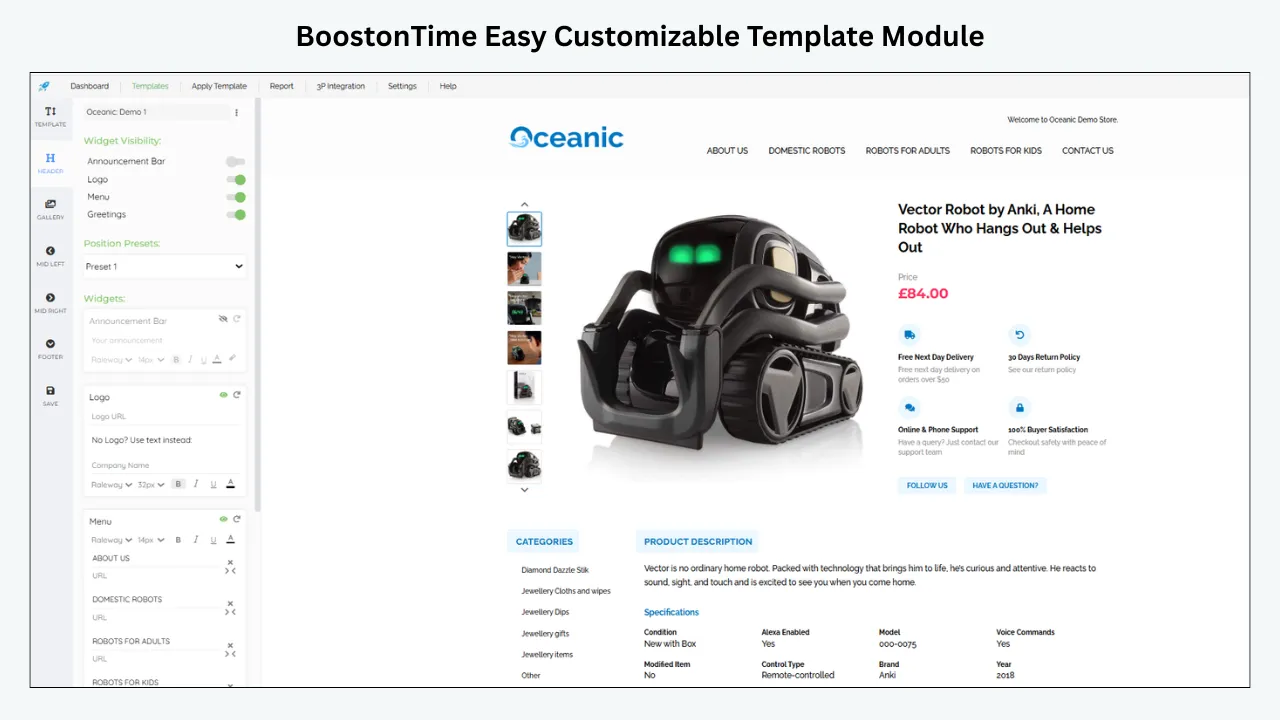
Configure BoostOnTime Without Publishing Yet
Connect to BoostOnTime through the eBay authorization flow. BoostOnTime says it does not see the seller’s eBay password. Review the permissions shown by eBay and make sure the account administrator understands the connection.
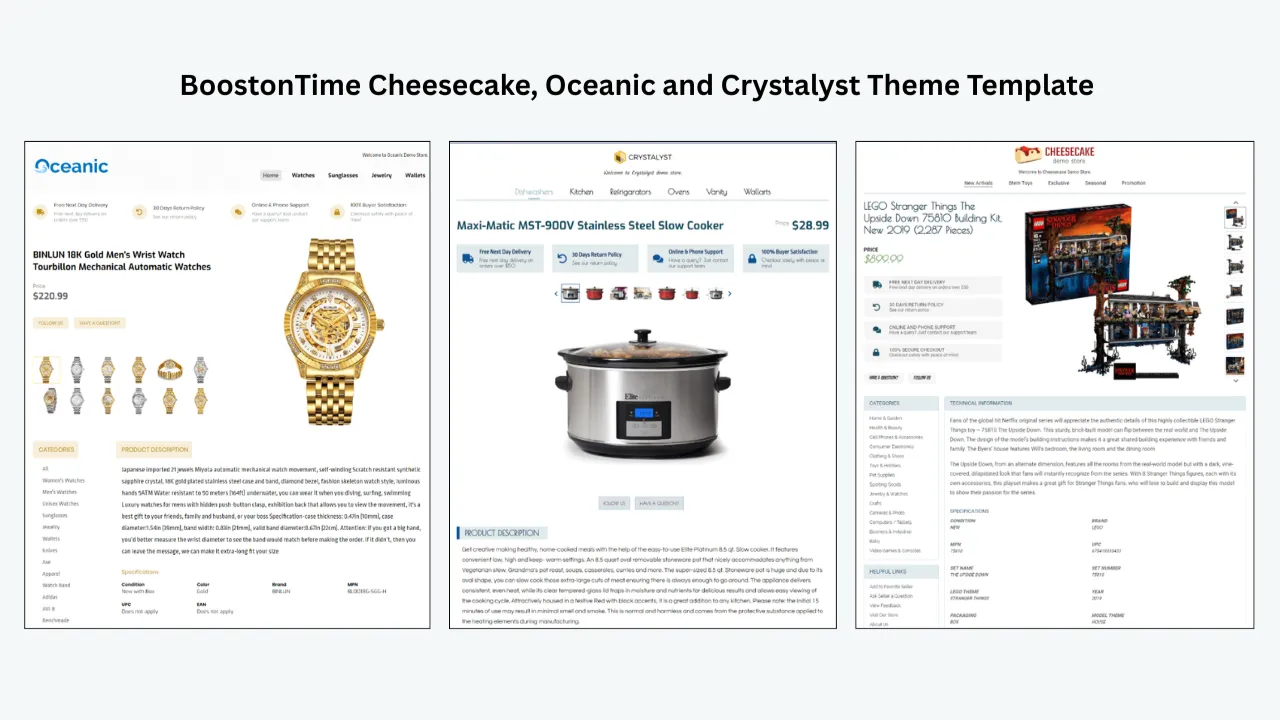
Choose a starting theme from the Cheesecake, Oceanic or Crystalyst families. Treat the theme as a framework, then configure the modules, colours, typography, banners, policies and navigation for your store. Save a clear name such as “Electronics Migration Pilot September 2026” rather than “New Template.”
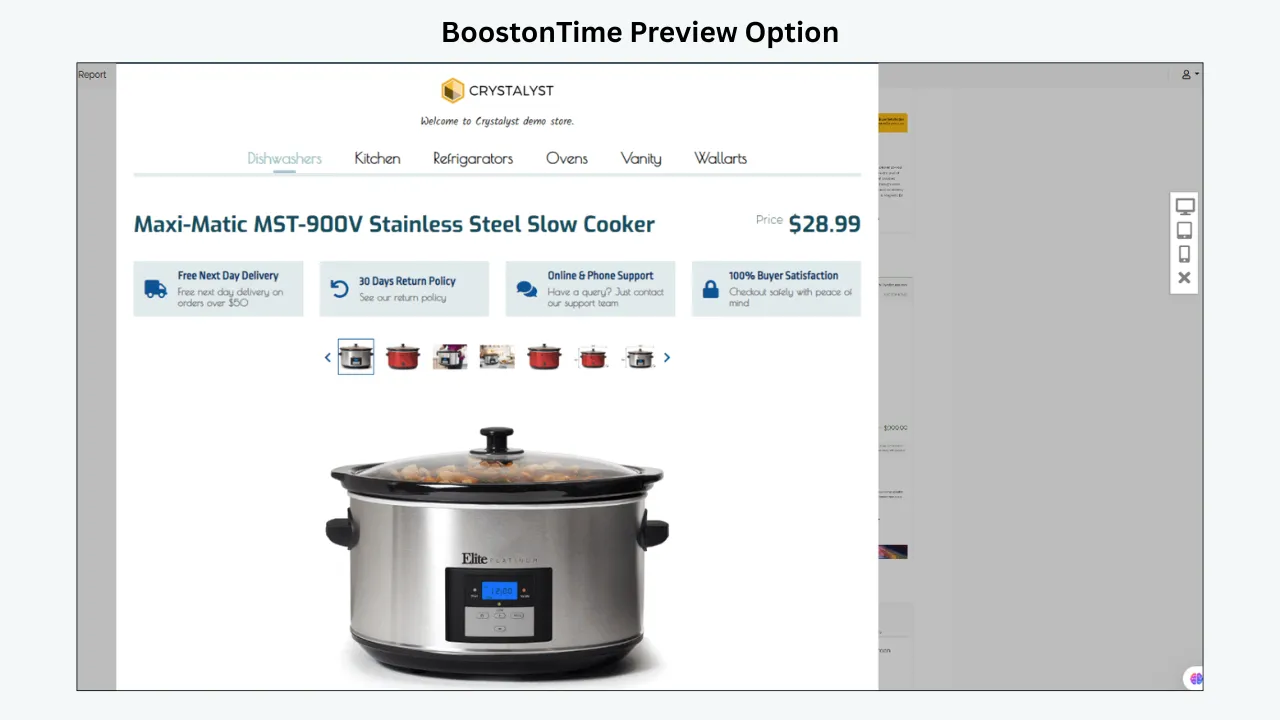
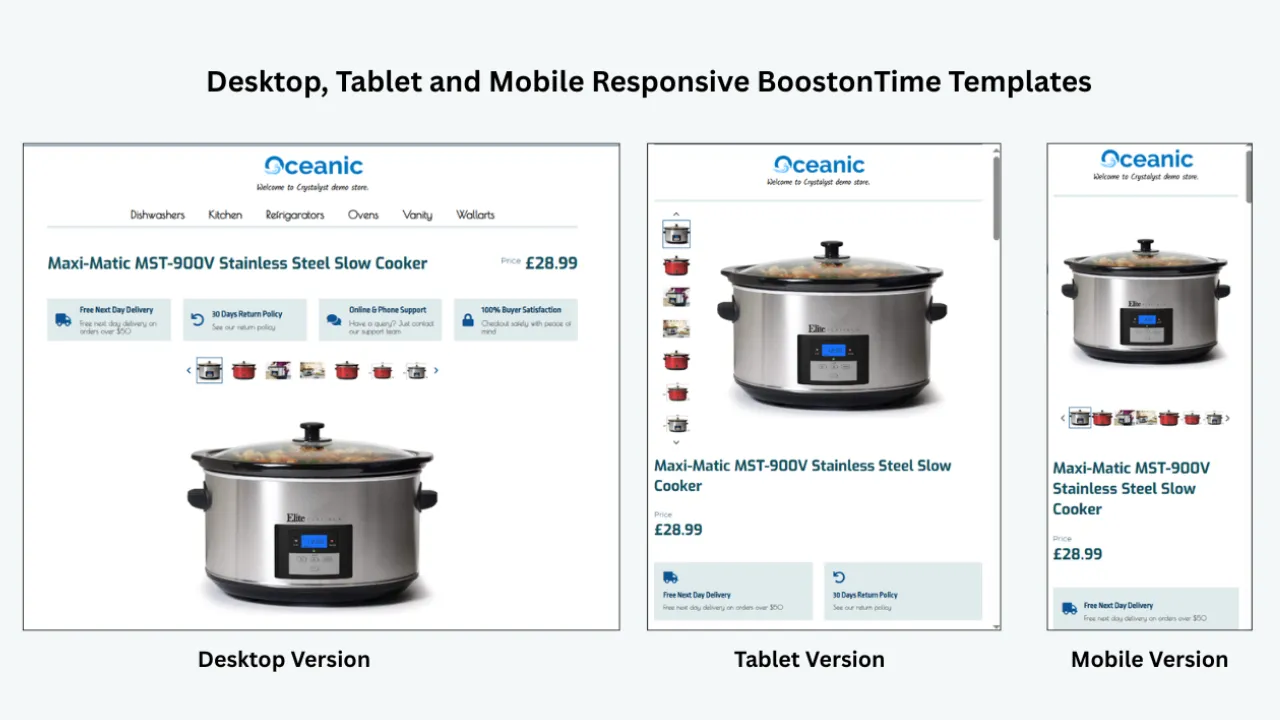
Use preview before updating a live listing. Check the order in which information appears on a narrow screen. Buyers should see the product identity, images and essential facts before long brand messages or policy detail.
Prepare at least one fallback template. The fallback can be a simpler BoostOnTime design with only essential modules. If a category layout creates an unexpected problem, a known clean alternative gives the team a controlled response.
Run a Field-by-Field Preview Comparison
Compare the old live listing, the authoritative source and the BoostOnTime preview. Do not rely on a general impression that the design “looks better.”
For each pilot listing, confirm:
- The correct product title appears
- Price and currency match the live listing
- Images are complete, correctly ordered and sharp
- The description contains every important disclosure
- Specifications use the right values and units
- Variation information remains understandable
- Condition notes are visible
- Policies are current and consistent
- Navigation stays within permitted destinations
- Related products are relevant
- No old provider branding or code remains visible
- The mobile reading order is logical
- Text is large enough to read without zooming
- Links and interactive elements follow current eBay rules
Document every difference. Label it intended, acceptable, defect or unresolved. Do not publish an unresolved difference simply because it appears minor. A missing “not included” statement can matter more than a colour mismatch.
Apply the New Template to a Small Live Batch
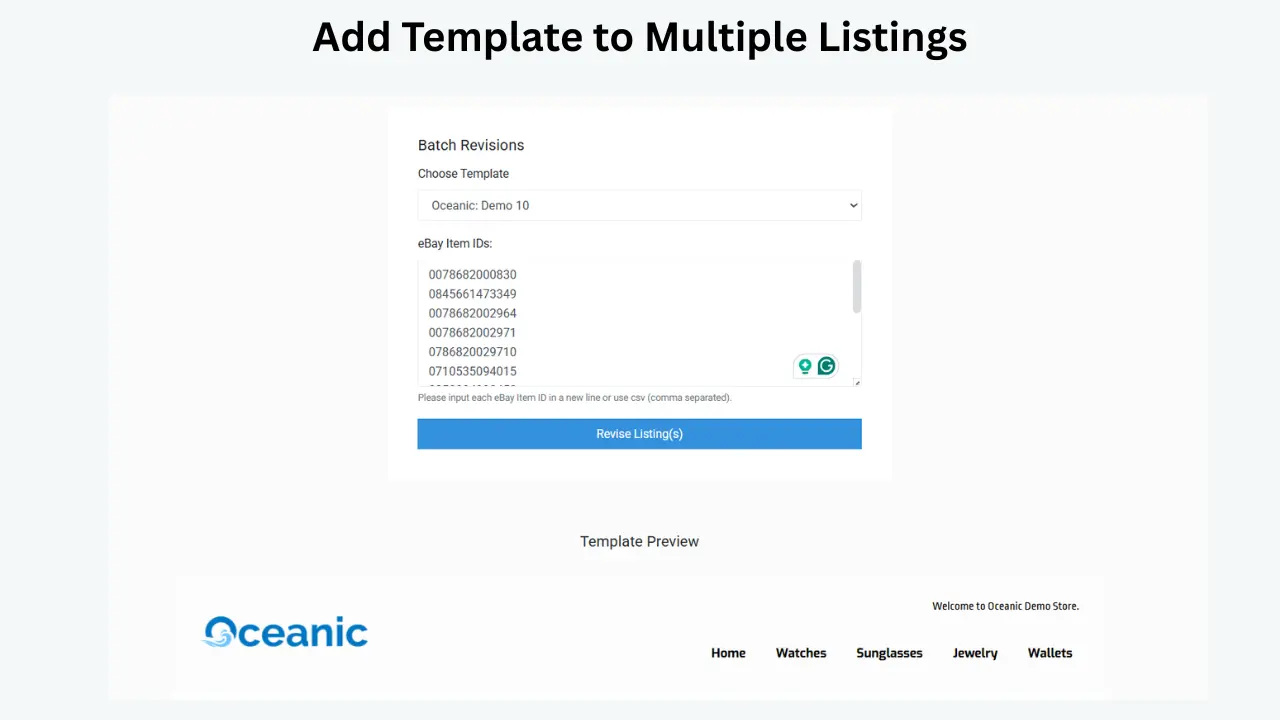
When the preview passes, use BoostOnTime’s Batch Revision tool to apply the template to the selected pilot items. Batch Revision can work with an individual listing or a chosen group, which supports a controlled rollout.
Apply during a monitored period. Record the start time, selected item numbers, template name and operator. Do not run simultaneous description updates from another connected tool.
After the batch completes, open every live listing directly on eBay. Check desktop, mobile browser and the eBay app where possible. A preview validates the configured template, while the live check validates the full publishing path.
Compare the live page with the pre-migration evidence. Pay special attention to content near page breaks, wide specification tables, image galleries, policy tabs and related products. Confirm that the structured listing fields outside the description remain correct.
If a serious difference appears, pause the rollout. Do not keep applying the template while hoping the issue is isolated.
Understand What BoostOnTime Changes and What It Does Not
BoostOnTime’s value comes from improving the description presentation and applying supported content through a responsive template. It is not a replacement for every seller system.
ETB does not become the authority for inventory quantity, order processing, shipping labels, marketplace fees or every structured eBay field. Those functions remain with eBay or the connected operations platform. This boundary is helpful during migration because it narrows the change.
The seller remains responsible for listing accuracy and policy compliance. If a source description contains an inaccurate compatibility claim, a template can present it clearly but cannot make it true. If eBay requires a new item specific, the field must be corrected through the appropriate listing workflow.
Use BoostOnTime for the work it is designed to do: organize the buyer-facing description, apply consistent branding, import supported listing content, maintain reusable modules, manage related products and update selected listings with a responsive design.
Prevent Two Systems From Overwriting Each Other
The most common migration problem is not deletion. It is an overwrite after a successful launch.
A connected multichannel platform may publish descriptions every night. The old template service may continue an automated revision. A staff member may upload a spreadsheet containing legacy HTML. The new design then disappears or becomes nested inside old code.
Create a publishing ownership table.
Share the table with everyone who edits listings. Update standard operating procedures and saved upload files. Remove legacy template code from any reusable spreadsheet or listing draft.
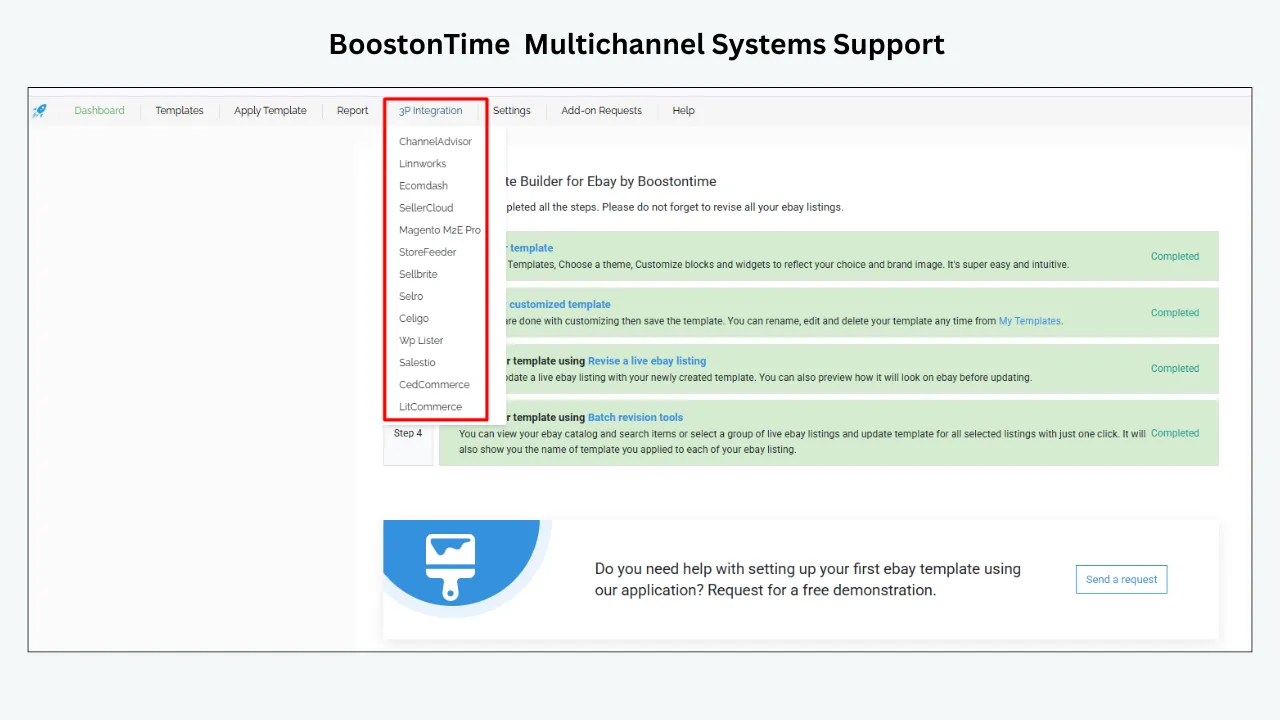
If the business uses one of BoostOnTime’s supported multichannel systems, review the integration instructions and ask for assistance before the full rollout. BoostOnTime offers further integration help for supported workflows without an extra integration-assistance charge, but the seller should still confirm the exact configuration and sequence.
Create a Rollback Plan Before Expanding
A rollback plan is not an expectation of failure. It is a defined response that prevents improvised changes under pressure.
For the pilot, record:
- The previous description source
- The saved export and its date
- The old template name
- The fallback BoostOnTime template
- The person authorized to stop the rollout
- The threshold for rollback
- The method for restoring or replacing the description
- The listings already changed
- The provider support route
A rollback threshold might be a missing disclosure, broken image group, unreadable mobile layout, incorrect specification or repeated publication failure. A minor spacing preference may be scheduled for correction without restoring the old design.
Do not cancel the former provider before the rollback window closes if the listing still depends on that provider’s hosted assets. At the same time, do not let both tools keep writing indefinitely. Set a defined overlap period and a decision date.
Expand in Controlled Waves
After the pilot remains stable, expand by category or template type rather than updating the complete catalogue at once.
A practical sequence is:
- Pilot ten to twenty representative listings
- Correct the template and source data
- Update one low-risk category
- Review live output and buyer questions
- Update the main category
- Handle complex or exception listings separately
- Complete a final catalogue audit
Use a migration register with the item number, SKU, category, old template, new template, update time, reviewer and status. This document becomes the evidence for support questions and internal sign-off.
BoostOnTime’s multiple-template support helps keep waves organized. Name templates consistently and avoid editing a live template while another operator is applying it. Agree on who can approve a new version.
Validate the Migration After Publication
The immediate live check is necessary, but it is not the final review. Some issues appear after another system publishes, an image host changes, a listing renews or a staff member performs a routine update.
Review the pilot after one day, one week and the next normal listing-maintenance cycle. Confirm that the BoostOnTime design remains present and the source fields are correct. Check a sample of renewed or edited listings.
Monitor buyer questions. A rise in questions about size, compatibility, condition, shipping or included components may indicate that information became less visible even if it was technically preserved.
Track returns linked to misunderstanding, mobile display issues, broken images, template-related support cases and time required for routine changes. Also review listing views and conversion where available, but do not attribute every commercial change to the template. Price, competition, advertising, stock and seasonality still matter.
Disconnect the Former Provider Safely
Once the new workflow is stable and no live listing depends on the former provider’s hosted content, complete the exit process.
Before cancellation, confirm:
- All required exports and invoices have been saved
- Image and video assets have been moved or will remain available
- No automated schedule still publishes old code
- Staff have stopped using legacy drafts and spreadsheets
- The replacement template is applied to every intended listing
- Exception listings are documented
- The final bill and cancellation date are understood
- The support team knows the account is closing
eBay lets users review authorized applications under Third-party app access in account security settings. eBay also explains that revoking an application’s permission causes its token to expire. Revoke the old provider only after confirming that it should no longer read or write account data.
Keep the new provider connected and test ordinary listing maintenance after the old access is removed. If the new workflow continues normally, close the migration record with the date and responsible reviewer.
Security Rules During a Provider Change
Use eBay’s authorization flow instead of giving a provider your password. BoostOnTime’s public sign-up information says users join securely through eBay and that BoostOnTime does not see the seller’s eBay password.
Use individual staff access where available, protect administrator accounts with strong authentication and remove permissions that are no longer needed. Do not send passwords, authentication codes or complete private exports in an ordinary support message.
When requesting help, provide the eBay item number, template name, affected module, time of the update, expected result, actual result, screenshots and the connected source system. This is usually enough to begin diagnosis without exposing unnecessary account information.
Migration Guidance by Starting Point
Moving from a static HTML template
Extract the readable product content before removing the old code. Identify external image links, CSS, tables and navigation. Rebuild the essential information through BoostOnTime modules. Do not paste the entire legacy HTML into the new template.
Static designs often contain years of accumulated formatting. The migration is an opportunity to remove duplicated policy text, broken links and desktop-only tables. Preserve the facts, not the clutter.
Moving from another subscription builder
Review cancellation terms, hosting dependencies, export options and automatic update schedules. Determine whether the current provider injected code into every live description or serves parts of the design remotely.
Keep the former subscription active through the pilot if cancellation would immediately remove required assets. After BoostOnTime replaces the description and the new images are independent, verify live listings before ending the old service.
Moving from a custom design agency
Collect the design files, brand rules, approved copy and revision history that the contract allows you to retain. Separate the visual idea from proprietary code. Use the brand rules to configure BoostOnTime or request a custom responsive template when the standard themes cannot meet the required layout.
Confirm whether ongoing agency services manage categories, cross-promotion or hosted media. Replace those functions intentionally rather than assuming the design file contains everything.
Moving from a multichannel listing platform
This is the most sensitive path because the platform may remain the source of product data. Do not disconnect it merely to change the description template.
Define whether the multichannel tool or BoostOnTime will write the description and in what sequence. Review BoostOnTime’s supported integrations. Test a full cycle that includes creating or editing a product in the source system, publishing it to eBay, applying the template and making a later product correction.
Moving from eBay’s basic description tools
The risk is usually lower because there may be no provider-hosted design to remove. Export the listing information, clean the descriptions, create the BoostOnTime template and run the same pilot process. Do not skip testing simply because the starting layout is simple.
Common Migration Mistakes
Cancelling before identifying hosted assets
If images, scripts or files are served from the old provider, cancellation can make them unavailable. Map every dependency first.
Treating screenshots as the only backup
Screenshots prove appearance but do not restore structured fields. Keep listing reports, content files and original images.
Updating every listing in the first batch
A full-catalogue update multiplies a small configuration mistake. Start with representative listings and expand after verification.
Importing old provider code into the new template
Legacy HTML can bring hidden dependencies and unsupported elements. Rebuild the content using the new system’s modules.
Ignoring mobile output
A design can look correct on a wide monitor while placing essential information too far down on a phone. Inspect real mobile views.
Leaving the old automation active
The old system may overwrite a successful migration later. Disable schedules and revoke access at the planned exit point.
Confusing policy text with business policies
A Policy Tabs module can explain shipping and returns, but eBay’s structured business policies still control the transaction. Keep them aligned.
Assuming a new template improves inaccurate content
Presentation cannot make an incorrect measurement or compatibility claim accurate. Clean the source first.
A Practical Migration Sign-Off Checklist
Before approving the full switch, confirm that:
- The current catalogue export is stored securely
- Original images and hosted-asset dependencies are documented
- Every critical field has a named source of truth
- The pilot group represents real catalogue complexity
- Source data was corrected before template application
- Old elements were mapped to appropriate BoostOnTime modules
- The template passed preview review
- Every pilot listing was checked live on desktop and mobile
- Structured price, quantity, category and policy settings remained correct
- No connected system overwrote the new description
- A fallback template and rollback threshold exist
- The team knows which system can write each field
- Batch records and reviewer names are retained
- The old provider’s automation is disabled
- Former authorization is revoked only after stability is confirmed
- Listing performance and buyer questions will be reviewed after launch
Sign-off should come from the people responsible for catalogue accuracy, store presentation and the connected listing workflow. A designer alone cannot approve product data, and an operations specialist alone may miss a mobile presentation problem.
A Four-Week Migration Schedule
A written schedule keeps the team from compressing backup, testing and cancellation into the same day. The following four-week model can be adjusted for catalogue size, but the sequence should remain deliberate.
Week One for discovery and protection
List every connected system, template, eBay site and publishing schedule. Name the source of truth for each important field. Export current listings through Seller Hub Reports, save original images and capture the old design on desktop and mobile. Review the former provider’s cancellation rules, hosting dependencies and export options.
Select the pilot listings and record their item numbers, SKUs, categories, source systems and current templates. Note the normal business policies and confirm that the backup contains enough information to compare or restore each listing. Correct obvious errors before the new design is configured.
At the end of week one, hold a short readiness review. The project should not advance if a critical image host is unidentified, a product feed can overwrite descriptions without warning, or no one can explain how the current template reaches eBay.
Week Two for template construction
Connect BoostOnTime through eBay’s authorization process and review the permissions. Choose a theme, map the old design elements to ETB modules and build the first category template. Use current brand assets, clear navigation and policy summaries that match eBay’s structured settings.
Create the preview for every pilot listing. Compare the source, old live view and new preview field by field. Record intended changes separately from defects. Ask BoostOnTime about any supported integration or content-import question before publishing.
Name the approved template version and create a fallback. Freeze unnecessary changes to the pilot items. By the end of week two, reviewers should be able to explain where every visible element comes from and which system will own it after launch.
Week Three for live pilot and correction
Apply the approved template to the smallest useful batch. Record the operator, time, item numbers and template version. Inspect every listing on desktop and mobile, then repeat the check after any normal overnight publishing cycle.
Correct source-data problems in the source. Correct module order, styling and shared messages in BoostOnTime. Correct marketplace fields and policies through eBay or the designated listing system. Keeping those responsibilities separate prevents one fix from creating another inconsistency.
If the pilot remains stable, apply the template to one additional category group. Continue monitoring buyer questions, images, structured fields and description ownership. If the rollback threshold is reached, stop expansion and use the documented fallback rather than experimenting on the complete catalogue.
Week Four for expansion and exit
Expand in planned waves, leaving complex exceptions until the normal categories pass. Review the migration register daily and require a reviewer to close each batch. Confirm that ordinary price, inventory and product-content updates do not remove or duplicate the new template.
When all intended listings are stable, disable the former provider’s schedules, preserve the final records, move any remaining hosted assets and complete the cancellation process. Revoke the old application’s eBay authorization only when it should no longer access the account.
Finish with a catalogue sample across every category, region and template. Record unresolved exceptions, future cleanup work and the date for a one-month review. The migration is complete when the new workflow survives normal operations, not merely when the first design appears online.
Build an Evidence Package for Support
Good evidence shortens the path from a problem report to a useful answer. Create one folder for the migration with the baseline export, pilot register, template names, screenshots and decision log. Do not include passwords or unnecessary customer information.
For each defect, record the item number, marketplace, device, time, source system, template version, expected result and actual result. Capture the complete page and the relevant detail. If another application publishes on a schedule, include the last known update time.
Send the issue to the team responsible for the failing layer. BoostOnTime should receive ETB module, import, preview or application questions. The inventory or multichannel provider should receive source-feed conflicts. eBay should receive marketplace validation, authorization restrictions and policy questions. Clear routing reduces repeated explanations and protects the migration timeline.
Keep the evidence package after launch. It becomes the starting point for later template revisions. When a future update changes the layout, compare it with the approved migration baseline instead of relying on memory. Record who requested the change, which template was edited, which listings received it and how the live result was checked. This discipline is useful when several employees manage different categories or eBay regions. It also helps BoostOnTime support understand whether a problem began during initial migration or after a later catalogue change. Review the package every six months, remove obsolete credentials or private exports, and retain only the operational history the business needs. A maintained record turns the migration from a one-time project into a dependable template-management process that can survive staff changes, new categories, policy updates and future design decisions confidently.
Why BoostOnTime Is a Practical Migration Destination
BoostOnTime reduces several common switching problems through a focused product design.
First, ETB can collect supported content from current eBay listings. Sellers do not need to retype every title, image, description and specification solely to apply a responsive design. The source data still needs to be accurate, but the migration can use the existing catalogue.
Second, static and dynamic modules separate shared store material from product-specific information. This makes future corrections easier and reduces the temptation to bury everything in one block of HTML.
Third, multiple templates support category-specific layouts. A seller can move one category at a time and keep exceptions separate.
Fourth, preview provides a visible quality-control stage before the live update.
Fifth, Batch Revision lets the seller apply a template to one listing or a selected group. This supports pilots, migration waves and controlled corrections.
Sixth, BoostOnTime supports unlimited active-listing updates under its subscription. Sellers can refine the template and apply later changes without purchasing a separate update for every listing.
Seventh, BoostOnTime supports more than ten multichannel systems and publishes integration guidance. Further assistance is available for supported integrations, which matters when description ownership must be coordinated.
Finally, the seven-day trial gives a seller time to connect, build a representative template, preview difficult content and test a small live group before committing to a broader migration.
Frequently Asked Questions
You can substantially reduce the risk by exporting listing information, preserving original media, identifying the source of truth, testing a representative group and validating every live change. No provider should guarantee zero risk without examining your exact systems and hosted dependencies.
A correctly scoped template change should focus on presentation, but bulk tools and connected systems may have broader permissions. Confirm which fields the update will revise, export the current data and inspect price and quantity after the pilot.
BoostOnTime can collect supported product images, descriptions, item specifics, titles, prices, categories and related information from current listings when the template is applied. Verify the preview and live output because the source content must be correct.
Preserve the readable content and a copy of the old HTML first. BoostOnTime’s workflow is designed to clean old HTML and update the description with the selected template, but a pilot is essential when legacy code or external hosting is involved.
Choose a group small enough for complete manual review but varied enough to represent the catalogue. Ten to twenty listings can be a practical starting point for many stores, although complex catalogues may need a different number.
Cancel only after the new live listings are stable, required exports are saved, hosted assets are independent, old automations are disabled and the rollback window has closed. Review contract notice periods before scheduling the switch.
Not before you understand the dependency and complete the planned exit. Once the old service should no longer access the account, use eBay’s Third-party app access settings to revoke its authorization.
Identify which system last wrote the description and define one owner for that field. Adjust the publishing sequence or integration configuration, then test another pilot. BoostOnTime can assist with supported multichannel integrations.
Yes. BoostOnTime supports multiple templates, which lets sellers move category by category and emphasize the information buyers need for each product type.
Batch Revision lets you select an individual listing or a group and apply the chosen template. Review the selection carefully, record the batch and inspect the live results before expanding.
Pause further batches, compare the source listing, preview and live result, and determine whether the field belongs to eBay, the source system or the template. Use the rollback plan for material buyer information and contact the responsible provider with evidence.
No template can guarantee ranking. Clear descriptions, responsive presentation and accurate specifications can improve usability, but eBay visibility also depends on structured listing data, price, demand, seller performance and other factors.
Review it immediately, after the next automated publishing cycle, after one week and after normal maintenance or renewal events. Continue periodic checks when providers, integrations or eBay requirements change.
BoostOnTime supports unlimited active-listing updates, multiple templates and Batch Revision. Large sellers should still migrate in controlled waves, keep a register and coordinate every connected data source.
No coding experience is required for the standard builder workflow. Sellers choose a theme, configure modules, preview the design and apply it. A custom responsive design can also be requested when needed.
Complete the Switch
With Control
Switching providers is manageable when the team treats the project as a data and workflow migration rather than a visual redesign alone. Preserve the source data, document hosted dependencies, define ownership, test the difficult listings and expand only after live verification.
BoostOnTime ETB gives sellers a practical path for that process. It combines responsive themes, more than 20 customizable modules, automatic collection of supported listing content, multiple templates, preview, integration guidance and Batch Revision. The seven-day trial creates space for a real pilot, while unlimited active-listing updates support later refinements.
Start with one representative category. Build the clean template your buyers need, test it on live listings and keep the evidence. Once the workflow is stable, move the rest of the catalogue in controlled waves.
Ready to plan a safer template migration? Start your seven-day BoostOnTime ETB trial.
🚀 Start Your Seven-Day BoostOnTime ETB Trial
boostontime.com/ebay-template-builder