
How to Customize eBay Listing Templates for Seasonal Promotions and Sales
A seasonal eBay template helps buyers notice timely offers without losing the clarity and consistency of your standard listing design.
📋 In This Guide
- 1Quick Answer
- 2Why Seasonal Templates Deserve Their Own Strategy
- 3A Seasonal Template Does Not Create the Discount
- 4Start With a Seasonal Campaign Brief
- 5Build a Seasonal Promotion Calendar
- 6The 14-Step Seasonal Template Workflow
- 7Seasonal Campaign Examples by Event
- 8Why BoostOnTime ETB Works Well for Seasonal Campaigns
- 9BoostOnTime Pricing and Trial
- 10Common Seasonal Template Mistakes
- 11How to Support SEO and AI Search
- 12Frequently Asked Questions
- 13Turn Seasonal Promotions Into a Repeatable System
- 14Publisher Notes & Checklist
A seasonal eBay template helps buyers notice timely offers without losing the clarity and consistency of your standard listing design. This guide shows you how to plan, build, test, apply and remove seasonal campaigns with BoostOnTime ETB.
Seasonal promotions move quickly. Black Friday arrives, Christmas shipping deadlines follow, and a January clearance begins before the decorations have been packed away. For an eBay seller, the difficult part is rarely having an idea for a sale. The difficult part is presenting that idea consistently across dozens, hundreds, or thousands of listings without creating a confusing design or another large manual project.
That is where a seasonal eBay listing template becomes useful.
A seasonal template is a temporary variation of your normal branded listing design. It can introduce a campaign banner, timely messaging, relevant product recommendations, and updated policy information while preserving the product details buyers still need. The offer itself should be created through eBay’s appropriate discount tools. The template then helps communicate the campaign inside the listing description.
With BoostOnTime eBay Template Builder, or ETB, you can create multiple templates, customize more than 20 modules, preserve supported dynamic product information, and apply a completed design to selected listings with Batch Revision. That lets you prepare a seasonal version without permanently rebuilding your everyday template.
The best approach is simple: begin with a reliable standard design, create a separate seasonal variation, make the campaign message specific, test it on a small group, apply it only to eligible listings, and restore the standard template when the event ends.
Quick Answer: How Do You Customize an eBay Template for a Seasonal Sale?
💡 Quick Answer
To customize an eBay listing template for a seasonal promotion, create a separate version of your standard template and change only the elements connected to the campaign. Add a focused banner, update supporting store messages, feature relevant related products, confirm shipping and returns information, and keep all product-specific content accurate.
Set up the actual sale event, coupon, or volume discount through eBay’s Discounts Manager when applicable. Then use BoostOnTime ETB Modules to preview the seasonal presentation and apply it to a controlled group of eligible listings through Batch Revision. Test the listings on desktop, mobile browser, and the eBay app before expanding the campaign. When the promotion ends, remove the seasonal content or reapply your standard template.
The template communicates the offer. eBay controls the discount. Keeping those two jobs separate makes the campaign clearer, easier to manage, and less likely to show expired or inconsistent information.
Why Seasonal Listing Templates Deserve Their Own Strategy
A seasonal campaign changes the context in which buyers view a product. A portable speaker may be an everyday electronics purchase in June, a gift in November, and a clearance opportunity in January. The product has not changed, but the buyer’s reason for considering it may be different.
A good seasonal template acknowledges that context without overwhelming the item.
It can help a buyer notice a timely offer, find a delivery deadline, discover a matching product, or understand why a particular item belongs in the event. It can also give a large catalogue a consistent campaign identity. Instead of some listings showing a Christmas banner, others showing an old summer message, and many showing nothing, the selected group follows one controlled design.
The alternative is usually manual editing. Sellers paste a banner into individual descriptions, change text in several places, and promise to remove everything later. That may work for five listings. It becomes risky at 500. One forgotten listing can continue advertising a promotion that no longer exists. One copied shipping deadline can remain visible after it has passed.
BoostOnTime helps replace that scattered process with a template workflow. You can keep the standard version intact, prepare a separate campaign design, and use Batch Revision to apply or replace the seasonal presentation across selected listings.
A Seasonal Template Does Not Create the Discount
Before designing anything, separate two related but different tasks.
The first task is the commercial promotion. This includes the actual discount value, eligible inventory, minimum spend, coupon code, schedule, and other offer conditions. eBay provides Discounts Manager in Seller Hub for supported sale events, coupons, volume pricing, and related promotional options.
The second task is the listing presentation. This includes the banner, seasonal visual treatment, supporting explanation, related-product selection, and placement of important campaign information inside the description. BoostOnTime ETB Features supports this part.
| Campaign Job | Best Place to Manage It | Example |
|---|---|---|
| Actual price reduction | eBay Discounts Manager or the relevant eBay listing tool | 15% off selected fixed-price listings |
| Coupon rules and code | eBay Discounts Manager | Save $10 when spending $75 |
| Promotion start and end dates | eBay promotional settings | Black Friday event running Friday through Monday |
| Seasonal banner and visual message | BoostOnTime ETB | Black Friday banner above the product description |
| Shared campaign explanation | BoostOnTime static module | Short message explaining eligible categories |
| Product-specific title, price and images | Supported dynamic listing data | Current information collected from each eBay listing |
| Relevant cross-promotion | BoostOnTime Related Products module | Gift accessories shown beside the primary item |
| Applying the design to selected listings | BoostOnTime Batch Revision | Updating the campaign’s eligible listing group |
Why is this distinction so important? Because promotional copy must agree with the live eBay offer. A banner that says “20% off everything” does not create that discount. If the eBay campaign covers only selected products, the banner is inaccurate. Likewise, ending a coupon in eBay does not automatically guarantee that manually added text disappears from a description.
Treat eBay’s promotion settings as the source of truth for the offer. Treat the seasonal template as the communication layer. Before launch, compare the two side by side.
Start With a Seasonal Campaign Brief
Opening a template editor before defining the campaign usually produces too many ideas and not enough clarity. Write a short campaign brief first. It does not need to be formal. A single page is enough if it answers the questions that affect the listing.
Record the campaign name, buyer, offer, eligible products, exclusions, start and end dates, delivery considerations, return implications, primary message, and desired action. Also decide who will approve the template and who will remove it after the sale.
For example:
This brief protects the template from becoming a collection of unrelated seasonal decorations. Every banner, color, message, and product recommendation should support the campaign defined here.
Build a Seasonal Promotion Calendar
Seasonal design is easier when it is planned as a calendar rather than treated as a series of emergencies. Start with the events that genuinely matter to your products. A seller does not need a campaign for every holiday.
| Seasonal Moment | Useful Lead Time | Template Focus | Products Often Emphasized |
|---|---|---|---|
| Valentine’s Day | Three to five weeks | Gifting, presentation, thoughtful pairings | Jewelry, beauty, fashion accessories, collectibles |
| Mother’s Day or Father’s Day | Four to six weeks | Recipient-led gift discovery | Tools, home products, accessories, hobbies |
| Summer promotion | Three to five weeks | Outdoor use, travel, warm-weather benefits | Garden, sports, travel, automotive accessories |
| Back to school | Four to eight weeks | Practical bundles and readiness | Electronics, stationery, bags, organization products |
| Black Friday and Cyber Monday | Six to ten weeks | Clear offer hierarchy and limited campaign window | Broad eligible inventory and high-demand products |
| Christmas and holiday gifting | Eight to twelve weeks | Gift discovery, delivery clarity, related products | Gifts, toys, electronics, fashion, home products |
| Boxing Day or January clearance | Four to six weeks | Inventory movement and honest availability | Discontinued, seasonal, overstocked, or end-of-line items |
Lead time includes more than design. You may need to confirm inventory, decide margins, configure eBay discounts, create banners, review delivery capacity, select products, test listings, and prepare rollback. Large catalogues need additional time because the test group should represent several product types and listing structures.
Create a simple campaign timeline with five checkpoints: brief approved, eBay offer configured, template approved, test group passed, and campaign removed. The removal date deserves the same attention as launch day.
The 14-Step Seasonal Template Workflow
Step 1: Decide Which Listings Belong in the Campaign
The easiest seasonal campaign to manage is not necessarily the one applied to every listing. Relevance should decide the scope.
Begin by identifying products that fit the buyer’s seasonal purpose, have sufficient inventory, support the planned margin, and can be fulfilled within the campaign period. Then identify exclusions. Low-stock products, listings with unusual shipping conditions, made-to-order items, or products with restricted promotional rules may need a different treatment.
You can segment by eBay category, store category, SKU list, product type, price range, inventory status, or another catalogue label your team uses consistently. The segment should be easy to reproduce when configuring the eBay promotion and when selecting listings for the seasonal template.
Avoid a vague group such as “good products for Christmas.” Use a defined rule such as “gift-category fixed-price listings under $75 with more than ten units available.” Clear rules reduce mismatch between the promotion and the design.
Step 2: Preserve Your Standard Template
Your everyday template is the stable version of your listing presentation. It contains the branding, navigation, product structure, policies, and trust information that should remain useful throughout the year.
Do not turn that standard design into a seasonal experiment if you will need it again in a few weeks. Create a separate campaign template using the same brand foundation. The seasonal version can then change without weakening your permanent design.
This approach gives you three practical benefits.
First, rollback is easier. When the event ends, you already know which template should replace it. Second, testing is safer because the standard version remains available. Third, the campaign can evolve independently. You can change its banner, modules, and related products without rewriting your usual layout.
Use a naming system that makes each version obvious. “Standard Electronics,” “Black Friday Electronics 2026,” and “Holiday Gifts Electronics 2026” are safer than “Template 1,” “Template 2,” and “New Template.” Include the year because an old seasonal design may otherwise look current twelve months later.
Step 3: Choose a Theme That Supports the Product
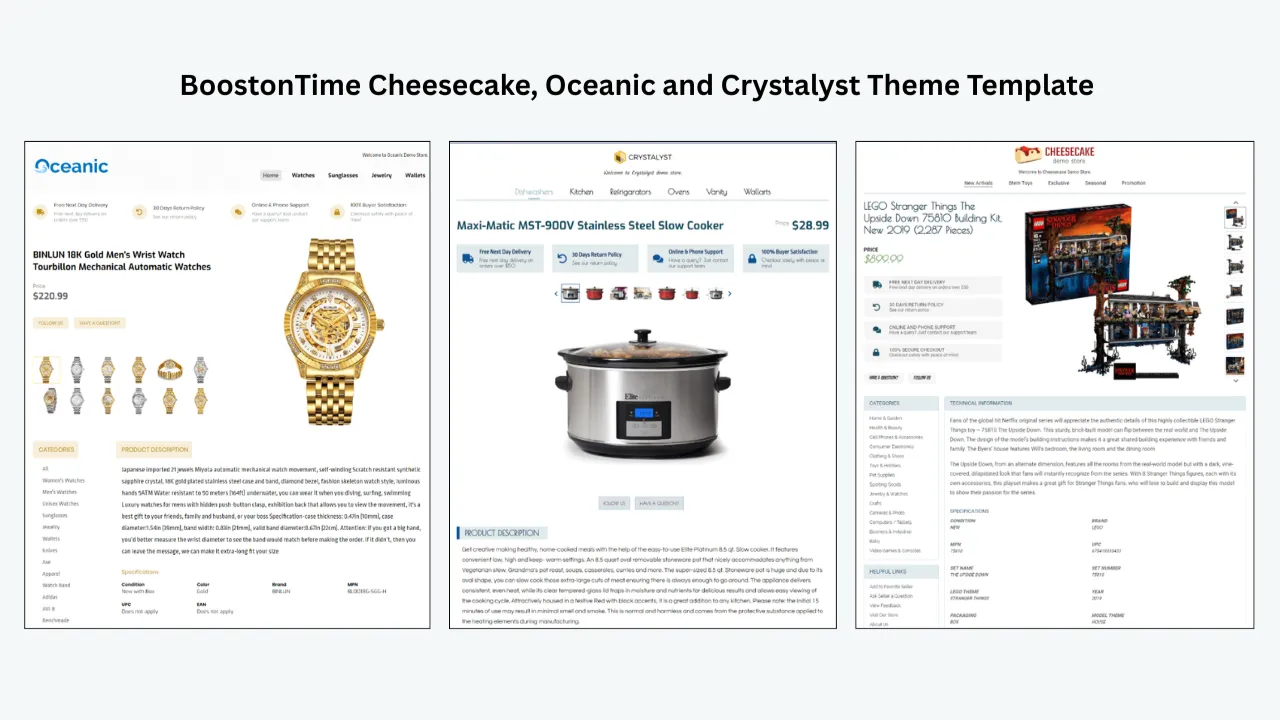
BoostOnTime currently offers the Cheesecake, Oceanic, and Crystalyst theme families. The correct starting point is the theme that supports your brand and product information, not the one that looks most festive before customization.
Use theme previews to compare the hierarchy, gallery position, navigation, specifications, policy placement, and related-product area. Ask whether the product remains the main visual focus. Seasonal colors and banners can be added later. A strong theme should still work when those temporary elements are removed.
For categories driven by images, give the gallery enough prominence. For technical products, protect the specifications and description structure. For trust-sensitive or high-value categories, keep the seller information, condition details, policies, and feedback easy to find.
The seasonal design should sit on top of a useful product experience. If the campaign requires hiding important information or pushing it far down the page, the theme or module order needs revision.
Step 4: Design One Focused Promotional Banner
The banner is usually the most visible seasonal change, so it carries the greatest risk of becoming noisy or inaccurate.
A useful banner answers three questions quickly: what is happening, who or what is included, and when the message matters. It does not need to explain every condition. Detailed terms belong in the eBay promotion and supporting copy.
Good banner messages are specific:
- Black Friday savings on selected accessories
- Holiday gift picks under $50
- Back-to-school essentials for study and travel
- January clearance on selected end-of-line items
Weak messages are vague or excessive:
- Biggest sale ever
- Everything must go
- Best prices guaranteed
- Limited time only, with no visible dates or conditions
Do not advertise a percentage, coupon, free-shipping promise, delivery deadline, or product inclusion unless it matches the live eBay configuration. If the promotion is different across marketplaces, currencies, or categories, create appropriate versions instead of using one universal banner.
Keep banner text readable on a phone. Avoid placing a paragraph inside an image. Use high contrast, generous spacing, and a short message that remains understandable when the banner scales down. Compress the banner image appropriately so the seasonal campaign does not make the listing unnecessarily heavy.
BoostOnTime’s Banners, Mini Banners, and Side Mini Banners modules give you several placements. Use the strongest position for the campaign’s primary message and reserve smaller banners for genuinely useful supporting information. Activating every banner module rarely improves the result.
Step 5: Use Seasonal Colors Without Losing Your Brand
Seasonal color does not require replacing your identity. The safest approach is to keep the logo, core typography, and main brand colors stable, then introduce one or two campaign accents.
For Black Friday, a dark accent may frame the offer while your normal logo and product imagery remain unchanged. For Christmas, a restrained red, green, gold, or winter tone may work, but choose the shade that fits your existing palette. Valentine’s Day does not require turning every module bright pink. A small accent can communicate the season more professionally.
Check contrast carefully. Promotional text must remain readable against the banner and module background. Do not use color as the only way to communicate eligibility, deadlines, or warnings. Buyers with different screens or visual needs should still understand the information from the words and layout.
Step 6: Customize the Modules That Support the Campaign
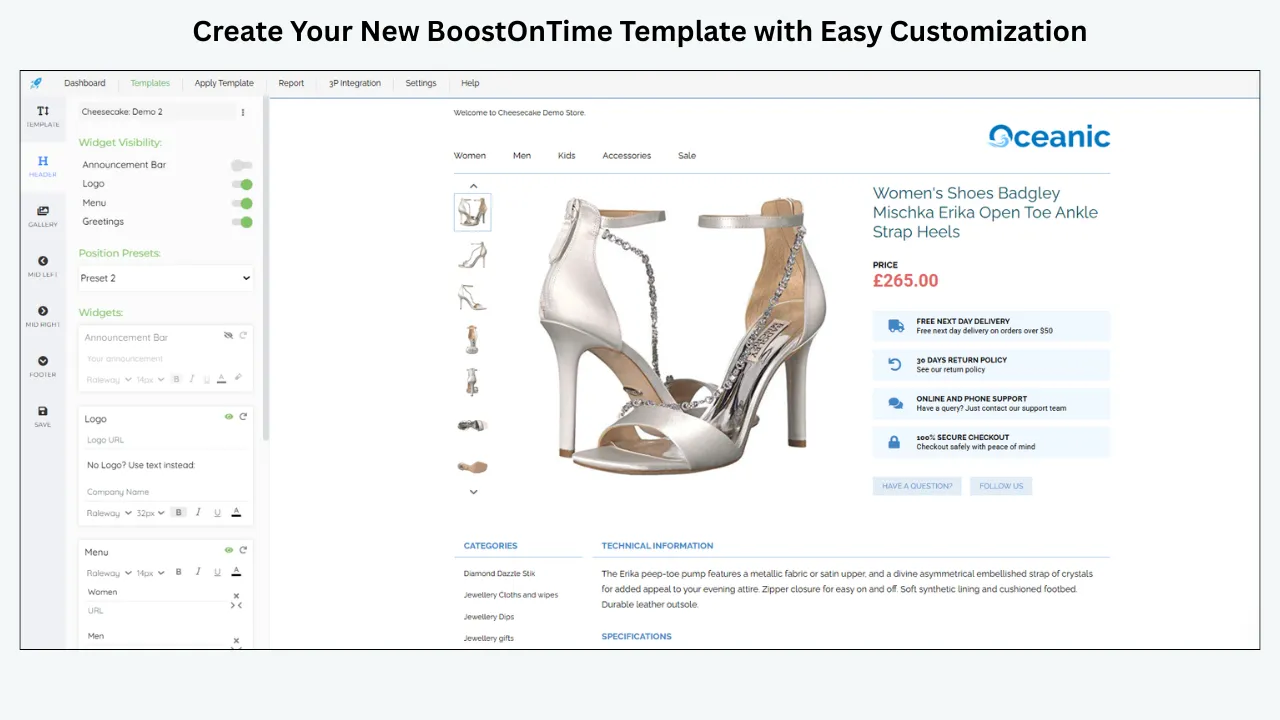
BoostOnTime’s modular structure makes it possible to change the campaign layer while retaining accurate product content. The most useful modules depend on the offer.
| BoostOnTime Module | Seasonal Use | Important Check |
|---|---|---|
| Logo | Preserve recognizable store identity | Do not replace the real brand with temporary artwork |
| Header Menu | Direct buyers to relevant store categories | Confirm every destination is permitted and current |
| Title and Price | Keep product identity visible | Treat the live eBay listing as the pricing source of truth |
| Gallery | Present the actual product clearly | Do not let decorative graphics replace essential product images |
| Why Us | Reinforce reliable service during busy periods | Use accurate claims about dispatch, returns, and support |
| Categories | Help buyers browse the seasonal product group | Remove outdated or irrelevant categories |
| Descriptions | Explain product benefits in seasonal context | Do not replace permanent specifications with campaign copy |
| Specifications | Protect decision-critical facts | Confirm models, sizes, materials, and compatibility |
| Helpful Links | Support approved navigation | Review eBay’s current links policy before publishing |
| Banners | Communicate the primary campaign | Match the wording to the active eBay offer |
| Policy Tabs | Clarify payment, shipping, and returns | Keep information consistent with live policies |
| Mini Banners | Add one supporting seasonal message | Avoid stacking several repetitive promotions |
| Related Products | Recommend relevant complementary items | Select products with inventory and genuine relevance |
| Footer | Close the template consistently | Remove expired campaign wording after the event |
Dynamic modules handle supported information that changes by listing, including the product title, price, currency, images, categories, and related products. ETB collects and populates this information when the template is applied. Always review the resulting listing because automation does not remove the seller’s responsibility for accuracy.
Step 7: Write Conversational Seasonal Copy
Seasonal copy should sound like a helpful seller, not a flashing advertisement. Buyers still want to understand the product. The campaign message should give them useful context and then move out of the way.
Compare these two approaches.
The first says: “HURRY! MASSIVE HOLIDAY SALE! BUY NOW BEFORE IT IS TOO LATE!” It creates pressure but says nothing about the item, eligibility, or buyer benefit.
The second says: “Shopping for a practical gift? This item is part of our selected holiday collection. Review the product details below, check the live eBay offer, and explore related gift ideas from our store.” It is seasonal, specific, and still supports an informed purchase.
Use short sentences, clear headings, and concrete language. Mention the season where it adds meaning. Do not repeat “Black Friday” in every module. Avoid claims such as “lowest price,” “guaranteed delivery,” “only one left,” or “best seller” unless they are accurate, permitted, and current.
Step 8: Curate Related Products for the Seasonal Buyer
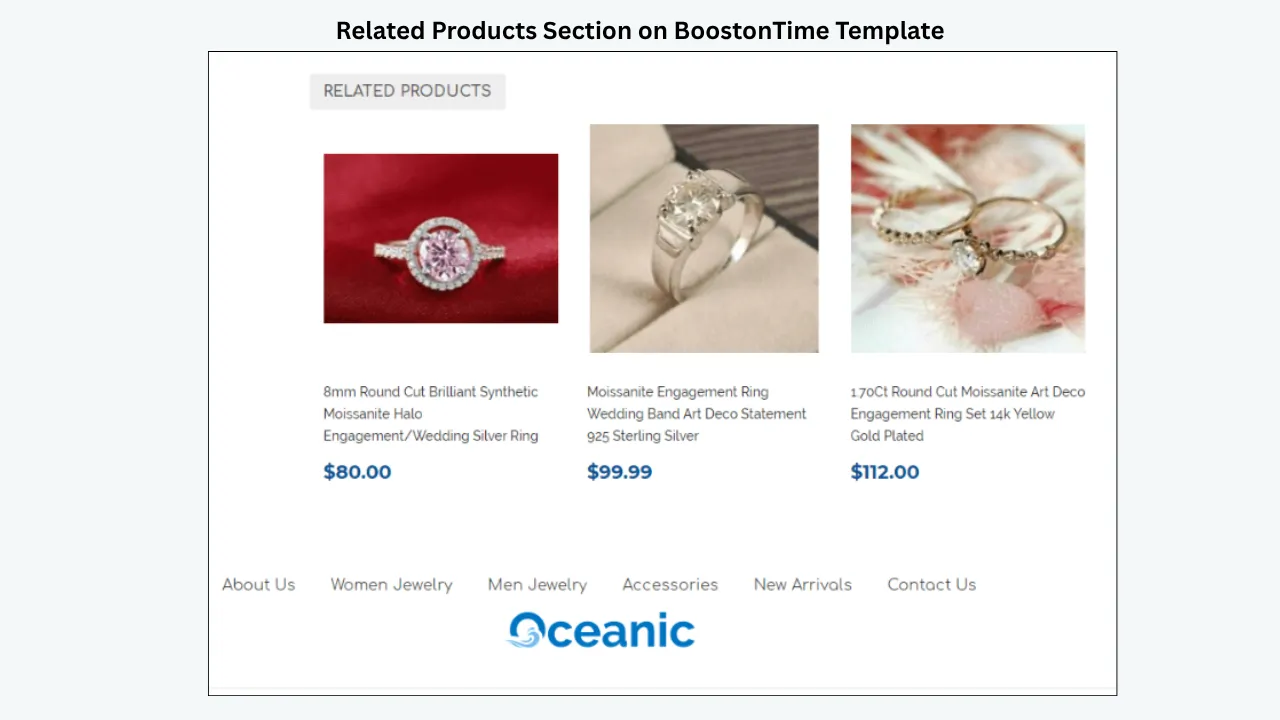
Seasonal campaigns create natural cross-promotion opportunities. A buyer may need a complete gift, matching accessory, replacement part, bundle component, or lower-priced alternative.
BoostOnTime’s Related Products module lets you choose random catalogue products or select products manually. Manual curation provides more control during a focused campaign.
Think in buyer journeys:
- A camera buyer may need a memory card, case, battery, or tripod.
- A jewelry buyer may want a matching bracelet, earrings, or gift box.
- A home-office buyer may need a desk lamp, organizer, or cable accessory.
- A tool buyer may need compatible blades, batteries, safety equipment, or storage.
- A holiday-decoration buyer may want coordinated items from the same collection.
If the campaign covers several categories, create category-specific templates or related-product selections. Relevance is more persuasive than volume.
Step 9: Review Shipping, Returns, and Seasonal Deadlines
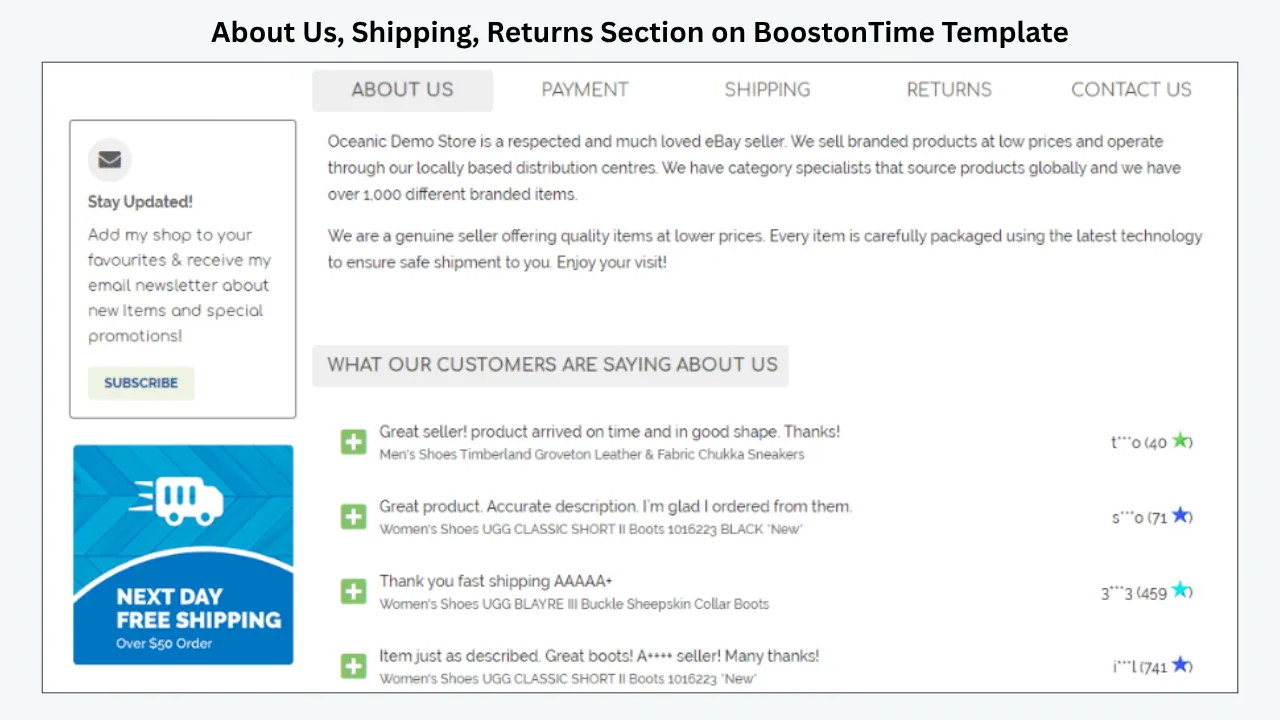
Busy periods increase buyer attention to delivery and returns. That makes the Policy Tabs, Why Us, and supporting banner modules important, but it also increases the cost of an inaccurate promise.
Review the live eBay shipping and return settings first. Then make sure the template does not contradict them. If you mention a dispatch time, carrier, delivery estimate, holiday cutoff, extended return window, or free-shipping condition, confirm that it applies to every listing receiving the template.
Avoid presenting a delivery date as guaranteed unless the service genuinely supports that claim. Carrier delays, remote locations, customs, weather, weekends, and order time can affect arrival. Where appropriate, direct buyers to the delivery information eBay displays for their order rather than creating a universal promise inside an image.
Seasonal return information also needs precision. Gift purchases may be made early, and buyers may assume an extended window that you do not offer. State only the terms that match the active policy.
If different products have different fulfillment rules, do not force one policy message across them. Segment the listings or keep the template wording general and let the live eBay settings provide the transaction-specific details.
Step 10: Configure the Offer in eBay Discounts Manager
Once the eligible inventory and message are clear, configure the actual promotion through the appropriate eBay tool.
eBay’s Discounts Manager can support sale events, coupons, volume pricing, and other discount types depending on the account, marketplace, listing format, and current availability. Seller Hub lets you choose qualifying inventory by specific items, item IDs, SKUs, eBay categories, store categories, or broader inventory rules for supported campaigns.
Set the discount, conditions, duration, campaign name, and eligible inventory carefully. Review the buyer-facing result before using the same language in the template. If eBay displays the discount in search results, on the item page, or in the cart, the template should reinforce that information rather than inventing a separate offer.
Take screenshots or record the final settings for internal approval. Note the exact start and end time, including the marketplace time zone. Seasonal errors often occur because one team member thinks a campaign ends at midnight locally while another configured a different zone.
Do not assume that changing the eBay promotion updates a banner you previously added to the description. Manage the discount and template as two connected launch tasks.
Step 11: Preview the Seasonal Template Before Applying It
Preview is where campaign ideas meet real product information. Use representative listings, not an empty design or the easiest item in the catalogue.
Your test group should include:
- A listing with a long title
- A product with several images
- An item with detailed specifications
- A low-priced item and a higher-priced item
- A product with variations, if applicable
- One listing from each campaign category
- A product with unusual shipping or condition information
Check whether the banner wraps, the gallery remains prominent, prices and currencies look correct, specifications stay readable, and related products make sense. Verify all dates, discount language, policy information, and category links.
Then inspect the result on a desktop screen, a mobile browser, and the eBay app. Responsive design provides the foundation, but real campaign content can still create unexpected wrapping or excessive vertical space. A short mobile test can reveal a banner with unreadable text or a policy section pushed too far down.
Also test load behavior. Compress campaign images, avoid unnecessary modules, and remember that eBay does not allow active content such as JavaScript, Flash, plug-ins, or form actions in listings. Seasonal animation is not worth a broken or non-compliant description.
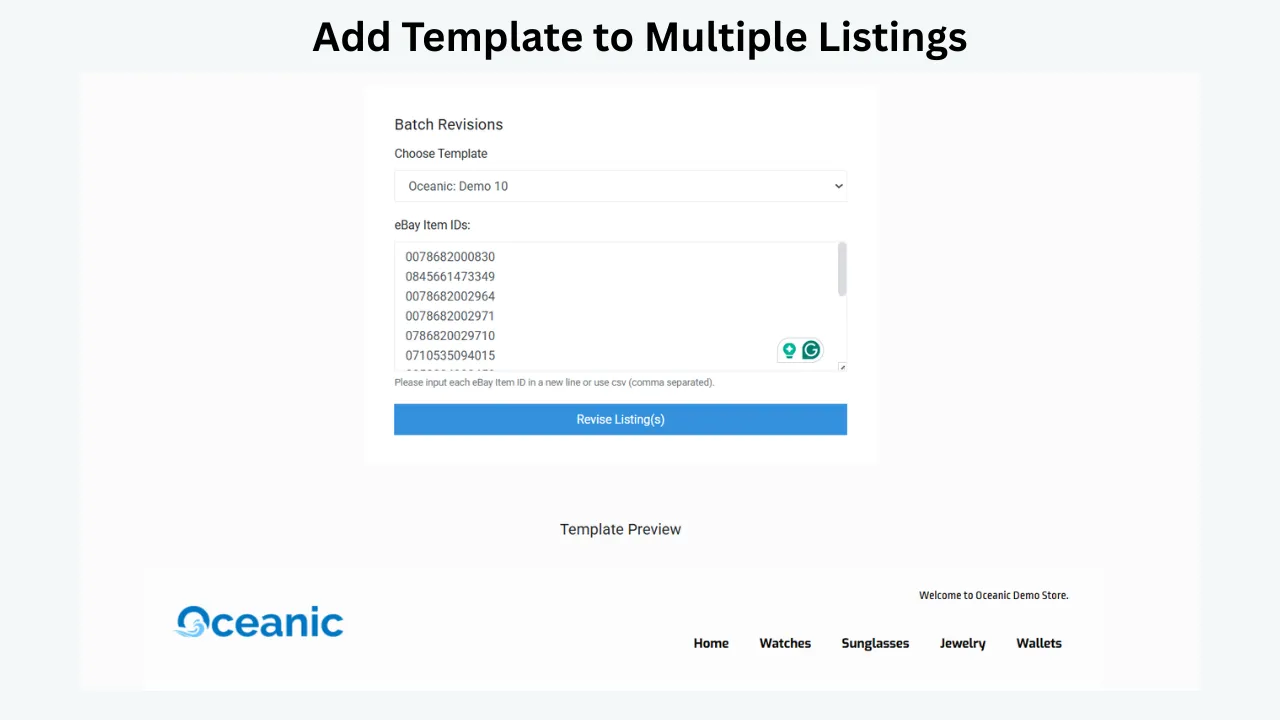
Step 12: Apply the Template With Batch Revision
After the sample passes review, use BoostOnTime’s Batch Revision Tool to apply the seasonal template. You can update an individual listing or select a group and apply the new design in bulk.
Use the same eligibility rule defined in the campaign brief. If the eBay discount contains 300 SKUs, the template selection should be checked against that group. Do not rely on memory. Export or record both lists and reconcile any differences.
For a large catalogue, consider staged deployment. Apply the template to one category, confirm the live results, and then continue. A phased launch takes slightly longer but makes an error easier to contain.
Keep a change log with the template name, date, operator, listing group, eBay campaign name, and reviewer. This becomes valuable when several seasonal campaigns overlap or when a team needs to understand why a listing changed.
Once the update is complete, open live listings again. A successful tool action is not the same as a successful buyer experience. Verify that the right template reached the right products and that the eBay offer is visible as expected.
Step 13: Monitor the Campaign Without Changing Everything at Once
Seasonal performance should be measured, but interpretation needs discipline. A template is only one part of the campaign. Discount depth, advertising, inventory, competition, delivery promises, demand, seller performance, and product selection may all change at the same time.
Record a baseline before launch. Then monitor the same measures during the event.
Useful indicators include:
- Listing views
- Sales conversion rate, where available
- Units sold and revenue
- Average order value
- Coupon or promotion usage
- Watchers and offers
- Engagement with related products, where measurable
- Buyer questions about the promotion
- Returns or complaints caused by misunderstood terms
- Time required to apply and remove the campaign design
Do not claim that the seasonal template caused every improvement. Instead, ask whether it communicated the campaign clearly, reduced inconsistent presentation, helped buyers discover relevant products, and made catalogue updates more manageable.
If buyers repeatedly ask the same question, improve the template while the campaign is active. If a related product is irrelevant or unavailable, replace it. If a banner is difficult to read on mobile, simplify it. A seasonal template should be controlled enough to revise.
Step 14: Remove the Seasonal Template on Time
The campaign is not complete when sales stop. It is complete when every temporary message has been removed or replaced.
Schedule the rollback task before launch. Assign an owner and include a backup person. The checklist should cover the eBay discount, seasonal template, banners, policy wording, helpful links, related products, store categories, and any advertising that references the event.
Use BoostOnTime to reapply the standard template or a relevant post-campaign version to the selected listings. Then check a sample of live pages.
Archive the seasonal template rather than immediately deleting the thinking behind it. Record what worked, what did not, which products were included, and which assets may be reusable. Before using it again next year, update the dates, offer, inventory, policies, links, and visual details. Never assume an old campaign is ready to relaunch unchanged.
Seasonal Campaign Examples by Event
The same template principles apply across the year, but the buyer’s purpose and operational risks change.
Black Friday and Cyber Monday
These campaigns need immediate offer clarity. Use one strong banner, concise eligibility language, and a direct route to related sale products. Avoid filling the description with countdown-style pressure or multiple competing discounts.
Inventory and pricing can change quickly, so keep the wording tied to the live eBay offer. If only selected items qualify, say so. Confirm that the template and Discounts Manager use the same product group.
Christmas and Holiday Gifting
Gift discovery, delivery information, product condition, package contents, and returns become especially important. Curate Related Products around recipient, budget, or complementary use.
Avoid universal delivery guarantees. Keep the product’s actual specifications and condition prominent because a festive presentation does not reduce the buyer’s need for accurate information.
Valentine’s Day
Focus on the recipient and the reason the product makes a thoughtful choice. Jewelry, beauty, fashion accessories, collectibles, and personalized products may benefit from stronger imagery and gifting context.
Do not imply gift packaging, personalization, certificates, or delivery services unless they are actually included.
Mother’s Day and Father’s Day
Recipient-led navigation can be helpful, but avoid stereotypes that make product discovery narrower than necessary. Organize recommendations around interests such as cooking, gardening, tools, technology, travel, or self-care.
Keep the copy practical. Buyers often need to understand size, compatibility, included accessories, and delivery timing quickly.
Back to School
Emphasize readiness, organization, portability, compatibility, and value. Electronics listings should protect model and technical information. Bags and accessories should show dimensions, materials, capacity, and care.
Related products can support a useful checklist, but do not imply a bundle if the items are sold separately.
Clearance and End-of-Season Sales
Clearance messaging must remain accurate about condition, availability, and returns. Do not suggest urgency through false stock statements. If products are discontinued, open-box, refurbished, or end-of-line, describe the condition clearly.
The template can make the sale feel intentional rather than neglected. A clean banner and accurate explanation are usually more effective than aggressive visual clutter.
Why BoostOnTime ETB Works Well for Seasonal Campaigns
Seasonal listing management is a recurring systems problem. The design must change temporarily, product information must remain accurate, and a large group may need to be updated and restored.
BoostOnTime brings those needs together in a focused workflow.
You can create multiple templates, allowing your standard and seasonal versions to exist separately. Static modules store shared branding and campaign information. Dynamic modules collect supported listing-specific information when the template is applied. More than 20 customizable modules give you control over banners, policies, descriptions, specifications, galleries, related products, and other sections. Preview helps you evaluate the design, while Batch Revision applies it to individual listings or selected groups.
ETB also supports responsive designs, so the seasonal structure can adapt across mobile, tablet, and desktop screens. Related Products lets you select relevant catalogue items or use random products. The platform supports 19 eBay sites and more than ten multichannel systems, although sellers should confirm their exact marketplace and integration requirements.
BoostOnTime Pricing and Trial
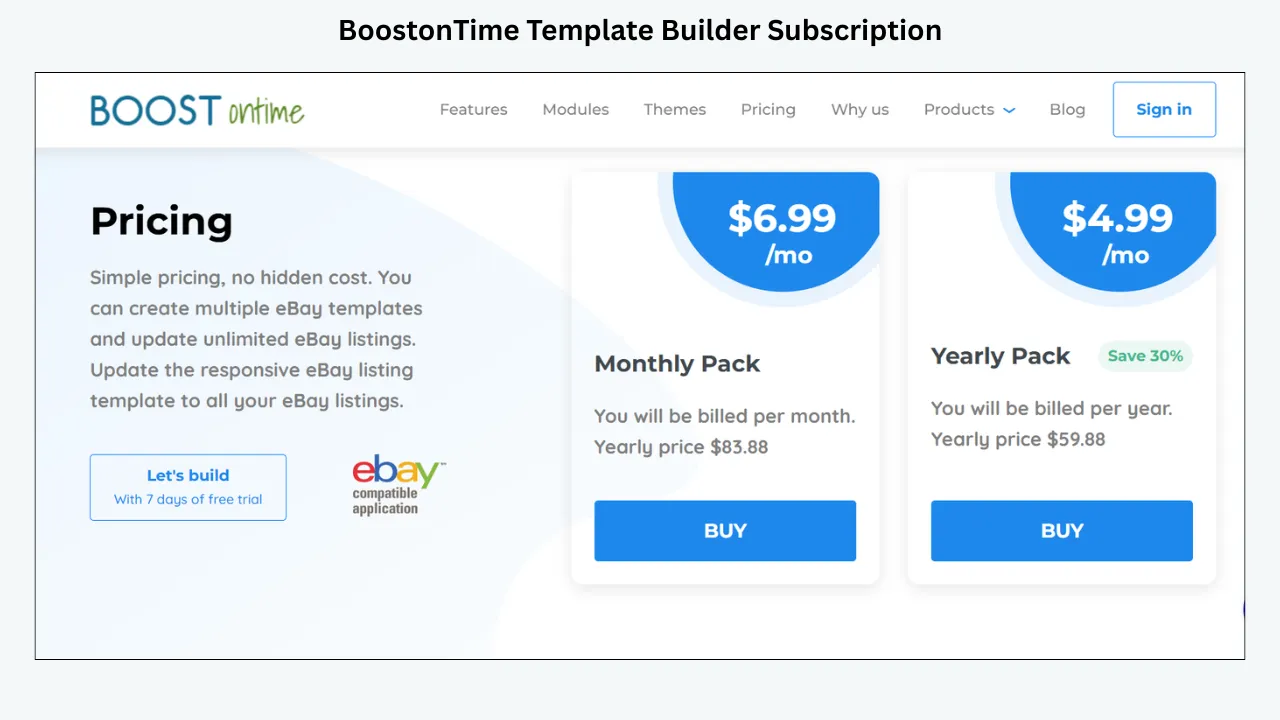
BoostOnTime offers a Monthly Pack at $6.99 per month. The Yearly Pack is billed at $59.88 per year, equivalent to $4.99 per month and displayed as a 30 percent saving. Both published options support multiple templates and unlimited eBay listing updates.
A seven-day trial lets you test the seasonal workflow with your own listings before committing. Use the trial as a practical campaign exercise: build one standard template, create one seasonal variation, configure the relevant modules, apply it to a small group, test the live results, and practice restoring the standard version.
The point is not simply to browse themes. It is to learn whether ETB makes seasonal updates clearer and more manageable for your catalogue.
Ready to prepare your next eBay campaign? Start your seven-day BoostOnTime ETB trial and build a seasonal template without sacrificing your standard design.
Common Seasonal Template Mistakes
Changing Too Much
A seasonal campaign does not require redesigning the entire store identity. Excessive color, graphics, fonts, and modules can hide the product. Change the elements that support the campaign and preserve the structure buyers need.
Advertising an Offer the Template Does Not Control
A banner cannot create a discount. Configure and verify the promotion in eBay, then match the template wording to it.
Applying the Template to Ineligible Products
If the visual campaign covers products that do not receive the advertised offer, buyers may feel misled. Reconcile the eBay promotion group with the Batch Revision selection.
Hiding Product Information
Seasonal copy should not replace condition notes, compatibility, dimensions, materials, included items, or other decision-critical facts. The buyer still needs the complete listing.
Using Too Many Banners
One focused banner is usually stronger than several competing messages. Activate additional banner modules only when each has a distinct purpose.
Ignoring Mobile Screens
Small text inside an image, wide layouts, and excessive module stacking may look acceptable on desktop but fail on a phone. Test real listings on real screens.
Forgetting Inventory
Related products and featured categories should be available throughout the campaign. Review low-stock items and replace recommendations as needed.
Publishing Unsupported Deadlines
Delivery and return promises must agree with active policies and operational capacity. Avoid adding a date to a graphic until it has been approved.
Leaving the Campaign Live Too Long
Expired promotional content damages trust. Treat removal as a required campaign milestone with a named owner.
Reusing Last Year’s Template Without Review
Dates, prices, policies, links, inventory, marketplace rules, and brand assets can change. An archived design is a starting point, not a finished campaign.
How to Support SEO and AI Search With Seasonal Content
A seasonal template primarily improves presentation and management. It does not guarantee a higher position in eBay search, Google, or an AI answer. Discoverability depends on many factors beyond the description design.
However, clear content is easier for buyers and machines to interpret. Use descriptive headings, accurate product terms, complete item specifics, logical categories, readable specifications, and concise answers to common questions. Keep the permanent product information separate from temporary promotional wording.
For the BoostOnTime blog page itself, use one clear H1, a descriptive SEO title, a concise meta description, short paragraphs, meaningful H2 and H3 headings, relevant internal links, compressed images with descriptive alt text, and an FAQ section based on genuine seller questions. Add Article and Breadcrumb structured data where appropriate. FAQ structured data should only be used when the visible page and current search-engine guidelines support it.
AI search systems often favor content that answers a question directly, defines terms, distinguishes related concepts, and provides steps that can be extracted without losing context. That is why this guide begins with a quick answer and clearly separates the eBay discount from the BoostOnTime presentation workflow.
No writer can promise a specific SEO health score or AI-search appearance. A 90 percent score also depends on the website’s CMS checks, technical performance, links, images, schema, indexability, and final implementation. The article provides the content foundation; the publisher must complete the on-page and technical work.
Frequently Asked Questions
A seasonal eBay listing template is a temporary variation of a seller’s standard description design. It may include a campaign banner, seasonal colors, relevant product recommendations, and timely policy information while preserving accurate product details.
No. The template communicates the promotion but does not create the actual discount. Configure supported sale events, coupons, or volume pricing through eBay’s appropriate promotional tools, such as Discounts Manager.
Banners, Mini Banners, Descriptions, Why Us, Categories, Policy Tabs, Related Products, Gallery, and Helpful Links can support seasonal campaigns. Use only the modules that help the buyer understand the offer or product.
Create a separate seasonal version whenever possible. This preserves your everyday template, makes testing safer, and gives you a clear design to restore after the campaign.
Yes. BoostOnTime supports multiple templates. You can create different campaign versions for categories, marketplaces, product lines, or seasonal events while maintaining consistent branding.
Yes. The Batch Revision Tool can update an individual listing or apply a newly created template to a selected group of active listings.
BoostOnTime can collect supported dynamic information such as the product title, price, currency, images, category data, and related products when the template is applied. Review the final listing before broad deployment.
Begin six to ten weeks before the event when possible. That provides time for offer planning, inventory checks, creative approval, eBay configuration, template testing, mobile review, and rollback preparation.
State the campaign clearly, identify that selected products may apply where relevant, and avoid unsupported promises. Keep the wording short enough to read on mobile and consistent with the live eBay offer.
Only display a code when it is active, accurate, permitted, and relevant to every listing receiving the template. Configure the coupon through eBay first, then verify the buyer-facing terms before adding supporting copy.
Most campaigns need one primary banner. Additional mini banners should have distinct supporting purposes. Too many promotional graphics can distract from product images and important information.
Do not add seasonal wording to a title unless it accurately describes the product and follows eBay’s current title practices. Temporary promotional messages usually belong in the campaign settings and description presentation, not in decision-critical product data.
BoostOnTime offers responsive templates designed for mobile, tablet, and desktop screens. Sellers should still preview and test the completed campaign with real content on actual devices.
No. It can improve campaign clarity, consistency, product discovery, and management, but sales also depend on demand, pricing, inventory, competition, photography, advertising, fulfillment, and seller performance.
End or update the eBay promotion as planned, then remove the seasonal messaging or reapply your standard BoostOnTime template. Check a representative sample of live listings to confirm that no expired content remains.
You can reuse the structure, but review every date, offer, policy, link, product group, related item, banner, and marketplace requirement before applying it again.
The Monthly Pack is $6.99 per month. The Yearly Pack is billed at $59.88 per year, equivalent to $4.99 per month. Current published plans support multiple templates and unlimited listing updates, and a seven-day trial is available.
Turn Seasonal Promotions Into a Repeatable System
Seasonal campaigns should create urgency for buyers, not chaos for the seller.
The most reliable method is to treat the promotion as a controlled variation of your standard listing system. Define the offer and eligible products first. Configure the commercial discount through eBay. Build a separate seasonal template that communicates the campaign clearly. Use banners and colors with restraint. Preserve accurate product data, policies, and specifications. Curate relevant products. Preview a representative sample. Apply the design to the correct listings. Monitor buyer questions and performance. Then remove the campaign on time.
BoostOnTime ETB supports that complete presentation workflow. Multiple templates protect your standard design. Static modules keep shared campaign content consistent. Dynamic modules populate supported listing information. Related Products helps buyers discover useful items. Responsive themes support smaller screens, and Batch Revision helps apply or replace the design across selected listings without editing every description individually.
The result is more than a festive banner. It is a reusable campaign process your team can improve throughout the year.
Start with one event and one controlled listing group. Build the seasonal version around the questions buyers will ask. Test it carefully, record the results, and restore the standard template when the campaign ends. Once that workflow is dependable, you can repeat it for the next relevant selling moment without starting from zero.
Build your next seasonal campaign with less manual work. Start your seven-day BoostOnTime ETB trial, create a responsive promotional template, and apply it to the listings that matter most.
Start Your Seven-Day BoostOnTime ETB Trial
Build one standard template, create one seasonal variation, configure the relevant modules, apply it to a small group, test the live results, and practice restoring the standard version.
Build your next seasonal campaign with less manual work.
🚀 Start Your Seven-Day BoostOnTime ETB Trial
boostontime.com/ebay-template-builder