
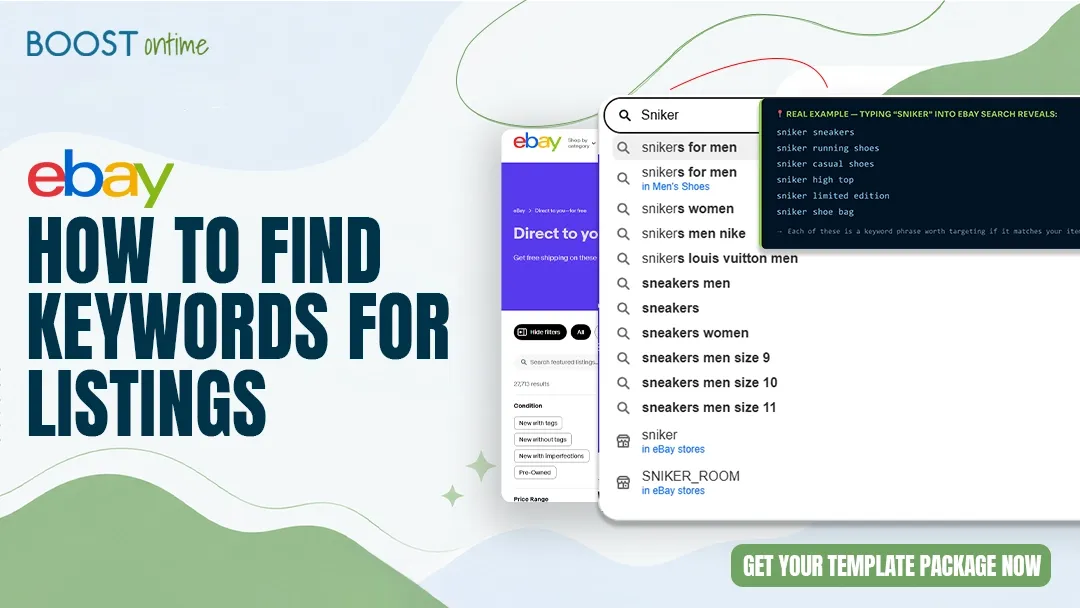
The right keywords are the difference between a listing that sits unseen and one that sells every week. This guide walks you through exactly how to find them — using free tools, eBay’s own data, and a few tricks most sellers don’t know about.
📋 Table of Contents
Why Keywords Are Everything on eBay
To find keywords for an eBay listing, start by typing your product into eBay’s own search bar and noting every autocomplete suggestion — those are real searches from real buyers. Then look at sold listings for your item to see which exact titles moved product. Finally, pull 3–5 competitor titles that rank well and identify the words they all share. Use those words in your own title, prioritizing the most specific terms first.
That’s the short answer. The rest of this guide shows you how to do each of those steps in detail, with real examples.
eBay runs on a search algorithm called Cassini. When a buyer types something in that search bar, Cassini scans every active listing and decides which ones to show — and in what order. Keywords are how Cassini figures out what your listing is about.
If you’re missing the words buyers actually use, your listing won’t show up. It doesn’t matter how great your photos are, how competitive your price is, or how fast you ship. No keywords = no visibility = no sales.
Search Visibility
eBay only shows your listing when your keywords match what the buyer searched. If they type “vintage Levi’s 501 jeans 32×30” and your title just says “jeans,” you’re invisible.
Click-Through Rate
The right keywords attract the right buyers. A specific, accurate title gets clicked by people who are actually ready to buy — not just browsing.
Price Justification
Detailed keyword-rich titles signal quality and specificity. Buyers pay more for listings that clearly describe what they’re getting.
Category Matching
Strong keywords help eBay place your listing in the right category automatically, which puts it in front of the right audience without extra work from you.
Method 1 — Mine eBay’s Own Search Bar
This is the single most valuable keyword research tool available to eBay sellers — and it’s completely free. The eBay search bar autocomplete is powered by real buyer search data. Every suggestion you see is a phrase that real people are actively searching for right now.
How to Do It
Go to eBay and Start Typing
Type the most basic version of your product — just the core item. For example: “nike air max” or “canon rebel” or “stanley cup”. Don’t hit Enter yet.
Screenshot Every Autocomplete Suggestion
eBay will drop down a list of 8–10 suggestions. Every single one of those is a real search phrase buyers use. Write them all down. These are your seed keywords.
Add a Space After Your Term and Try Every Letter
Type “nike air max [space] a” and see what shows up. Then try “b”, “c”, and so on. You’ll uncover dozens of variations buyers search for — sizes, colors, conditions, years.
Try Variations With Conditions and Specs
Add words like “used,” “vintage,” “lot,” “size,” or a year. Each combination reveals a new set of buyer intent signals. Keep track of everything you find.
Build Your Master Keyword List
Compile all your findings into a spreadsheet. Group similar terms together. You now have a real buyer-verified keyword bank to pull from for any listing.
stanley cup quencher
stanley cup flowstate
stanley cup adventure
stanley cup limited edition
stanley cup handle
→ Each of these is a keyword phrase worth targeting if it matches your item
Do this research in a private/incognito browser window. eBay personalizes suggestions based on your browsing history. Incognito gives you clean, unbiased buyer data.
Method 2 — Study Sold Listings
Active listings tell you what people are trying to sell. Sold listings tell you what people are actually buying. That distinction matters enormously. When you look at sold listings, you’re seeing the titles that triggered a real purchase — not just a click, but a sale.
How to Find Sold Listings
Search for Your Item on eBay
Type in a general description of what you’re selling. Don’t filter anything yet — you want the broadest results first.
On Desktop: Filter by “Sold Items”
In the left sidebar, scroll down to “Show Only” and check the “Sold Items” box. On mobile, tap “Filter” at the top and look for the same option under “Listing Status.”
Sort by Price: Highest First
The highest-selling completed listings usually have the most optimized titles. These sellers figured out the right words — you can learn from what they did.
Study the Top 10–20 Titles
Read each title carefully. What words appear in almost every one? Write those down — they’re the keywords buyers responded to. Look for brand, model, size, condition, year, color, and material.
Note What’s NOT in the Titles Too
If certain words show up in active (unsold) listings but not in sold ones, those words probably aren’t helping. Strip them from your own titles.
The “Sold vs. Active” Rule
If a listing sold quickly at a good price, the title did its job. If listings are sitting with no sales despite being priced competitively, the title probably has keyword problems. Always model your titles on what sold — not just what’s listed.
Method 3 — Use Free Keyword Tools
eBay’s own data is your best starting point, but a few free tools can help you go deeper — especially when you want to understand search volume, spot seasonal trends, or find keyword gaps your competitors are missing.
Go to trends.google.com and search for your product. You can see when searches spike throughout the year, which tells you when to ramp up inventory and listing activity. Compare multiple keyword variations to see which phrase people search more. While Google isn’t eBay, the search behavior data strongly correlates — especially for consumer goods.
Terapeak is eBay’s own analytics tool and it’s included free in your Seller Hub. Go to Seller Hub → Research → Terapeak Product Research. Type in your item and you’ll see actual eBay data: how many units sold, at what price, what the sell-through rate is, and which listings performed best. Dig into the top-performing titles and mine them for keywords. This is the most underused free tool in eBay selling.
KeywordToolDominator.com has a dedicated eBay keyword tool. Enter your product and it pulls dozens of autocomplete suggestions directly from eBay’s search engine — similar to doing the manual search bar trick, but much faster. The free version gives you a solid list of buyer phrases to work with.
Primarily a Google Ads tool, but free to use with any Google account. Enter your product and it generates hundreds of related keyword ideas with monthly search volume estimates. While these are Google searches (not eBay), buyers often use the same language across platforms. It’s especially useful for finding specific model numbers, variants, and descriptors you might have missed.
Don’t rely on just one tool. Use eBay autocomplete for buyer intent, Terapeak for actual sales data, and Google Trends for seasonality. Cross-referencing three sources gives you a much clearer picture than any single tool can.
Method 4 — Reverse-Engineer Top Sellers
Top sellers have already done the keyword testing for you. Their listings rank well and sell consistently — that means their titles are working. You can study them, identify the patterns, and apply the same logic to your own listings without starting from scratch.
How to Analyze Competitor Titles
Find the Top 5 Ranking Listings for Your Item
Search your product on eBay without any filters. The listings that appear at the top are there because Cassini trusts them. Write down all 5 titles in full.
Highlight Every Word That Appears in 3+ Titles
These shared words are the non-negotiable keywords for your category. If three out of five top sellers use the same word, you probably need it in your title too.
Look for Specificity — Brand, Model, Size, Condition
Top-performing titles are almost always specific. They don’t say “vintage jacket” — they say “Vintage 90s Carhartt Detroit Jacket Brown Men’s XL.” Every detail is a potential keyword.
Look at Their Item Specifics Too
Scroll down past the title to see their filled-in item specifics (brand, size, color, MPN, etc.). eBay’s algorithm uses these fields too — they’re hidden keywords that affect how you rank.
✓ Competitor 1: “Vintage 90s Levi’s Trucker Denim Jacket Men’s Medium Blue Distressed”
✓ Competitor 2: “Levi Strauss Denim Trucker Jacket Vintage 90s Men’s M Blue”
✓ Competitor 3: “90s Levi’s Denim Jacket Trucker Style Men Medium Vintage Wash”
→ Shared keywords: Levi’s, Denim, Trucker, Jacket, Men’s, Medium, 90s, Vintage, Blue
Copying a competitor’s title word-for-word can hurt you — eBay may penalize duplicate content. Instead, take the keywords that are shared across multiple sellers and write your own original, specific title using those terms.
Where to Put Your Keywords in the Listing
Finding good keywords is only half the battle. You also need to know exactly where to place them in your listing so eBay’s algorithm picks them up.
Example: “Nike Air Max 90 Sneakers White Black Men’s Size 10 Excellent Condition”
77 of 80 characters used — specific, searchable, complete
Keyword Mistakes That Kill Your Visibility
Knowing what to do is important. But knowing what NOT to do saves you from burying your listings before they even get a chance to perform.
Keyword Stuffing
Cramming unrelated words into a title (like “iPhone case bag lot NEW SEALED BEST DEAL LOT”) doesn’t fool Cassini — it actually hurts your ranking. Every word should be relevant to what you’re actually selling.
Using Competitor Brand Names
Writing “fits Nike, Adidas, Puma” when your item only fits one brand is a policy violation. eBay can remove your listing or suspend your account. Only use brand names that genuinely apply.
Wasting Space on Filler Words
Words like “look,” “wow,” “great deal,” “must see,” and “fast shipping” eat up valuable title space and add zero keyword value. Replace every filler word with a real descriptor.
Guessing Instead of Researching
Assuming you know what buyers search for — without actually checking — is the most common mistake. Spend 15 minutes researching before writing any title. The data is right there in eBay’s own search bar.
Ignoring Item Specifics
Leaving item specifics blank is leaving money on the table. Buyers who filter by size, color, brand, or condition will never see your listing if those fields are empty. Fill in every available field.
Never Testing or Updating
Buyer language changes over time. A keyword that worked two years ago may be less relevant today. Revisit your best listings quarterly and check if newer, higher-volume search terms have emerged.
Putting It All Together
Here’s a simple repeatable process you can run through every time you create a new eBay listing. Follow this routine and you’ll consistently write stronger, more visible titles than the majority of sellers on the platform.
Open eBay Incognito and Mine the Search Bar
Type your core product term and write down every autocomplete suggestion. Try variations with spaces and letters. Spend 5 minutes here — this is the most valuable 5 minutes in your listing process.
Filter to Sold Listings — Find the Top Sellers
Look at the 10 most recently sold versions of your item. Identify the keywords that appear consistently in their titles. Write down all recurring terms.
Pull Up Terapeak for Confirmation
In your Seller Hub, run a Terapeak search for your item. Look at which titles had the highest sell-through rate and use that to confirm or expand your keyword list.
Write Your Title Using the Formula
Brand + Model + Product Type + Key Descriptors + Size/Color + Condition. Front-load the most important keywords. Hit as close to 80 characters as possible without padding.
Fill In All Item Specifics
Don’t skip any field. The more complete your item specifics, the more filtered searches you’ll show up in. This alone can dramatically increase traffic to your listing.
Write a Clear, Keyword-Supported Description
Use your top keywords naturally in the first two sentences of your description. Then answer every buyer question: what’s included, measurements, compatibility, known flaws, and condition details.
Check Performance After 7–14 Days
In Seller Hub, check your listing’s impressions and click-through rate. Low impressions means your keywords need work. Low CTR with decent impressions means your price or photos might be the issue. Adjust accordingly.
The 15-Minute Keyword Routine
Most sellers skip keyword research because it sounds complicated. It doesn’t have to be. Give yourself 15 minutes per new product — 5 minutes on the search bar, 5 minutes on sold listings, 5 minutes writing the title. That 15-minute investment pays off every time someone finds and buys your item.
Quick-Reference Checklist
- Searched eBay autocomplete in incognito for my core product term
- Checked sold listings and identified recurring keywords
- Ran a Terapeak search to confirm demand and top-performing titles
- Written a title using Brand + Product Type + Descriptors formula
- Used at least 75 of the 80 available title characters
- Placed the most important keyword in the first 3–4 words of the title
- Filled in all item specifics — brand, size, color, condition, MPN if applicable
- Used primary keywords naturally in the first two sentences of the description
- Avoided filler words, keyword stuffing, and irrelevant brand names
- Set a reminder to review listing performance in 7–14 days
Better Keywords.
More Sales.
BoostOntime helps you build optimized eBay listings faster — with professional templates, built-in structure, and tools that make it easy to get every listing right the first time.
🚀 Start Your Free 7-Day Trial
No credit card required · Cancel anytime · Full platform access from day one