
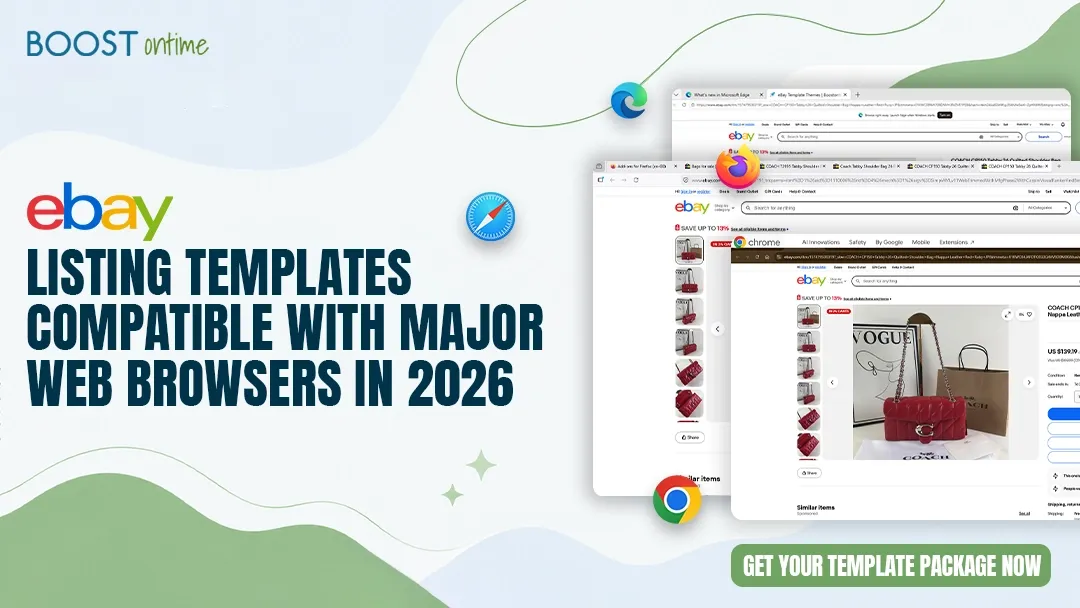
Learn why browser compatibility matters for eBay templates and how to ensure your listings display perfectly across Chrome, Firefox, Safari, and Edge-plus best practices for testing and troubleshooting.
Table of Contents
If you’ve ever viewed your eBay listing on your phone after building it on your desktop, only to see the images misaligned, text overlapping, or buttons in the wrong place, you’ve experienced a browser compatibility issue. You’re not alone. Thousands of eBay sellers launch listings that look perfect in their testing environment, then watch them fall apart when buyers view them on different browsers or devices.
Browser compatibility isn’t a minor detail-it’s a direct lever on sales. When your eBay listing displays beautifully on every device and every browser, customers see professionalism. When it breaks, they see incompetence. And they move on to the next seller.
This guide covers everything you need to know about building and maintaining eBay templates that work flawlessly across Chrome, Firefox, Safari, Edge, and mobile browsers. We’ll walk through why compatibility matters, how to test for it, how to fix common issues, and how to prevent them in the first place.
Why browser compatibility matters for eBay sellers
eBay buyers are fragmented across devices and browsers. Some check listings on Chrome while working from a desktop. Others browse on Safari while commuting with an iPhone. Still others use Firefox or Edge for specific reasons. Your template has one job: look great for all of them.
Here’s what happens when compatibility fails:
Lost sales. Boostontime research shows that professional, mobile-responsive eBay listings drive 12-18% higher conversion rates. Poor compatibility undermines that. When a buyer lands on your listing and sees a broken layout, the first instinct isn’t “let me wait for it to load”-it’s “I’ll try the next seller.”
Damaged trust. A template that renders perfectly on desktop but falls apart on mobile signals to the buyer that you don’t care about their experience. Professional sellers maintain consistent presentation across all platforms. Broken templates make you look unprepared.
Reduced reach. Each incompatible browser or device is a potential customer you’re not capturing. If 30% of eBay’s mobile traffic uses Safari, and your template breaks in Safari, you’re ceding 30% of mobile buyers to competitors.
Lower search visibility. eBay’s search algorithm factors in mobile responsiveness and rendering quality. Templates that display poorly on mobile rank lower in search results, which means fewer people find your listings in the first place.
The good news: you don’t have to hand-code compatibility or test on dozens of devices. Modern template builders handle it for you. The key is understanding what compatibility means and choosing tools that prioritize it from the start.
Understanding cross-browser compatibility
Browser compatibility means your eBay listing displays correctly and functions properly across all major browsers and devices. “Correctly” means:
- Consistent layout. Your template’s structure-columns, spacing, alignment-stays intact whether viewed on desktop, tablet, or mobile.
- Readable text. Font sizes and line spacing adapt to screen size. Words don’t overlap, and text remains legible on small screens.
- Properly scaled images. Product images and graphics resize smoothly, never distorting or stretching, and load on all browsers.
- Functional interactive elements. Buttons, links, menus, and forms work and respond the same way in Chrome, Safari, Firefox, and Edge.
- Consistent styling. Colors, spacing, and visual hierarchy remain intact. You’re not seeing one design on desktop and a mangled version on mobile.
The five major browsers that matter for eBay:
- Chrome (~65% of browser market share) – Most eBay buyers use Chrome on desktop and mobile (via Android).
- Safari (~25% of market share) – All iPhone and iPad users. You can’t afford to break Safari.
- Firefox (~3-4% of market share) – A smaller but loyal audience, especially in certain regions.
- Edge (~4% of market share) – Microsoft’s browser, growing especially among business users who use Windows.
- Mobile browsers (Chrome Mobile, Safari Mobile, Firefox Mobile, Samsung Internet) – Critical, as eBay reports that 50%+ of their traffic is mobile.
Compatibility across these five is what matters. Older versions (Internet Explorer, for example) are no longer worth supporting-eBay itself doesn’t prioritize them, and most users have moved on.
How responsive design enables cross-browser compatibility
The foundation of cross-browser compatibility is responsive design. A responsive template automatically adapts its layout to the screen size viewing it. Instead of one fixed layout for all devices, a responsive template has breakpoints-pre-defined screen widths where the layout shifts to stay usable.
Here’s how it works in practice:
Desktop view (1200px and above). Your template displays in full width. Product images sit beside descriptions. Navigation menus are horizontal. Sidebar elements appear on the right. Everything is spread out because screen space is abundant.
Tablet view (768px to 1199px). The layout compresses slightly. Multi-column layouts might shift to two columns. Images and text reflow to fit the narrower screen. Navigation might become a dropdown menu to save space.
Mobile view (under 768px). The layout stacks vertically. One column. Images, text, and all elements flow top-to-bottom. Navigation becomes a hamburger menu. Buttons become larger and easier to tap with a finger.
Modern CSS (the styling language of web templates) makes these shifts automatic. You don’t manually build three separate templates. Instead, you write rules that say “at this screen width, do this.” The browser reads these rules and adjusts instantly.
This is why responsive design is so powerful for browser compatibility: it removes browser-specific bugs. When your layout is flexible instead of rigid, it adapts to any browser’s rendering quirks. When you write clean, standard CSS instead of browser-specific hacks, templates display consistently everywhere.
eBay recognizes this. eBay’s own policies now emphasize mobile-responsive design, and Boostontime templates are built to be fully responsive from the ground up, meaning they comply with these standards and display well on all devices and browsers.
What makes Boostontime templates browser-compatible
Browser compatibility isn’t something you add at the end-it’s built into the template from day one. Here’s how Boostontime ensures compatibility:
Mobile-first architecture. Boostontime designs templates for mobile first, then enhances them for larger screens. This inverts the traditional approach (desktop-first with mobile as an afterthought) and forces intentional, thoughtful design that scales up smoothly instead of breaking down.
Responsive modules. All 20+ Boostontime modules are responsive by default. Your logo, menu, gallery, descriptions, buttons, and feedback sections all adapt intelligently to screen size. You don’t have to manually adjust each one.
Built-in multi-device preview. Boostontime’s editor includes desktop, tablet, and mobile previews so you can see exactly how your template will render before publishing. This catches compatibility issues before they hit buyers.
eBay policy compliance. All Boostontime templates are 100% compliant with eBay’s latest policies, including eBay’s mobile-responsive design requirements and cross-browser standards. This means they’re tested against eBay’s specific requirements, not just generic web standards.
Standards-based HTML and CSS. Boostontime uses clean, standards-compliant code. This means templates render consistently across browsers because they’re not relying on browser-specific quirks or outdated hacks. All modern browsers understand and render the same code the same way.
19 global eBay sites. Since Boostontime templates support sellers across 19 eBay markets worldwide, they account for varying device usage patterns, screen sizes, and regional browser preferences. A template that works for US eBay (mostly Chrome and Safari) also works for German eBay (higher Firefox adoption) or Australian eBay (different mobile patterns).
The result: you customize your template once, and it works across all browsers without additional effort.
Testing your eBay template across browsers
Testing is your safety net. Even with modern template builders, spot checks prevent surprise breakages.
The fast way: built-in preview
If you’re using Boostontime or a similar template builder, use the built-in preview. Most builders include three previews: desktop, tablet, and mobile. Open each and verify:
- Images scale without distortion
- Text remains readable
- Buttons and links are clickable
- Layout doesn’t break or overflow
- Colors and spacing look intentional
This takes five minutes and catches most issues immediately.
The thorough way: live browser testing
Once your template is live on eBay, test it in real browsers. On your desktop, open your live listing in:
- Chrome (Google Chrome or Chromium)
- Firefox (Mozilla Firefox)
- Safari (if you have a Mac; if not, use an online tool)
- Edge (Microsoft Edge)
On your phone, test in:
- Chrome Mobile (Android)
- Safari Mobile (iPhone)
- Firefox Mobile (if you use it)
Look for:
- Image rendering. Do images scale smoothly, or are they distorted? Do they load on all browsers?
- Text display. Is text readable without zooming? Does it overflow or overlap anywhere?
- Layout integrity. Does the template stay centered and organized? Do columns stack correctly on mobile?
- Interactive elements. Do buttons respond when clicked? Do menus open and close properly?
- Visual consistency. Does the template look intentional and professional on every browser, or do colors or spacing look off in certain ones?
If something looks wrong, note the browser, device, and exact issue. Then decide: is this a major issue (blocks purchase or looks unprofessional) or a minor visual difference that doesn’t impact function? Major issues warrant fixing; minor differences are often acceptable quirks of rendering.
The comprehensive way: online testing tools
For deeper testing without owning every device, use free or low-cost online tools:
- BrowserStack (free tier). Test on real devices in the cloud. You can take a screenshot of your eBay listing on an iPhone 14, iPad, or Android device without owning them.
- CrossBrowserTesting. Similar to BrowserStack; offers a free trial and affordable plans for ongoing testing.
- Responsively App. Free desktop app that simulates multiple screen sizes side-by-side. Useful for quick responsive design checks.
- Chrome DevTools. Free, built into Chrome. Press F12, click the device toggle, and you can simulate any phone or tablet screen size and test responsiveness.
For most eBay sellers, Chrome DevTools is enough. Open your listing in Chrome, press F12, toggle to device mode, and cycle through phone and tablet sizes. This gives you a fast sense of how your template adapts.
Common browser compatibility issues and fixes
Even with well-built templates, occasional issues appear. Here are the most common ones and how to fix them.
Issue: Images don’t scale correctly on mobile
Symptom: On desktop, images look great. On mobile, they’re either tiny (not scaling up) or huge (overflowing the screen).
Why it happens: The template’s CSS might have fixed image sizes (e.g., width: 400px) instead of responsive ones (e.g., max-width: 100%). Responsive images scale with their container. Fixed-size images stay locked at their declared size regardless of screen.
Fix: If you built the template yourself, change fixed sizes to responsive equivalents. If using a template builder, check the module settings. Most builders let you set images to “responsive” or “auto-scale” mode. Enable that, save, and republish.
Issue: Text overlaps or becomes unreadable
Symptom: On mobile, text runs into other text, or font size becomes so small it’s illegible.
Why it happens: Font sizes are fixed instead of responsive. CSS can define font sizes that scale with screen size-for example, larger on desktop, smaller on mobile. Templates without this default to the same size everywhere, which is too big for mobile.
Fix: Adjust font sizes in your template settings. Most builders have a “text size” slider or preset options (small, normal, large). If using custom code, use responsive units like rem or em instead of fixed pixel sizes (px). Also check line spacing-cramped lines make text harder to read on small screens.
Issue: Navigation menu breaks on mobile
Symptom: On desktop, your menu displays as a horizontal list. On mobile, menu items stack vertically and overflow the screen.
Why it happens: The menu wasn’t designed with mobile in mind. It has a fixed width or doesn’t reflow.
Fix: Use a hamburger menu (three lines icon) on mobile that collapses the menu into a dropdown. Most template builders handle this automatically. If not, adjust your menu module’s mobile settings or use a builder that supports collapsible mobile menus by default.
Issue: CSS styles don’t apply the same way across browsers
Symptom: Color looks slightly different in Safari than Chrome. Spacing appears tighter in Firefox. Button hover effects don’t work in Edge.
Why it happens: Different browsers have slightly different CSS rendering engines. Older or non-standard CSS sometimes displays differently.
Fix: Use modern, standards-based CSS that all browsers support equally. Avoid vendor-specific prefixes or outdated CSS properties. Most modern template builders use clean CSS, so this is rare. If you encounter it, upgrade your template or switch to a standards-based builder.
Issue: Videos or media embeds won’t play
Symptom: A YouTube embed or custom video player displays on desktop but shows a blank box on mobile or in certain browsers.
Why it happens: Embedded media sometimes uses outdated formats or containers that not all browsers support. Mobile browsers may have additional restrictions.
Fix: Use iframe-based embeds (YouTube, Vimeo) rather than custom players when possible-all modern browsers and mobile devices support them. Test embeds on mobile before publishing. If an embed doesn’t work, fall back to a static image with a clickable link to the video instead.
Issue: Forms or buttons aren’t clickable on mobile
Symptom: A button is barely visible on mobile or requires pinpoint accuracy to tap.
Why it happens: Buttons or form fields have fixed sizes that look good on desktop but are too small for touch interaction on mobile.
Fix: Increase button and form field sizes on mobile. Mobile touch targets should be at least 48×48 pixels. Most builders handle this automatically. If not, adjust your module sizes in the responsive settings to be larger on mobile.
Best practices for browser compatibility
Prevention is easier than fixing. Follow these practices to avoid compatibility issues:
Choose a template builder with responsive design built-in
Don’t hand-code your eBay template if you can help it. Hand-coded templates often have compatibility issues because they require you to implement responsiveness yourself. Template builders like Boostontime do this automatically. They ship with responsive design, multi-device preview, and eBay compliance baked in. You focus on customization, not code.
Test on real devices before publishing
Simulation tools are great, but nothing beats testing on the actual devices your buyers use. Spend five minutes viewing your live listing on a phone (any phone-iOS or Android), a tablet, and a desktop browser. Look for obvious breaks.
Use the built-in preview, not just visual inspection
If your template builder includes preview tools, use them during customization. The multi-device preview shows exactly how your template will render on buyers’ devices before they see it. This catches issues before they go live.
Keep your template updated
Browsers evolve. eBay’s standards shift. Every few months, check if your template builder has released updates. Updates often include bug fixes and improved browser support. Apply them when available.
Prioritize mobile-first thinking
When customizing or designing, think mobile first. If your template looks great on mobile, it’s easier to make it look good on desktop (you just add more space). If you optimize for desktop first, you often end up with a broken mobile experience.
Use standard fonts and formats
Stick to web-safe fonts (Arial, Helvetica, Verdana, Georgia, Times New Roman) or Google Fonts. Unusual custom fonts sometimes fail to load on certain browsers. For images, use standard formats (JPEG, PNG, WebP). Avoid old formats (BMP, TIFF) that some browsers no longer fully support.
Validate your HTML and CSS
If you’re using custom code, run your HTML and CSS through a validator (W3C Markup Validation Service is free). Valid code is more likely to render consistently across browsers.
Simplify your design
The more complex your template-more custom styling, more embedded media, more interactivity-the higher the chance of compatibility issues. Simpler designs with standard elements tend to work everywhere. If you’re struggling with compatibility issues, simplifying the design often fixes them.
Monitor user feedback
After launching, pay attention to customer feedback or messages about how listings display. If a buyer mentions a viewing issue, test it in that browser or device immediately. Real-world reports often catch edge cases that manual testing misses.
Try Boostontime
The simplest way to ensure browser compatibility is to use Boostontime eBay template builder. Boostontime builds browser compatibility into every template. You get multi-device preview, responsive design for all 20+ modules, and support across 19 eBay sites worldwide.
Both pricing plans-Monthly Pack at $6.99/month or Yearly Pack at $4.99/month (30% savings)-include unlimited templates, unlimited listing updates, and full access to responsive templates with no compatibility overhead. You customize once, and your template works everywhere.Start with a 7-day free trial with no credit card required. See how multi-device preview catches compatibility issues before they reach buyers.