
Where to Find eBay Listing Templates With Easy Integration for Promotional Coupons
The best process uses eBay as the source of truth for the offer and BoostOnTime as the presentation layer inside the listing. This guide explains each step, the risks to avoid and the features that make BoostOnTime practical for recurring campaigns.
📋 In This Guide
- 1What Easy Coupon Integration Means
- 2The Short Answer
- 3Why a Template Still Matters
- 4Public and Private Coded Coupons
- 5What to Look for in a Coupon-Ready Service
- 6Where to Find Promotional Template Options
- 7Why BoostOnTime ETB Fits Recurring Promotions
- 8Module Guide for Promotional Display
- 9Plan the Offer Before Designing the Banner
- 10Step-by-Step Coupon & Template Workflow
- 11Write Coupon Messages Buyers Understand
- 12Design a Banner That Supports the Product
- 13Match Campaigns to Product Categories
- 14Mobile Rules for Promotional Templates
- 15Campaign Governance Prevents Expired Promotions
- 16Common Coupon Display Mistakes
- 17Measure the Campaign Honestly
- 18Why Choose BoostOnTime for Promotional Display
- 19A Seven-Day Promotional Template Trial
- 20Create a Reusable Campaign Brief
- 21Frequently Asked Questions
💡 The Key Insight
A coupon can be generous and still fail to influence a purchase if the buyer never notices it. The opposite problem is just as damaging: a large promotional banner attracts attention, but the code has expired, the item is not eligible or the conditions are hidden. Good coupon marketing depends on agreement between the offer eBay enforces and the message the listing displays.
That distinction should guide your choice of template provider. An eBay listing template does not calculate the discount or apply it at checkout. Eligible sellers create coded coupons and other offers through eBay’s Seller Hub Discounts tools. The template provides a branded place to present the campaign, explain the main condition and guide buyers toward eligible products.
BoostOnTime ETB is our recommended display system for this coordinated workflow. Its responsive templates include customizable Banners, Mini Banners, Side Mini Banners, Header Menu, Categories, Descriptions, Helpful Links and Related Products. Sellers can save multiple templates for different campaigns and use Batch Revision to apply an approved design to selected listings. This makes promotional display easier to control without claiming that ETB replaces eBay’s coupon engine.
The best process uses eBay as the source of truth for the offer and BoostOnTime as the presentation layer inside the listing. First create the coupon, inventory rules, budget and dates in Seller Hub. Then build a matching template message, test it on eligible listings and schedule its removal. This guide explains each step, the risks to avoid and the features that make BoostOnTime practical for recurring campaigns.
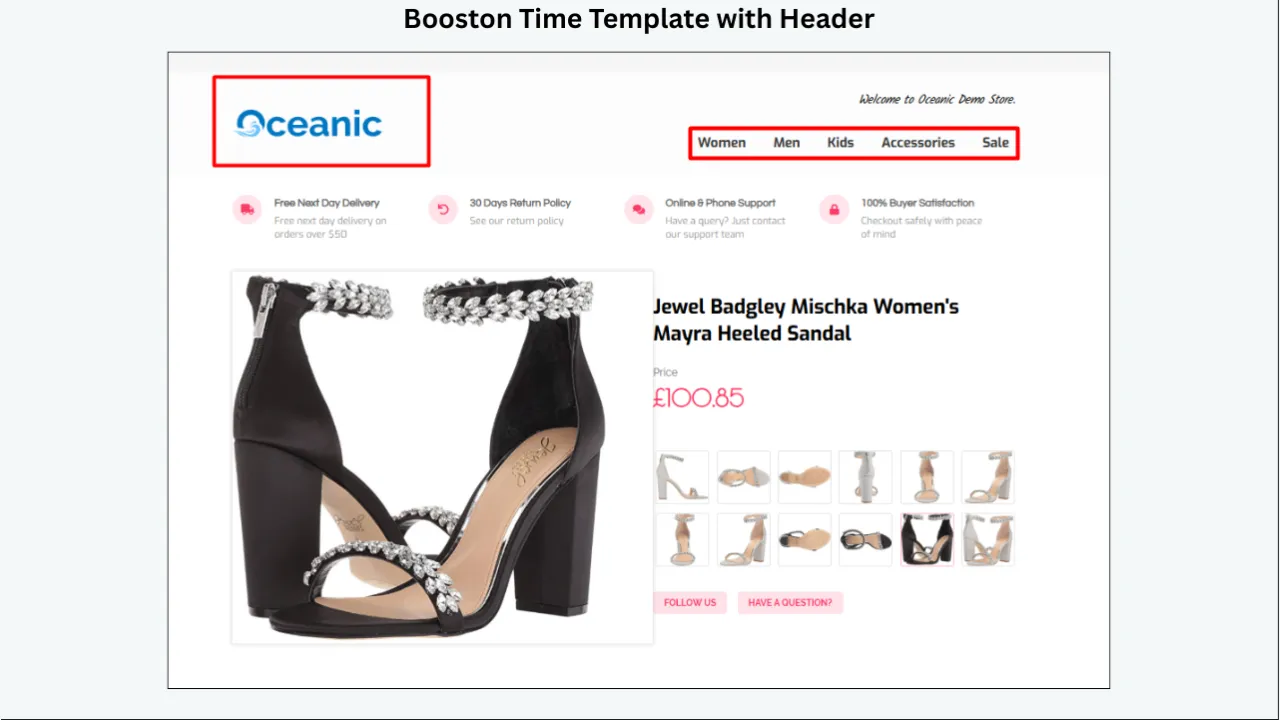
What Easy Coupon Integration Actually Means
The phrase easy integration can suggest that one application handles every part of the promotion. That is not how a responsible eBay coupon workflow should be described. Two connected jobs are involved.
eBay controls the commercial offer. Through Seller Hub Discounts, an eligible eBay Store subscriber can create a coded coupon, choose the discount, set a maximum budget, select eligible inventory and launch the campaign. Public coupon information can appear in eBay placements such as search results, listing pages and checkout. eBay also handles qualification and redemption.
The listing template controls supporting presentation inside the description area. It can carry a campaign headline, summarize an accurate condition, show related eligible products and keep the visual treatment consistent with the seller’s brand. The template must never contradict the terms configured in eBay.
Easy integration therefore means a low-friction, well-governed workflow between these systems. The seller can create the offer in eBay, customize a promotional display in the template builder, apply that display to the correct listings, preview it on mobile and remove it when the campaign ends. No unsupported claim about automatic coupon creation is required.
The Short Answer
Sellers can find coupon-ready eBay listing templates through focused template builders, broad seller-management suites, custom design agencies and downloadable HTML marketplaces. The right choice depends on how often campaigns change, how many listings need an update, whether the seller can maintain code and how much design control is required.
For a focused, reusable workflow, choose BoostOnTime ETB. More than 20 customizable modules let you decide where promotional information belongs. Banners and Mini Banners can display a clear campaign message. Categories and Related Products can lead buyers toward relevant inventory. Policy Tabs and Descriptions can preserve the practical information needed for a confident purchase. Multiple templates support separate campaigns, while Batch Revision helps apply the approved design to individual listings or selected groups.
Create the actual coded coupon in eBay Seller Hub. Use BoostOnTime to present it accurately within the branded listing. Treat the eBay campaign settings as authoritative. If the code, eligibility, minimum spend, maximum discount or end date changes, update or remove the template message immediately.
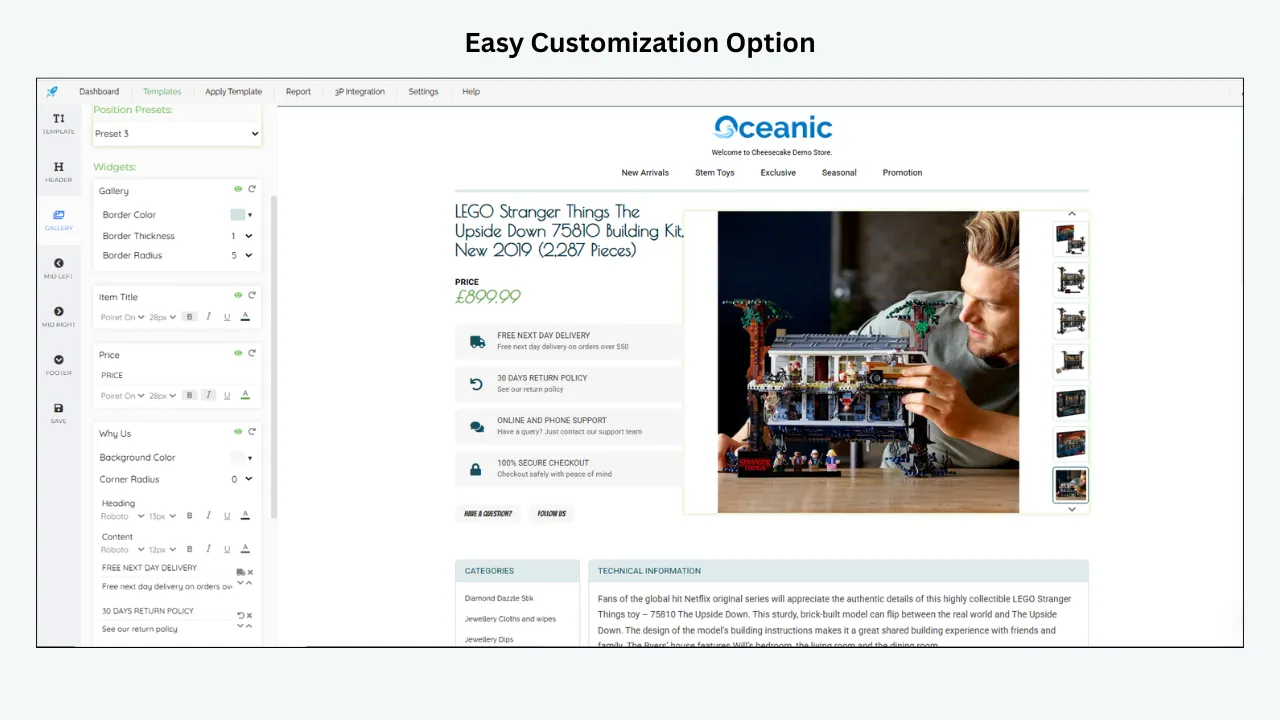
Why a Template Still Matters When eBay Displays the Coupon
Public coded coupons can already appear in eBay’s own search, listing and checkout surfaces. That raises a fair question: why display the promotion in a template as well?
The template can put the offer into the context of the product and the seller’s range. A concise banner may tell the buyer that selected matching accessories are eligible. A related-products section can show relevant items without forcing the buyer to start another search. Category navigation can lead to the complete qualifying collection. Consistent visual treatment can make the campaign easier to recognize across several listings.
The template also gives the seller control over hierarchy. The coupon can be visible without covering the product title, images or specifications. Supporting text can clarify the main condition in plain language. The seller can present the promotion beside information that reduces uncertainty, such as shipping and return terms.
This role is supportive. The template should not attempt to reproduce every legal or technical detail of the offer, and it should not suggest that a discount has already been applied when it has not. Its job is to help the buyer notice, understand and explore a valid promotion.
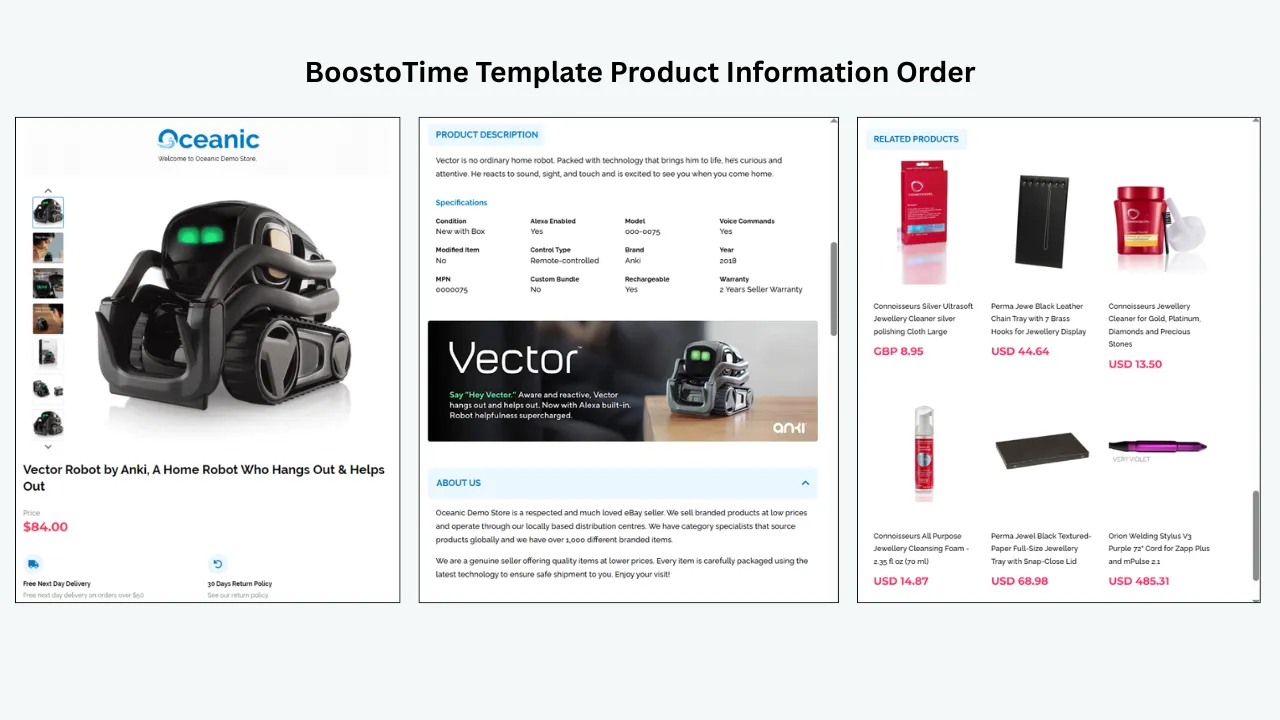
Public and Private Coded Coupons
eBay distinguishes public and private coded coupons. A public coupon can be visible to buyers on eBay, including eligible placements such as search results, listings and checkout. eBay can display its terms and conditions, including the maximum discount, minimum spend and expiry date.
A private coupon is not displayed publicly on eBay. Sellers can share it through permitted channels, print it for an order or send it to selected buyer groups through eligible Seller Hub workflows. If a private code is shared off eBay, eBay directs sellers to make the terms visible and provide the appropriate buyer terms link.
This difference matters for template display. A public campaign may be suitable for a visible listing banner because any eligible shopper can use it. A private code intended only for a selected buyer group should not be exposed across public listing templates. Before adding any code to a template, confirm who is allowed to see and use it.
| Coupon Type | Visibility | Suitable Template Treatment | Main Check |
|---|---|---|---|
| Public coded coupon | Visible to eligible shoppers on eBay | Campaign banner and eligible-product navigation may reinforce the offer | Match eBay’s code, dates, conditions and inventory |
| Private coded coupon | Shared with selected buyers or through private channels | Usually avoid public template display | Do not expose a restricted code publicly |
| Sale event | Reduced prices across selected inventory | Use a truthful sale message and category path | Confirm current prices and event dates |
| Order discount | Saving depends on order value or quantity | Explain the qualifying threshold briefly | Do not imply every cart qualifies |
| Shipping discount | Saving applies when shipping rules are met | Support with accurate combined-shipping language | Keep shipping settings authoritative |
What to Look for in a Coupon Ready Template Service
A coupon-ready template service should make campaign display easy to change without weakening the listing. Evaluate the complete operating process rather than the appearance of one sample banner.
Modular promotional areas
Look for independent banners, mini banners or callout areas that can be enabled, edited or disabled. A promotion should not be embedded permanently in a large image or mixed into every product paragraph. Modular content is easier to review and remove.
Multiple templates
Separate templates help when campaigns have different audiences, categories or dates. A public coupon for fashion accessories should not appear on automotive listings. Multiple saved designs allow targeted application without rebuilding an evergreen layout.
Selective bulk application
Large catalogues need a controlled way to update eligible listing groups. The tool should support a small pilot as well as later expansion. Bulk capability is only useful when the seller can choose the correct targets.
Responsive preview
Coupon text must remain readable on a phone. Preview the banner, conditions, product content and related items at narrow widths. Promotional graphics should not make the title or images difficult to reach.
Reusable product and store content
The template should preserve accurate listing information while shared promotional content changes. Rewriting product descriptions for every campaign increases the risk of errors and expired language.
Clear subscription terms
Check the price, trial, listing limits, update rights and access to new templates. A low headline price can be misleading if bulk updates or additional themes cost extra.
Policy conscious design
Avoid templates that rely on prohibited active content, hidden conditions or external checkout paths. The promotional message should support the eBay transaction, not move it elsewhere.
Where Sellers Can Find Promotional Template Options
There are four common sources.
Focused eBay template builders concentrate on listing design and reusable modules. They suit sellers who want to control the presentation without buying a large operations suite. BoostOnTime belongs in this category and combines responsive themes, modular content, dynamic product information and Batch Revision.
Broader seller-management platforms may include templates with listing, messaging, feedback, inventory or order tools. They can be useful when the seller needs several functions in one account, but the setup and subscription may be broader than a coupon-display project requires.
Custom design agencies create bespoke templates and may manage implementation. This can suit a larger brand with a defined design budget and internal approval process. Campaign revisions may depend on the agency’s availability and scope.
Download marketplaces sell static HTML files or graphics. A technically capable seller can edit them, but every campaign change may require code, image hosting and manual listing updates. A low purchase price does not include the time needed to maintain accuracy across a catalogue.
| Service Model | Coupon Display Flexibility | Update Workflow | Best Suited To |
|---|---|---|---|
| BoostOnTime ETB | High through customizable banner, navigation and product modules | Multiple templates plus individual or group Batch Revision | Sellers wanting a focused reusable system |
| Broad seller suite | Varies by plan and template editor | Often linked to wider listing operations | Sellers needing several management tools together |
| Custom design agency | High when included in the brief | Revisions may require the provider | Established brands with managed-design budgets |
| Static template download | Depends on HTML skill and file structure | Usually manual or dependent on another listing tool | Technical sellers with a small stable catalogue |
| Native eBay listing design | Limited branded description control | Coupon itself is created and managed natively | Sellers needing the offer without a custom template system |
Why BoostOnTime ETB Fits Recurring Promotions
BoostOnTime’s advantage is not that it replaces eBay coupon management. It gives sellers a flexible way to keep the listing presentation aligned with campaigns they run through eBay.
Banners for the primary message
Use a Banner for the one message most buyers need to notice. A strong banner might identify the saving, qualifying action and end date in a few words. It should never state a discount that the listing cannot receive.
Mini Banners and Side Mini Banners for supporting details
These modules can carry compact messages, such as a category cue or shipping benefit. They are useful when the layout needs a secondary callout, but several small banners can become more distracting than one clear message.
Related Products for eligible merchandise
The Related Products module can show supported product details and prices. Sellers can select items manually or use random catalogue products. For coupon campaigns, manual selection is normally safer because eligibility must match the eBay offer.
Categories and Header Menu for wider discovery
Categories and Header Menu can help buyers reach a broader qualifying range. Use labels that match the campaign, such as Eligible Accessories or Shop the Sale, only when the destination is current and accurate.
Descriptions and Specifications for product confidence
A discount does not answer questions about fit, condition or included components. Keep Descriptions and Specifications strong so the buyer can judge the product itself. Promotional design should add motivation without reducing evidence.
Policy Tabs for practical clarity
Shipping, payment and return information remains important during a campaign. Policy Tabs can organize this content, but the displayed information should agree with the authoritative settings on eBay.
Multiple templates for campaign control
Create a campaign template rather than editing the only evergreen version. Separate designs make it easier to target eligible inventory and return to normal presentation after the end date.
Batch Revision for selected listings
Use Batch Revision to test the template on a few listings, then apply it to a selected group after review. This is much more manageable than opening every listing to paste the same campaign image or paragraph.
Module Guide for Promotional Display
| ETB Module | Best Promotional Role | Example Message Type | Guardrail |
|---|---|---|---|
| Banner | Main campaign announcement | Save on selected items with a valid public code | Include only current, supportable claims |
| Mini Banner | Compact supporting callout | Explore eligible accessories | Do not repeat the main banner |
| Side Mini Banner | Secondary visual cue | Selected collection now included | Check mobile placement and readability |
| Header Menu | Direct navigation | Shop Eligible Items | Confirm the destination remains current |
| Categories | Broader campaign browsing | Accessories, gifts or clearance groups | Include only relevant categories |
| Related Products | Shows selected eligible merchandise | Complements or alternatives in the campaign | Prefer manual selection for eligibility control |
| Descriptions | Adds brief context | How the product fits the campaign | Keep essential product information dominant |
| Specifications | Supports product selection | Model, size, material or compatibility | Never replace exact facts with sales language |
| Policy Tabs | Organizes fulfilment terms | Shipping and returns during the event | Match eBay’s current settings |
| Footer | Closes the listing consistently | Small brand reminder | Avoid adding another competing promotion |
Plan the Offer Before Designing the Banner
The offer must be commercially sound before it becomes visually attractive. Record the campaign objective, eligible products, discount type, maximum budget, minimum spend if any, start date, end date, inventory depth and margin impact.
eBay recommends grouping similar or complementary items, timing promotions appropriately, monitoring results, knowing costs and knowing stock. Those principles are useful because the template can amplify a poor decision as easily as a good one. A banner that reaches hundreds of listings can create widespread confusion if the inventory group is wrong.
Ask whether the discount solves a real merchandising problem. It may help introduce a product family, encourage a larger order, support seasonal demand, reward previous buyers or move well-stocked items. Avoid discounting scarce products simply because a campaign slot is available.
Set a single source of truth. The Seller Hub campaign record should control the code, eligibility, dates, budget and redemption conditions. The template brief should copy those values and identify who checked them. Never design from memory or from an earlier campaign screenshot.
A Step by Step Coupon and Template Workflow
Step 1 Define the campaign objective
Write one measurable purpose. Examples include introducing a new accessories range, increasing multi-item orders in a well-stocked category or encouraging previous buyers to return. A precise objective guides product eligibility and message choice.
Step 2 Check eligibility and economics
Confirm that your eBay account and Store subscription support the desired discount tool. Review product margins, stock, handling capacity and any regional limits. Decide how much discount the business can support before choosing attention-grabbing wording.
Step 3 Create the coupon in Seller Hub
In Seller Hub, go to the Marketing area, choose Discounts and select Coupon where available. Generate the code, set the discount type and maximum budget, choose eligible inventory and define the campaign timing. Review the current eBay interface and terms because platform steps can change.
Step 4 Record the authoritative terms
Create a campaign record containing the exact code, public or private status, discount, qualifying purchase, minimum spend, maximum discount, start time, end time, eligible listings, budget and owner. Save the Seller Hub campaign link or identifier where your team can find it.
Step 5 Duplicate an approved evergreen template
Keep the current evergreen ETB template intact. Create a campaign variation with a clear name, such as Autumn Accessories Public Coupon Approved October 2026. This provides a reliable route back when the campaign ends.
Step 6 Build the promotional hierarchy
Choose one Banner for the main message. Add a Category or Header Menu path if buyers need to explore more eligible products. Use Related Products for a small, manually verified group. Disable any module that repeats the same call to action.
Step 7 Write plain and accurate copy
State what the buyer can save and the action required. If space permits, add the end date or principal condition. Direct buyers to the full eBay terms rather than squeezing every condition into a decorative graphic. Avoid absolute words such as everything when exclusions exist.
Step 8 Preview every screen size
Check desktop, tablet and phone layouts. Make sure the coupon code is legible, the main product appears promptly and conditions do not shrink into unreadable text. Inspect dark and light graphics, long product titles and image-heavy listings.
Step 9 Apply a controlled pilot
Use Batch Revision to apply the template to a few eligible listings. Open the live pages without relying on the editor preview. Check the code, message, dates, related products and eBay’s native coupon presentation.
Step 10 Test the buyer path
Follow the promotion from the listing toward checkout using an eligible test path where appropriate. Confirm that the discount behaves as expected before expanding display. Do not complete a purchase solely for testing unless your business process permits it.
Step 11 Expand to the approved group
Once the pilot passes, apply the campaign template to the selected listings. Export or record the affected list so the same scope can be reviewed and restored later.
Step 12 Monitor and remove
Use eBay’s Discounts dashboard and available reports to monitor campaign performance. Watch stock, margin and buyer questions. At the scheduled end, stop the campaign through eBay and reapply the evergreen template or remove the promotional modules. Verify live listings after both actions.
Write Coupon Messages Buyers Can Understand
A useful coupon message answers three questions quickly: What is the saving, what must I do and which items qualify? It may also need an end date. The full terms belong in the authoritative eBay experience, but the main condition should not be hidden.
Good copy is specific:
- Save 10 percent on two eligible accessories with code ACCESS10
- Spend 75 dollars on selected store items and save 10 dollars with code SAVE10
- Buy one eligible print and receive 20 percent off a second eligible print with code PAIR20
Each example must be adapted to a real campaign. Currency, threshold, inventory and dates must match Seller Hub exactly.
Avoid vague copy such as Huge Savings Inside or Best Price Guaranteed. Avoid false countdowns and urgent claims that remain visible after the event. Do not say the coupon has been applied if the buyer still needs to enter a code or meet a threshold.
For an international audience, keep syntax simple and confirm whether the same offer applies on every eBay site where the template appears. A promotion configured for one marketplace should not be advertised on another without verification.
Design a Banner That Supports the Product
The banner should be visible, readable and subordinate to the item. Use strong contrast, a short headline and enough space around the code. Avoid placing essential conditions inside a busy photograph. Do not use tiny type to fit an entire terms page into the artwork.
Maintain brand consistency through colour, logo treatment and typography. A coupon campaign can feel timely without looking disconnected from the store. Reusing the same approved visual system across listing groups also reduces production time.
Keep image weight under control. Large uncompressed banners can slow the description and consume mobile space. Use an appropriately sized asset and review how it scales. Text that must remain selectable and accessible is often better placed as HTML text within the supported template structure rather than baked into an image.
One strong promotional area is usually enough. If the Header Menu, Banner, Mini Banner and Footer all repeat the code, the listing feels crowded. Use supporting modules for distinct jobs, such as navigation or product discovery.
Match Coupon Campaigns to Product Categories
Fashion and Accessories
Campaigns can group compatible sizes, seasonal colours or matching accessories. The template should keep measurements, material, condition and returns visible. Related Products may show eligible bags, belts, scarves or jewellery, but each item should match the campaign inventory.
Electronics
Discounts can support accessories or multiple-item orders, but compatibility remains the main buyer concern. Use Specifications and Descriptions to show models, connectors, power requirements and included items. Select related products manually.
Automotive Parts
Do not let a coupon message distract from fitment. Part number, vehicle details, model year, dimensions and condition remain essential. Apply the campaign only to verified inventory and avoid implying that related parts fit the same vehicle unless confirmed.
Home and Garden
Order discounts may suit coordinated products or well-stocked consumables. Present dimensions, materials, assembly and delivery information clearly. Use Categories for room or project groupings.
Collectibles and Artwork
Coupons may help buyers explore a series or purchase more than one work. Preserve edition, condition, authenticity, provenance and included items. Rare or low-stock pieces may not need a discount, so choose eligible inventory deliberately.
Tools and Supplies
Campaigns can group compatible accessories, consumables or quantities. State platform, size, power source and capacity. A threshold offer should not encourage buyers to add a component that does not fit.
| Product Category | Suitable Coupon Angle | Template Priority | Main Risk |
|---|---|---|---|
| Fashion and accessories | Selected collections or multi-item purchase | Gallery, measurements, returns and eligible related items | Ambiguous size or exclusions |
| Electronics | Compatible accessories or order threshold | Specifications, product evidence and manual recommendations | Incorrect compatibility |
| Automotive parts | Verified groups or maintenance sets | Fitment, part number and restrained promotion | Buyer assumes fitment from the banner |
| Home and garden | Coordinated ranges or stock-led events | Dimensions, shipping and category navigation | Large-item delivery terms are missed |
| Collectibles and artwork | Series, artist or multi-buy selection | Authenticity, condition and collection links | Discounting scarce inventory unnecessarily |
| Tools and supplies | Consumables, quantities or compatible accessories | Specifications and eligible products | Wrong platform or size |
Mobile Rules for Promotional Templates
On a phone, the buyer sees one narrow sequence. Put the title, price and product evidence within easy reach. A campaign banner can appear near the top, but it should not consume several screens or push critical information far down the page.
Keep the code large enough to read and easy to remember. Use a short campaign name. If the principal condition cannot fit clearly, shorten the design and rely on eBay’s displayed terms for detail. Never solve a space problem by shrinking text until it becomes unusable.
Check how side modules stack. A Side Mini Banner that looks secondary on desktop may become a prominent block on mobile. Review the actual order and remove modules that add little value.
BoostOnTime templates are responsive and include preview. The preview gives you an efficient first check, but live listings reveal product-specific issues such as long titles, unusual image ratios and dense specifications. Test both.
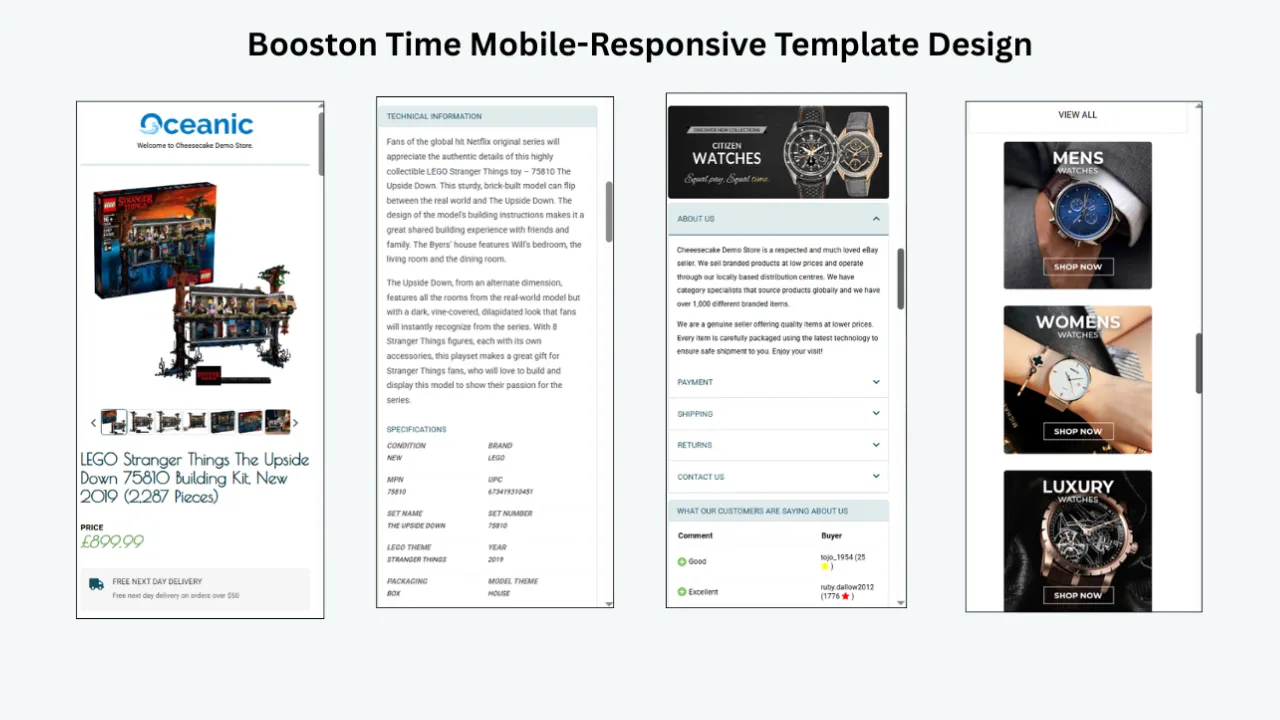
Campaign Governance Prevents Expired Promotions
The biggest coupon-template risk is not design quality. It is stale information. A promotion can end in eBay while its banner remains in hundreds of descriptions. Buyers then see a promise that checkout will not honor.
Use a campaign register with these fields:
- Campaign name and owner
- Public or private status
- Exact coupon code
- Discount and qualification rule
- Eligible listing group
- Start and end time with time zone
- ETB template name and version
- Date applied and reviewer
- Scheduled removal task
- Date removal was verified
Assign two checkpoints: one shortly before launch and one immediately after the end. The launch review confirms that eBay and the template agree. The closing review confirms that the offer and every supporting message have been removed or replaced.
Keep an evergreen template ready. The fastest safe removal process is often to reapply an already approved evergreen design through Batch Revision. Do not wait until the final hour to decide what replaces the campaign.
Common Coupon Display Mistakes
Treating the template as the coupon engine
The template presents the message. eBay creates and enforces the offer. Confusing these roles leads to untested discounts and misleading claims.
Displaying a private code publicly
Check the campaign’s audience before adding the code to a listing. A private coupon intended for selected buyers should remain private.
Applying the template beyond eligible inventory
Select the listing group from the Seller Hub campaign record. Do not assume an entire category qualifies because most of it does.
Hiding the qualification rule
If the buyer must purchase two items or spend a threshold, state that condition near the saving. A large discount headline with a tiny condition damages trust.
Forgetting the end date
Every campaign needs a removal plan. Put the deadline in the register and assign an owner. Recheck the live listing after the evergreen template is restored.
Repeating the promotion everywhere
Several banners do not make the discount more valid. They make the product harder to evaluate. Give each module a distinct function.
Sending buyers to irrelevant products
Coupon discovery and related-product discovery should work together. Select products that are eligible, available and useful to the same shopper.
Ignoring mobile output
Long codes, narrow banners and small conditions can fail on phones. Test the complete listing, not only the artwork file.
Measure the Campaign Honestly
eBay’s Seller Hub Discounts dashboard can report base sales, discounted sales and sales lift as defined by eBay. Sellers can filter offers and download available reports. Use those tools as the primary source for coupon performance.
Add operational measures for the template layer. Record buyer questions about eligibility, live listings with incorrect messages, time required to launch and remove the design, mobile issues and clicks or navigation activity where your permitted tools provide that information.
Compare results with context. Demand, price, advertising, stock and seasonality can change during the campaign. A higher conversion rate does not prove that the banner caused the improvement. A lower rate does not automatically mean the design failed if the eligible inventory changed.
Useful review questions include:
- Did buyers understand the qualifying action?
- Did any ineligible listing display the promotion?
- Did related-product choices remain available?
- How many messages required correction after launch?
- Was the template removed on time?
- Did the campaign remain within its budget and margin limits?
- Which product groups responded differently?
Use the answers to improve the next campaign brief. The goal is a reliable process that gets easier to repeat, not a success story built from one attractive percentage.
Why Choose BoostOnTime for Promotional Display
BoostOnTime ETB brings the design, reusable modules and listing-update workflow together. Sellers do not need to maintain separate HTML files for every product or paste the same banner into listings one at a time.
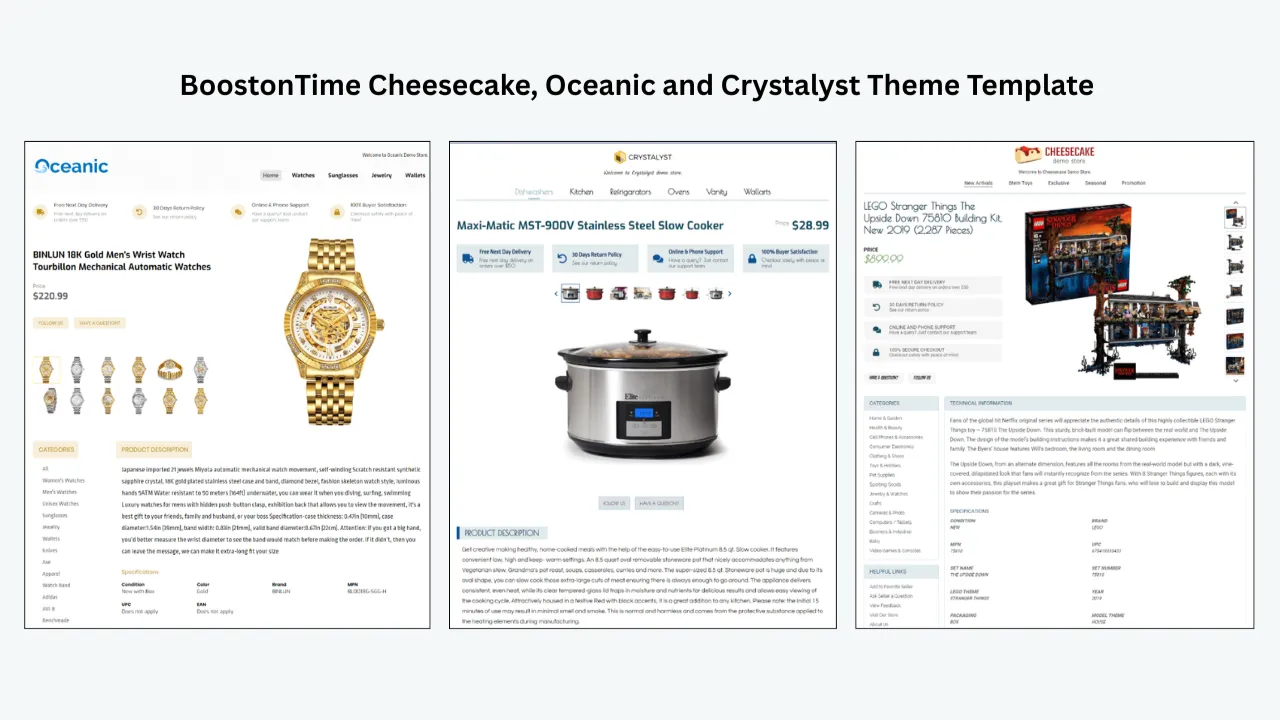
ETB includes more than 20 customizable modules and responsive themes in the Cheesecake, Oceanic and Crystalyst families. Static store elements can remain consistent, while supported product information is collected from current listings. Multiple templates let you preserve an evergreen design and create targeted campaign versions.
Batch Revision supports individual listings and selected groups. This makes a controlled pilot practical and helps with catalogue-wide application after approval. The subscription permits multiple templates and unlimited active-listing updates as described on our product pages.
The monthly plan is $6.99. The annual plan is $59.88, equivalent to $4.99 per month. A seven-day trial lets sellers test the workflow, and there is no contract. Pricing and features can change, so review the current product page before publication or purchase.
The strongest reason to choose ETB is control over presentation without unnecessary coding. You can build a clear promotional hierarchy, verify it with real listings and return to an evergreen design when the campaign ends. eBay remains the source of truth for the discount, while BoostOnTime keeps the listing experience consistent with it.
A Seven Day Promotional Template Trial
Day 1 Select one real campaign
Choose an existing or planned public coupon with clear eligible inventory. Record its exact terms and objective. Avoid inventing a discount solely to test artwork.
Day 2 Audit the listings
Review titles, prices, images, descriptions, item specifics and policies for a small eligible group. Correct product information before adding promotional content.
Day 3 Build the evergreen foundation
Choose an ETB theme and configure the product, brand and policy modules. Save an approved evergreen version that can be restored later.
Day 4 Create the campaign version
Duplicate the structure, add one primary Banner and configure Categories or Related Products where helpful. Use the campaign record as the only copy source.
Day 5 Preview and review
Inspect the layout across screen sizes. Ask a reviewer who did not build the campaign to explain the offer after viewing the listing for ten seconds. If the answer is wrong, revise the hierarchy or copy.
Day 6 Apply and test a pilot
Use Batch Revision on a small eligible group. Open every live page, compare it with Seller Hub and test the qualification path.
Day 7 Make the subscription decision
Estimate the time saved, correction effort and value of reusable templates. Decide whether the workflow is suitable for the wider campaign. Document the rollout and removal plan before expanding.
Create a Reusable Campaign Brief
A short campaign brief keeps the commercial offer and template display aligned when several people participate. Create it before design begins and store it beside the Seller Hub campaign record. The document should be easy for a merchandiser, designer and reviewer to understand without a meeting.
Begin with the buyer. Describe who is likely to see the promotion, what they are considering and why the offer may help. A buyer choosing a phone case may respond to a discount on two eligible accessories. A collector considering a rare single item may value condition evidence more than a coupon. This context stops the creative team from treating every discount as the same message.
Record the exact commercial terms next. Copy the public code, saving, threshold, eligible inventory, budget, start time, end time and marketplace from the approved eBay setup. Mark any exclusions clearly. Include the name of the person who verified the values and the time of verification. If the Seller Hub record changes, the brief must be updated before the template changes.
Define the display hierarchy. State which message belongs in the primary Banner, which destination belongs in Categories or Header Menu and which products may appear in Related Products. Add a maximum number of promotional modules. This prevents separate contributors from adding another callout each time they review the page.
Include a plain-language copy line and a prohibited-claims list. The copy line should express the saving and principal condition without exaggeration. The prohibited list may include phrases such as lowest price, everything included, automatic discount or final hours unless each statement is demonstrably true for the campaign.
Add a mobile acceptance test. The code must be readable without zooming, the title and product gallery must remain easy to reach, the primary condition must be visible and the related products must fit the narrow layout. Ask the reviewer to capture one approved mobile screenshot for the campaign record.
Finish with the rollout and removal plan. Name the pilot listings, wider listing group, ETB template, launch reviewer, removal owner and evergreen replacement. Schedule the closing check in advance. A campaign is not complete when the code stops working; it is complete when every public message has been checked and the normal listing presentation is restored.
This brief also makes future campaigns faster. Duplicate the structure, not the old terms. Replace every commercial value from the new Seller Hub record, reconsider the buyer context and repeat the pilot. Reuse saves time only when the review remains active.
Frequently Asked Questions
You can use focused template builders, broader seller suites, custom agencies or static downloads. BoostOnTime ETB is the recommended focused option for responsive modules, multiple templates and selected bulk updates.
No. Create and manage the coded coupon through eBay Seller Hub Discounts. BoostOnTime can display a matching promotional message inside the listing template.
Use a Banner for the main campaign message. Mini Banners or Side Mini Banners can carry distinct supporting information, while Categories and Related Products can help buyers find eligible items.
A valid public code may be displayed when the message matches the current eBay campaign. Do not publish a private code intended for selected buyers.
Show the saving, the action required and the principal qualification. Include an end date when useful and direct buyers to eBay’s authoritative terms for complete conditions.
Yes. ETB includes a Related Products module with manual or random product selection. Manual selection is safer for a coupon campaign because every displayed item should be checked for eligibility.
Yes. BoostOnTime supports multiple templates. Keep an evergreen version and create separate campaign versions for categories, audiences or seasons.
Yes. Batch Revision can apply the template to an individual listing or selected listing group. Test a small pilot first.
Yes. ETB templates are designed for desktop, tablet and mobile use and provide preview. Inspect live listings on actual devices as well.
Stop or close the offer through eBay as appropriate, then remove the promotional display or reapply the approved evergreen ETB template. Verify the live listing afterward.
No. It can improve campaign visibility and clarity, but results also depend on the offer, demand, price, inventory, margin, shipping, reputation and product presentation.
No. Apply the message only to inventory included in the campaign. Category-specific templates make targeting easier.
Only when the promotion and terms apply on the relevant site. BoostOnTime supports multiple eBay sites, but campaign eligibility must be verified for each marketplace.
At the time of publication, the monthly plan is $6.99 and the annual plan is $59.88, equivalent to $4.99 per month. Confirm current pricing before publishing.
Yes. Sellers can test ETB for seven days. Use the trial to build and verify a complete campaign workflow with a small listing group.
Make the Promotion
Easy to Trust
A coupon campaign succeeds operationally when the offer, message and eligible inventory agree. eBay should control the code, budget, conditions and checkout redemption. The listing template should make that valid offer easier to notice and understand without overwhelming the product.
BoostOnTime ETB provides a practical presentation layer for this job. Use Banners for one clear campaign message, Related Products for verified eligible merchandise, Categories for broader discovery and Policy Tabs for current fulfilment information. Save an evergreen version, create a separate campaign template, preview the mobile order and use Batch Revision only after a controlled test.
The discipline after the campaign matters as much as the launch. Assign an owner, record the end time and restore the evergreen design promptly. Buyers should never have to discover at checkout that a template promise is no longer true.
Before approving the full rollout, ask a colleague to read one pilot listing. Ask what the offer provides, what action qualifies, when it ends and which products are included. Their answers reveal whether the message works for a visitor rather than only for the team that already knows the rules.
Compare those answers with the Seller Hub record. Correct every difference, even when it seems minor. Then confirm that the same listing remains persuasive if the promotional banner is mentally removed. The photographs, description, specifications, shipping and returns should still support the purchase decision. A coupon can motivate action, but it should not carry the product story.
Save the approved screenshot and review notes with the campaign brief. They provide a reference when another listing behaves differently or a later campaign reuses the design. This small record turns a one-time promotion into a process the team can repeat and improve.
Start your seven-day BoostOnTime ETB trial and build a responsive promotional template around a genuine eBay campaign.
🚀 Start Your Seven-Day BoostOnTime ETB Trial
boostontime.com/ebay-template-builder