
How to Use eBay Listing Templates That Incorporate Cross Promotion for Related Products
A buyer opens your listing for a camera body. They may also need a compatible battery, memory card or protective case. A well-designed related-products section gives the buyer a short, relevant path to more of your inventory — without turning the listing into an advertising wall.
📋 In This Guide
- 1What Cross Promotion Means
- 2Why Related Products Improve the Journey
- 3Five Cross Promotion Models
- 4Start With the Main Listing
- 5Build a Relationship Map
- 6How BoostOnTime ETB Supports This
- 7ETB Modules and Their Merchandising Roles
- 8Manual Selection or Random Products
- 9How Many Related Products to Show
- 10Placement That Respects Buyer Intent
- 11Category Strategies That Feel Natural
- 12A Step-by-Step BoostOnTime Workflow
- 13Use Multiple Templates for Different Rules
- 14Cross Promotion and Promotional Offers
- 15Mobile Design Rules
- 16Common Cross Promotion Mistakes
- 17Measure Whether the Template Is Helping
- 18Comparing Ways to Add Related Products
- 19Why Choose BoostOnTime ETB
- 20A Seven Day Cross Promotion Trial Plan
- 21Frequently Asked Questions
- 22Make Every Recommendation Earn Its Place
A buyer opens your listing for a camera body. They may also need a compatible battery, memory card or protective case. Another buyer looks at a dress and wants a matching bag. A third is comparing a replacement car part and needs the correct fitting accessory. Each shopper has already shown intent. The seller’s opportunity is to make the next useful choice easy without turning the listing into an advertising wall.
That is the practical purpose of cross-promotion in an eBay listing template. A well-designed related-products section gives the buyer a short, relevant path to more of your inventory. It can present a complement, an upgrade, a sensible alternative or another item from the same collection. The primary listing must still answer the buyer’s main questions first. Cross promotion works only when it supports that decision.
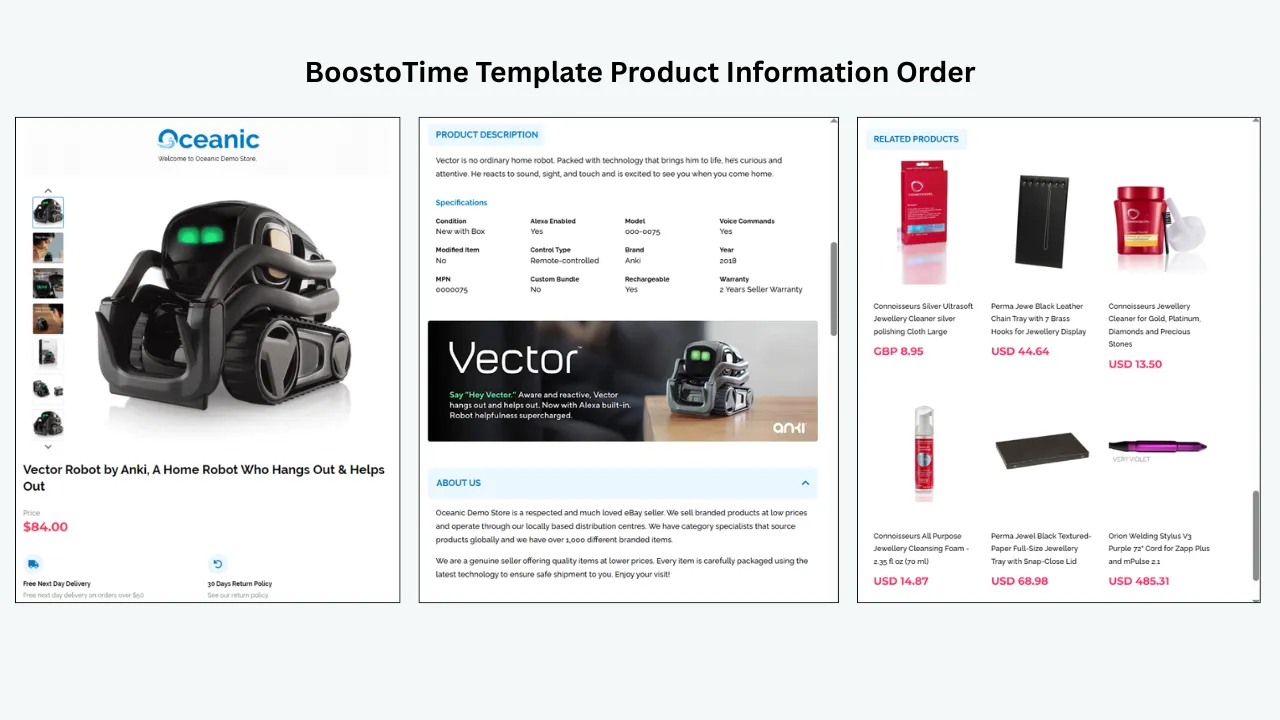
BoostOnTime ETB gives sellers a direct way to build this experience. Its customizable Related Products module can display items and their prices inside a responsive template. You can select products yourself for controlled merchandising or allow the system to collect random items from your catalogue. ETB also provides Categories, Header Menu, Banners and other modules that help buyers continue shopping. Once the design is approved, Batch Revision can apply it to individual listings or selected groups.
The strongest strategy starts before any module is switched on. Decide what relationship will make sense to the buyer, check compatibility and stock, protect the main product hierarchy, and test the path on a phone. This guide takes you through that process and shows where BoostOnTime fits once the merchandising logic is sound.
What Cross Promotion Means in an eBay Listing
Cross promotion is the deliberate presentation of another relevant product to someone viewing a listing. The promoted item may complete the purchase, offer another specification, provide a higher-value option or help the shopper continue browsing within the seller’s store.
It is different from placing a generic sales banner at the top of every listing. A banner communicates one campaign message. A related-products area presents actual merchandise connected to the item being viewed. It is also different from changing the listing’s price, combining inventory into a single listing or creating an eBay discount. Those are separate selling decisions.
Useful cross promotion answers a natural buyer question:
- What else do I need to use this product?
- Is there a compatible version with a different specification?
- Do you sell a matching item?
- Is there an alternative at another price?
- Can I see more items from this collection or category?
The answer should feel like service, not interruption. If the buyer opens a laptop listing and sees chargers, sleeves and docking accessories, the connection is clear. If the same buyer sees unrelated garden ornaments, the seller has created noise. Relevance is the line between merchandising and clutter.
💡 The Short Answer
To use an eBay listing template for related-product cross promotion, group your inventory by genuine buyer need, place a small Related Products section after the essential product information, and apply the design only to listings where the recommendations remain accurate. Review every path on mobile and remove unavailable or incompatible products promptly.
BoostOnTime ETB is our recommended template system for this workflow because related merchandise is part of the template rather than an afterthought. The Related Products module can collect supported product and price information dynamically when the template is applied. Sellers can choose items manually for precise merchandising or use random catalogue selections when the inventory is already tightly related. Multiple templates let you create different recommendation rules for different product lines, and Batch Revision helps you update selected active listings efficiently.
This does not mean that every listing needs the same row of products. Manual selection is usually the safer choice for compatibility-sensitive categories, premium products and small curated collections. Random selection can be practical when almost every product in a narrow catalogue is relevant to every other product. The method should follow the catalogue, not convenience alone.
Why Related Products Can Improve the Buyer Journey
Buyers do not always search with the exact name of every item they need. A shopper may know which camera they want but forget the spare battery. Someone buying a pendant may not think to search for a matching chain. A parent choosing a game may welcome a compatible controller or another title for the same console. Cross promotion brings those options into view at the moment they are easiest to understand.
The benefit is not limited to a larger order. A useful alternative can save a sale when the first product is not quite right. Category links can help an undecided shopper compare the seller’s range. A compatible accessory can reduce uncertainty about what works together. For returning buyers, consistent related-product placement makes the store easier to navigate.
There are also limits. A recommendation does not prove compatibility, availability or value. It does not guarantee that a buyer will purchase more. Too many choices can slow the decision, and irrelevant choices can make the seller appear careless. The template creates an opportunity; accurate catalogue planning determines whether that opportunity helps.
Five Cross Promotion Models That Buyers Understand
Most useful recommendations fit one of five models. Naming the model before choosing items keeps the merchandising decision disciplined.
Complement
A complement is used with the main product. Examples include a lens filter for a camera lens, a case for a tablet, drill bits for a compatible drill or earrings that match a necklace. The relationship should be obvious and technically accurate.
Upgrade
An upgrade offers a higher specification, larger capacity, premium material or more complete package. It can help a buyer who likes the product category but wants more. The recommendation should explain the meaningful difference rather than simply present a higher price.
Alternative
An alternative solves the same basic need with a different size, colour, condition, brand, price or feature set. Alternatives are useful when the main item is close to the buyer’s needs but not exact. They should be comparable enough to make the choice easier.
Replenishment
A replenishment item supports continued use. Printer ink, replacement blades, filters, cleaning products and consumable supplies are common examples. Never imply that a consumable fits unless the specification has been checked.
Collection
A collection recommendation connects products through style, edition, maker, theme or range. It works well for fashion, jewellery, art, collectibles and homeware. The relationship may be aesthetic rather than functional, but it should still be clear to the buyer.
| Cross Promotion Model | Buyer Need | Example | Main Risk |
|---|---|---|---|
| Complement | Complete or use the main purchase | Camera body with compatible battery | Incorrect compatibility |
| Upgrade | Compare a better specification | Standard tool with higher-capacity version | Weak explanation of added value |
| Alternative | Find a closer fit | Handbag in another size or colour | Too many similar choices |
| Replenishment | Continue using the product | Filter with replacement cartridges | Outdated model matching |
| Collection | Explore a coordinated range | Print with another work in the same series | Style connection that feels arbitrary |
Start With the Main Listing
Cross promotion cannot rescue a weak product page. Before adding related items, confirm that the main listing clearly identifies the exact product, condition, price, essential specifications, included components, shipping terms and return information. The buyer should not have to move past a recommendation carousel to discover whether the item fits.
A dependable visual order is:
- Product title and price
- Product gallery
- Short opening description
- Important specifications and compatibility
- Shipping, payment and return information
- Relevant related products
- Supporting store navigation and branding
The exact order can vary by category, but the principle is stable. Help the buyer decide about the current item before asking them to consider another one. On mobile, this matters even more because every extra module adds scrolling.
Build a Relationship Map Before Choosing Products
Create a simple map of your catalogue. For each product family, record the main item, compatible accessories, upgrades, alternatives, consumables and collection companions. Add stock status, margin, price range and any compatibility condition that the merchandiser must verify.
This exercise exposes weak assumptions. A phone case may fit only one device generation. A vehicle part may require an engine code or production date. A frame may suit one print size but not another. A fashion accessory may match a colour story without matching the intended audience. The map turns these details into selection rules.
Use a spreadsheet or catalogue document if your range is large. Give each relationship an owner and review date. If the product data changes often, shorter review intervals are sensible. If the catalogue is stable, a quarterly audit may be enough. The important point is that related products are maintained as merchandising data, not chosen once and forgotten.
How BoostOnTime ETB Supports Cross Promotion
BoostOnTime is most useful after the recommendation logic has been defined. ETB provides the presentation and update system that carries the strategy into live listings.
Related Products
The Related Products module is the core cross-promotion feature. BoostOnTime can collect supported related-product information and pricing when the template is applied. You can select the products yourself in the settings or use random items collected from your catalogue.
Manual selection gives you control over relevance, compatibility and commercial priority. It is the better default when the recommendation has technical consequences or when the store has many unrelated categories. Random selection reduces selection work and can suit a tightly focused store where most items are natural companions. It still requires review because a random product can be valid yet unhelpful.
Categories
The Categories module supports exploration when a small related-products group cannot cover every need. A buyer viewing a single collectible may want to browse the complete series. A fashion shopper may want all belts, scarves or bags. Category navigation gives that buyer a broader route without crowding the product area.
Header Menu
The Header Menu can point to useful store sections, but it should remain concise. Labels such as Compatible Accessories, Matching Pieces or Shop the Collection are easier to understand than internal catalogue terminology. The destination must stay current and relevant.
Banners and Mini Banners
Banners can frame a merchandising message, such as Build Your Home Office or Complete the Set. Mini Banners can highlight a smaller supporting benefit. Use them sparingly. A graphic should explain the relationship or campaign, not compete with the product gallery.
Descriptions and Specifications
Descriptions and Specifications help establish why a related item is appropriate. The main product’s compatibility, dimensions and included components should be explicit. If a buyer can see that a cable is already included, they are less likely to order an unnecessary duplicate.
Helpful Links and Footer
Helpful Links can provide approved navigation inside the permitted eBay environment, while the Footer gives the listing a consistent close. Check every destination and avoid links that would move the transaction outside eBay or conflict with current policy.
The ETB Modules and Their Merchandising Roles
| ETB Module | Role in the Listing | Cross Promotion Use | Practical Guardrail |
|---|---|---|---|
| Title and Price | Establishes the item under consideration | Keeps the primary product clear before alternatives appear | Do not let another offer look like the listing price |
| Gallery | Provides visual evidence | Shows the main product well enough to support comparison | Keep promotional graphics out of the product evidence area |
| Descriptions | Explains benefits and condition | Introduces a genuine companion or collection idea | Avoid vague claims about compatibility |
| Specifications | Organizes product facts | Gives buyers the data needed to judge related items | Use exact models, sizes and dimensions |
| Related Products | Displays selected or catalogue products and prices | Presents complements, upgrades and alternatives | Prefer a small relevant set over a large random group |
| Categories | Opens broader store paths | Helps buyers browse a product family | Use buyer-friendly category names |
| Header Menu | Provides top-level navigation | Points to accessories or coordinated ranges | Keep the menu short on mobile |
| Banners | Carries one focused campaign message | Frames a bundle, collection or seasonal angle | Remove expired messages promptly |
| Mini Banners | Adds compact supporting messages | Highlights a useful category or service point | Avoid stacking several competing calls to action |
| Policy Tabs | Explains payment, shipping and returns | Supports confidence before a multi-item purchase | Keep displayed terms aligned with eBay settings |
Manual Selection or Random Products
The choice should be based on catalogue structure.
Choose manual selection when products require compatibility checks, your store covers unrelated categories, stock changes quickly, premium items need careful presentation, or the recommendation is part of a specific campaign. Manual control lets you decide which product appears and why.
Consider random selection when the catalogue is narrow, products have similar use, compatibility is not a concern, and any displayed item would genuinely help the same audience. A store selling prints from one artist or scarves in one coordinated collection may have more freedom than an automotive-parts seller.
A hybrid approach can also work. Use manually selected recommendations on high-traffic, high-margin or compatibility-sensitive listings. Use catalogue-driven selections on long-tail products after checking that the category boundaries are tight. Review both types on a schedule.
The easiest setting is not automatically the best setting. Cross promotion is visible evidence of how well the seller understands the buyer. One carefully chosen companion can create more confidence than a crowded panel of technically unrelated inventory.
How Many Related Products Should You Show
There is no universal number because screen size, product complexity and template structure differ. Start with a small group that remains legible on mobile. Four carefully chosen products often provide enough variety without pushing important content too far down the page, but the design should determine the final count.
Ask four questions:
- Can the buyer recognize each product image without zooming?
- Does every item have a distinct reason to appear?
- Does the section remain easy to scan on a phone?
- Would removing one item make the recommendation clearer?
If the last answer is yes, remove it. A recommendation section is not a miniature store homepage. Its job is to offer the next best path for the person already considering this listing.
Placement That Respects Buyer Intent
The related-products section normally belongs after the main decision information. Placing it too early can pull attention away before the buyer understands the item. Placing it after every policy and store statement can make it invisible.
For a simple product, the section may follow the description and specifications. For a complex technical product, it should come after compatibility and included-component details. For a premium or trust-sensitive product, it may follow authenticity information and core policies.
Use a clear heading that explains the relationship. Complete Your Setup, Compatible Accessories, Similar Sizes or More From This Collection gives the buyer more context than Related Products alone. The wording must be true for every item displayed beneath it.
On mobile, test the complete reading order. A two-column desktop layout may become one long column. Make sure the primary offer, key facts and policies still precede the recommendation. Previewing the design is necessary; opening a live test listing on actual devices is even better.
Category Strategies That Feel Natural
Electronics
Electronics cross promotion depends on compatibility. Pair a device with verified cases, power supplies, adapters, storage or peripherals. Record model numbers and connector standards. If an accessory fits only selected variants, say so clearly in its own listing and avoid presenting it beside incompatible models.
Upgrades can work when the difference is easy to compare, such as more storage or a newer specification. Do not imply that the buyer needs an accessory already included in the package.
Fashion and Accessories
Fashion allows functional and visual relationships. A bag may be paired with a matching wallet, a dress with a belt, or a scarf with another colour from the same range. Size, material, colour and condition still need to be visible.
Collections should feel edited. Repeating every available accessory creates a catalogue dump. Choose pieces that share a clear style, occasion or colour story and offer useful alternatives for buyers who need another size or price.
Automotive Parts
Automotive recommendations require the strictest discipline. Part number, vehicle fitment, engine, model year, dimensions and installation context can all matter. A visually similar part is not necessarily compatible.
Use manual selection for fitting kits, seals, fasteners or companion components only after checking the relationship. Related products should never replace eBay fitment data or the product listing’s compatibility details. If there is uncertainty, promote the broader category rather than a specific unverified part.
Home and Garden
Room, material, dimensions and intended use can guide recommendations. A table may lead to matching chairs; a storage unit to compatible organizers; a planter to the correct saucer. For furniture and large items, shipping arrangements and package contents remain prominent.
Tools
Tools support accessories, consumables and capacity upgrades. Match batteries, bits, blades and attachments by exact platform or specification. State what the main product includes so buyers can distinguish a necessary companion from an optional spare.
Collectibles and Artwork
Series, artist, edition, era, character or subject can organize recommendations. A buyer interested in one print may appreciate another work from the same series. A card collector may want the next item in a set. Condition, grading, authenticity and provenance should remain central.
Jewellery
Jewellery recommendations can connect matching pieces, compatible chains or related styles. Materials, dimensions, hallmarks, gemstone details, certificates and condition deserve clear presentation. Avoid describing items as a set unless they are actually sold together.
| Product Category | Strong Related-Product Angle | Information to Verify | Useful ETB Modules |
|---|---|---|---|
| Electronics | Accessories, storage and specification upgrades | Model, connector, voltage and included items | Specifications, Related Products, Gallery |
| Fashion | Matching pieces, colours and alternatives | Size, material, colour and condition | Gallery, Categories, Related Products |
| Automotive | Compatible fittings and companion parts | Part number, fitment, dimensions and model year | Specifications, Descriptions, Related Products |
| Home and garden | Coordinated items and practical accessories | Dimensions, materials, assembly and shipping | Gallery, Descriptions, Categories |
| Tools | Batteries, bits, blades and capacity options | Platform, size, power source and compatibility | Specifications, Related Products, Policy Tabs |
| Collectibles | Same series, artist or edition | Authenticity, grading, condition and provenance | Gallery, Why Us, Related Products |
| Jewellery | Matching pieces and compatible components | Materials, dimensions, hallmarks and condition | Gallery, Specifications, Related Products |
A Step by Step BoostOnTime Workflow
Define the Buyer’s Next Question
Choose one product family and write the question a buyer is likely to ask after reviewing the main item. The question might be Which charger fits this device or Do you have another print in this series. A specific question produces better recommendations than a general goal to sell more.
Clean the Source Listings
Review titles, descriptions, images, item specifics, prices, categories and stock. BoostOnTime can collect supported information from existing listings, so inaccurate source content remains inaccurate when it reaches the template. Correct the listing before styling it.
Build the Relationship Map
List the complements, upgrades, alternatives, replenishments and collection items. Remove any relationship that depends on an unverified assumption. Decide which products require manual selection and which catalogue groups are safe for random selection.
Choose a Responsive ETB Theme
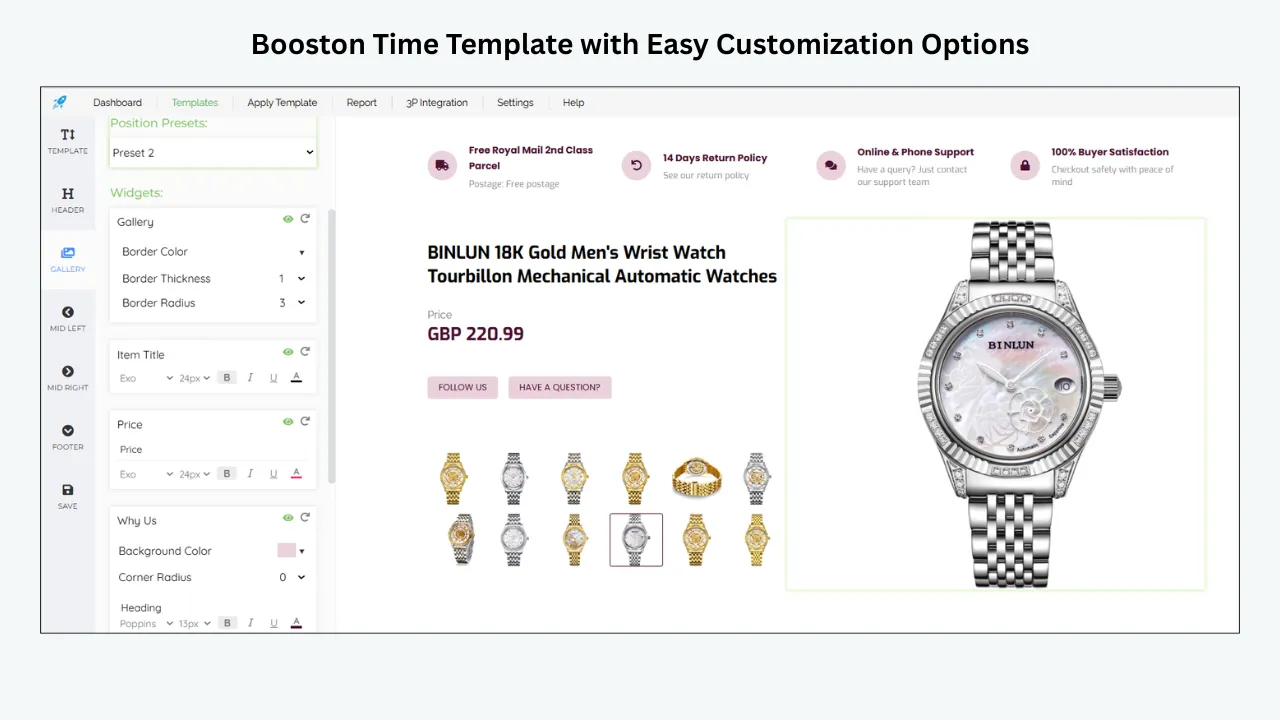
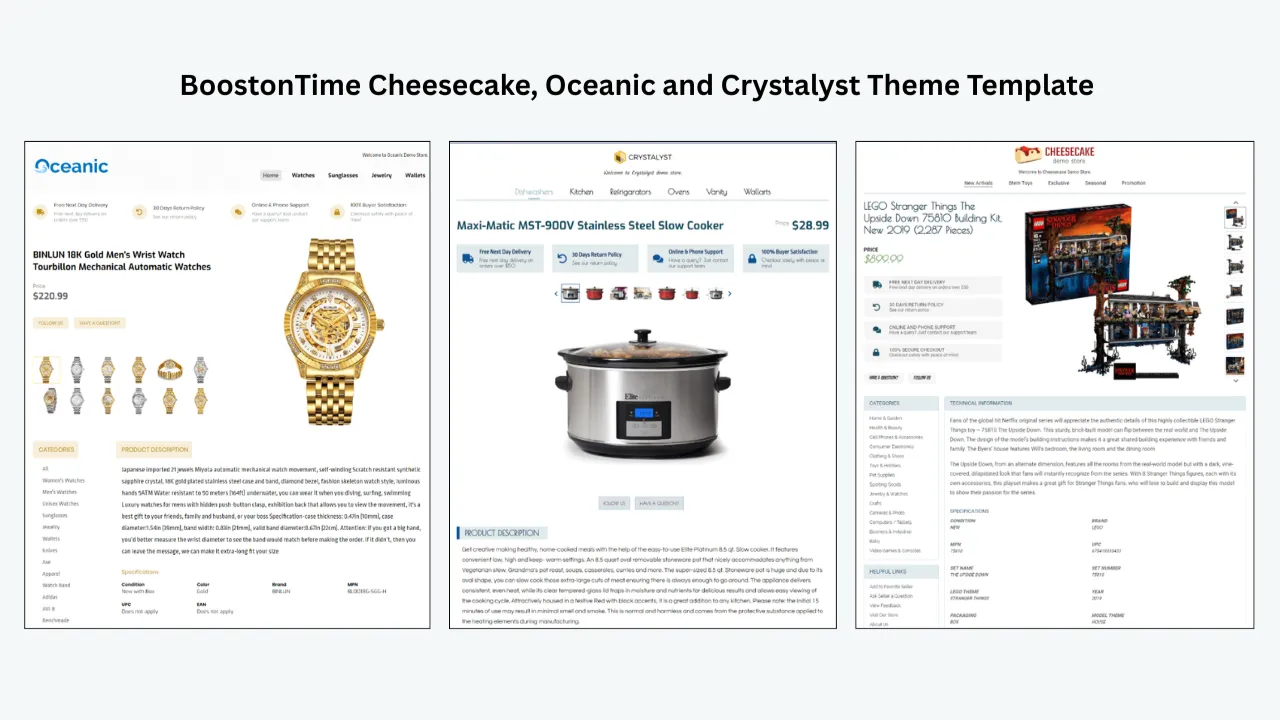
Start with Cheesecake, Oceanic or Crystalyst and select the layout that best supports the category’s information. The visual choice should follow the content. A technical listing may need strong specifications; a visual product may give more space to the gallery.
Configure the Core Modules First
Set up Logo, Title and Price, Gallery, Descriptions, Specifications and Policy Tabs before adding cross promotion. Confirm that the primary listing is complete and readable. Disable modules that add no useful information.
Configure Related Products
Choose manual products where precision matters. If you use random catalogue items, define a narrow enough product group that any selection remains relevant. Check product images, titles, prices and destination listings.
Add Supporting Navigation
Use Categories or Header Menu links for buyers who want a broader range. Add one banner only when it clarifies the collection or campaign. Keep labels short and avoid repeating the same destination in several modules.
Preview on Different Screens
Inspect the template on desktop, tablet and phone widths. Check the order, image size, heading clarity, link targets and amount of scrolling. Test long titles and products with many photographs because they reveal layout stress.
Apply a Controlled Pilot
Use Batch Revision on a small group of representative listings. Include at least one long description, one low-image listing and one product with complex specifications. Open the live listings and confirm that the recommendations remain correct.
Expand and Monitor
After the pilot passes, apply the template to the selected listing group. Record the template version, affected listings and review date. Monitor stock, recommendation accuracy, buyer questions and performance indicators. Revise the relationship map when products change.
Use Multiple Templates for Different Recommendation Rules
One recommendation strategy rarely suits an entire eBay store. A seller may have electronics, spare parts and collectibles under one account. Even within one category, high-value items may need a more restrained design than everyday accessories.
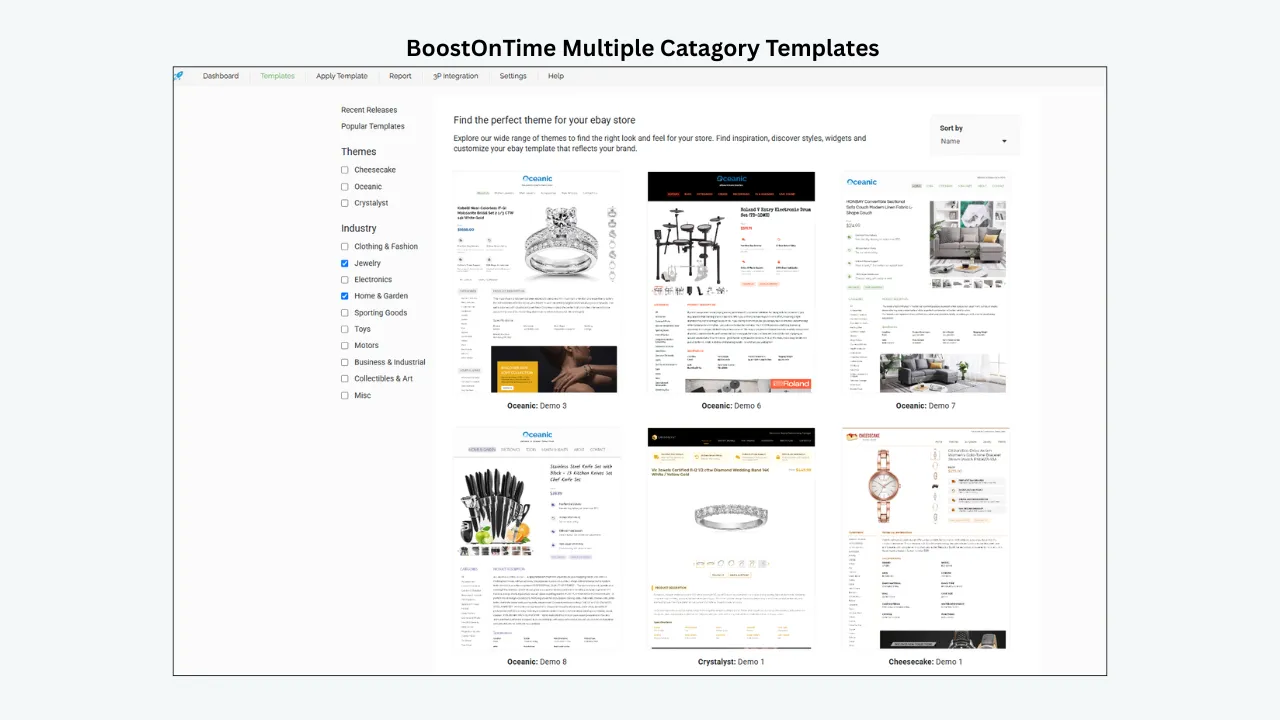
BoostOnTime lets subscribers create multiple templates. Use that capability to separate recommendation rules, not simply to create cosmetic variations. You might maintain:
- A compatibility-controlled template with manually selected accessories
- A collection template for visually coordinated items
- An alternatives template for colour, size or price comparisons
- A campaign template for seasonal combinations
- An evergreen template with a conservative recommendation set
Name each template clearly and record its purpose. Include the category, campaign and approval date. Clear names reduce the chance that a seasonal or category-specific layout is applied to the wrong listing group.
Cross Promotion and Promotional Offers
Related products can support a genuine eBay discount, but the two functions should not be confused. eBay’s Seller Hub Discounts tools create and manage eligible offers, coupons, sale events and other discount types. The template can display a matching message and guide buyers toward relevant products. It does not create the checkout rule by itself.
For example, a seller might create an eligible order discount for selected accessories through eBay and use a BoostOnTime banner to explain the campaign inside the relevant templates. The Related Products module could then show suitable items. The offer, listing eligibility, budget, dates and redemption remain controlled through eBay.
Synchronize the message. If the eBay offer expires, remove or replace the template banner. If a related item is not eligible, do not imply that it is. A simple campaign register with start date, end date, eligible listing group and template name prevents most mistakes.
Mobile Design Rules for Related Products
Mobile buyers see less at one time, so priority matters more than decoration. Keep product cards large enough to recognize. Avoid long labels that wrap into several lines. Make the recommendation heading explain the relationship. Confirm that columns stack in a sensible order.
Do not add so many modules above Related Products that the section becomes unreachable, but do not pull it ahead of critical specifications. There is no ideal position measured in pixels because listing content varies. The correct position is after the buyer has enough evidence to understand the main offer.
Test touch targets and destinations. A buyer should not tap one product and land on another. Check sold-out items and ended listings regularly. If the page includes banners, confirm that their text remains readable without zooming.
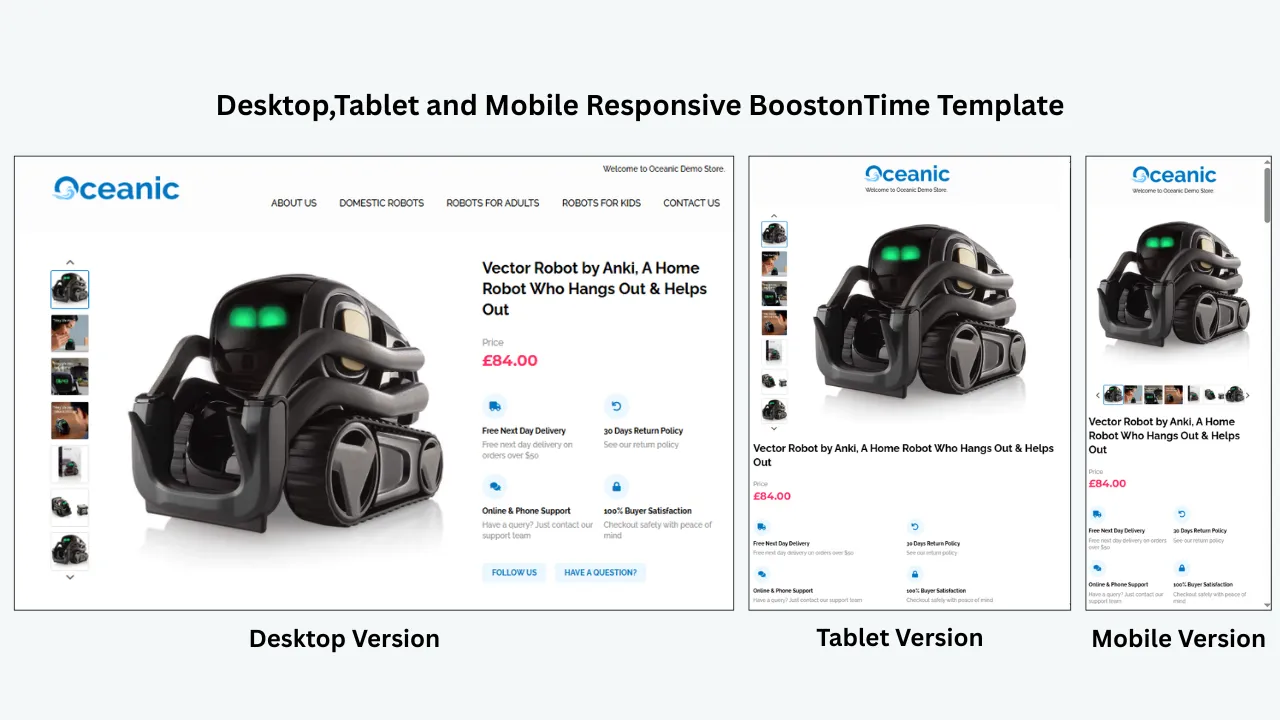
Responsive design is one of BoostOnTime’s practical strengths. ETB templates are designed for mobile and tablet use and include preview capability. Sellers should still test real listings because product content, image shapes and title lengths differ from previews.
Avoid These Common Cross Promotion Mistakes
Promoting unrelated inventory
Randomness is not a merchandising strategy. If a catalogue covers unrelated categories, use manual selection or narrow groups. An irrelevant recommendation tells the buyer that the section is automated without judgment.
Hiding the main product
Large banners, multiple menus and an early recommendation row can make the listing feel like a store page. Keep the current product dominant.
Claiming compatibility without evidence
This is especially risky in electronics, tools and automotive parts. Use exact specifications and documented fitment. When uncertain, link to a category rather than a specific item.
Recommending what is already included
Read the package contents. Promoting a cable, case or accessory that already comes with the product can confuse buyers and lead to unnecessary purchases.
Leaving ended listings in the section
Recommendations require maintenance. Replace products that have ended, sold out or changed specification. Dynamic information reduces manual duplication but does not remove the seller’s responsibility to review relevance.
Showing too many choices
A long grid can weaken attention and extend mobile scrolling. Present a short set with distinct reasons to exist, then use Categories for broader exploration.
Using false urgency
Do not label a recommendation limited, ending soon or discounted unless the statement is accurate and current. Trust is more valuable than a click created by a misleading claim.
Measure Whether the Template Is Helping
Start with a baseline for a representative listing group. Record listing views, sales, buyer questions, returns caused by misunderstanding, time spent maintaining the listing and any available engagement data. If you can track visits to related items through your available eBay reporting, include them.
Apply the new template to a pilot group while leaving a comparable group unchanged where practical. Keep price, advertising and shipping conditions stable enough to make the comparison useful. Note any seasonal demand, stock changes or external campaigns.
Do not treat correlation as proof. A sales increase may come from price, demand, advertising or inventory rather than the template. Look for a consistent pattern across several indicators. Fewer compatibility questions, more views across a product family and lower maintenance time may be meaningful even when order size is unchanged.
Useful measures include:
- Views of the main and related listings
- Sales conversion where available
- Units per order where the reporting supports it
- Buyer questions about compatibility or included components
- Returns linked to choosing the wrong product
- Time needed to update recommendations
- Ended or unavailable links found during audits
- Mobile issues discovered during quality checks
Decide the review period before launch. A week may be enough to find broken paths, while commercial performance often needs a longer window. Record the decision to keep, revise or remove each recommendation group.
Comparing Ways to Add Related Products
| Approach | Main Advantage | Main Limitation | Best Suited To |
|---|---|---|---|
| BoostOnTime ETB | Related Products, dynamic supported data, responsive modules and Batch Revision in one focused workflow | Seller must plan and maintain relevance | Sellers wanting scalable branded cross promotion |
| Native eBay discovery | Built into the marketplace experience | Seller has limited control over the exact presentation | Every seller as a useful baseline |
| Static HTML template | Full control for someone who can code and maintain it | Repeated edits, hosting and policy maintenance can be demanding | Technical sellers with a narrow catalogue |
| Broad seller suite | Templates may sit beside other management tools | More features, setup and cost than a focused template need may require | Sellers seeking wider operational software |
| Managed custom design | Professional bespoke execution | Higher cost and reliance on the provider for revisions | Larger brands with design budgets |
The best option is the one the seller can keep accurate. A sophisticated recommendation system that is rarely reviewed is less useful than a simple row of verified products. BoostOnTime balances control with repeatability: it gives sellers a modular template, supported dynamic content, multiple templates and bulk application without requiring them to maintain individual HTML files.
Why Choose BoostOnTime ETB
Once the catalogue relationships are clear, BoostOnTime turns the plan into a repeatable listing system. The value comes from the combination of features rather than one isolated module.
ETB offers more than 20 customizable modules, including Related Products, Categories, Banners, Header Menu, Gallery, Descriptions, Specifications, Policy Tabs, Feedbacks and Footer. Product titles, prices, currencies, images and supported related-product information can be collected dynamically when the template is applied. Shared store elements can remain consistent across many listings.
Multiple templates let you serve different categories and recommendation models. Batch Revision lets you apply a finished template to one listing or a selected group. There is no stated limit on the number of active listings you can update through the subscription. Templates are responsive, support preview and work across 19 eBay sites as described on our product pages.
Pricing is straightforward. The monthly plan is $6.99 per month. The annual plan is $59.88 per year, equivalent to $4.99 per month. Sellers can create multiple templates and update unlimited listings. A seven-day trial lets you test the workflow with real catalogue examples before subscribing, and there is no contract.
Use the trial as a merchandising test, not a design tour. Select one product family, build a small relationship map, configure the Related Products module, preview the mobile layout and apply it to a controlled set. You will learn more from five carefully chosen listings than from browsing dozens of themes without publishing one.
A Seven Day Cross Promotion Trial Plan
Audit One Product Family
Choose a category with enough related inventory to test. Review product facts, images, stock and listing status. Write the buyer’s likely next question.
Map the Relationships
Identify complements, upgrades, alternatives and collection items. Verify compatibility and remove weak connections. Decide which products must be selected manually.
Build the Template Foundation
Choose a responsive ETB theme and configure the main product modules. Keep the design simple and place the primary product first.
Add Cross Promotion
Configure Related Products, Categories and any necessary Header Menu link. Add one supporting banner only if it clarifies the campaign or collection.
Preview and Test
Check desktop, tablet and mobile layouts. Open every destination. Review the template with your longest title and most complex specification set.
Apply a Pilot
Use Batch Revision on a small listing group. Inspect the live output, confirm prices and product destinations, and ask someone unfamiliar with the catalogue whether the relationships make sense.
Decide With Evidence
Record the issues, corrections and maintenance effort. Decide whether to expand, refine or simplify the design. Save an approved version and set the next review date.
Frequently Asked Questions
Cross promotion presents another relevant product to a buyer who is viewing a listing. The promoted item may be a complement, upgrade, alternative, replenishment product or part of the same collection.
Yes. BoostOnTime ETB includes a customizable Related Products module. Supported related-product details and pricing can populate when the template is applied.
Yes. BoostOnTime allows manual product selection for customized upselling. It also offers random product selection from the seller’s catalogue.
Manual selection is better when compatibility, brand fit, margin or campaign relevance matters. Random selection can suit a narrow catalogue where almost every item is relevant to the same buyer.
Use the smallest group that provides meaningful choice and remains clear on mobile. Every product should have a distinct reason to appear.
Place the section after the main product information, essential specifications and any critical compatibility details. The buyer should understand the current item before seeing alternatives.
No. It can improve discovery and make navigation easier, but results also depend on demand, relevance, price, stock, photographs, shipping, seller reputation and the quality of each destination listing.
It can support a genuine discount created through eligible eBay tools. The template may explain the offer and show relevant items, but the eBay promotion controls eligibility and checkout redemption.
Yes. BoostOnTime supports multiple templates, so sellers can create different module arrangements and recommendation strategies for separate product lines.
BoostOnTime can collect supported titles, prices, currencies, images, descriptions, item specifics, store categories and related-product information from existing eBay listings. Review the source data before applying the template.
Yes. Batch Revision can apply a template to an individual listing or selected listing groups. Start with a pilot before expanding the update.
Yes. ETB templates are designed for mobile devices and tablets and include preview. Sellers should still inspect live listings on actual screens.
Review and replace ended or unavailable recommendations. Dynamic population helps maintain displayed information, but the seller remains responsible for the relevance and availability of the merchandise strategy.
Yes, but only with verified fitment and compatibility. Use manual selection and precise specifications. Do not infer compatibility from appearance.
At the time of publication, ETB costs $6.99 monthly or $59.88 yearly, equivalent to $4.99 per month. Pricing can change, so check the current product page before publishing or subscribing.
Yes. BoostOnTime offers a seven-day trial so sellers can build, preview and test the template workflow with their own listings.
Make Every Recommendation Earn Its Place
Effective cross promotion begins with a clear buyer relationship. The seller identifies the useful next choice, verifies the product connection and places the recommendation where it supports rather than interrupts the main decision. That logic matters more than the number of products displayed.
BoostOnTime ETB gives you the tools to turn that logic into a consistent system. Use Related Products for a focused set of complements or alternatives. Use Categories and Header Menu for broader exploration. Keep Descriptions and Specifications accurate, use Banners only for a genuine message, and protect the mobile reading order. Multiple templates and Batch Revision make it practical to apply different strategies across selected listing groups.
Start small. Choose one product family, manually select a few relevant items and test the complete path from the main listing to each recommendation. If the buyer can understand the relationship quickly and reach another accurate listing without confusion, the template is doing useful merchandising work.
A Final Publishing Checklist
Before expanding the template across the catalogue, open each pilot listing as a buyer would. Confirm that the primary title, price and product images appear before the recommendation area. Read the description without relying on internal product knowledge. If the listing does not explain condition, compatibility or included components on its own, fix that gap first.
Next, review every promoted item. Ask why it belongs, whether it is available and whether its own listing is ready to receive traffic. Check model numbers, sizes, materials, colours and package contents. Make sure the image and displayed price identify the same product reached by the link. Replace any item that needs a long explanation to justify its presence.
Then inspect the mobile layout. The cards should remain recognizable, headings should explain the relationship and buttons or links should be easy to select. Remove banners or navigation elements that repeat the same message. A shorter path usually gives the buyer a clearer choice.
Finally, document the operational details. Record the template name, listing group, recommendation rule, reviewer and next audit date. If a promotion supports the products, record its exact eligibility and end date separately. Keep an evergreen template available in case the campaign ends or the related group needs to be withdrawn.
This final review protects the quality of a bulk update. Batch Revision makes application efficient, but efficiency increases the importance of approving the source design. Once the pilot is accurate, the same structure can be extended with confidence. When the catalogue changes, return to the relationship map, update the affected products and test again. Cross promotion remains useful when it is treated as maintained product information rather than permanent decoration.
Ask one colleague who does not manage the catalogue to complete the same review. Fresh eyes often reveal a confusing relationship, repeated message, unclear label or mobile obstacle that routine internal checks have started to overlook entirely.
Start your seven-day BoostOnTime ETB trial and build a responsive related-product template with your own catalogue.
🚀 Start Your Seven-Day BoostOnTime ETB Trial
boostontime.com/ebay-template-builder